Enjoying this issue?
Get tomorrow's AI & engineering digest in your inbox — hand-picked, summarized, and always spam-free.
TLDR
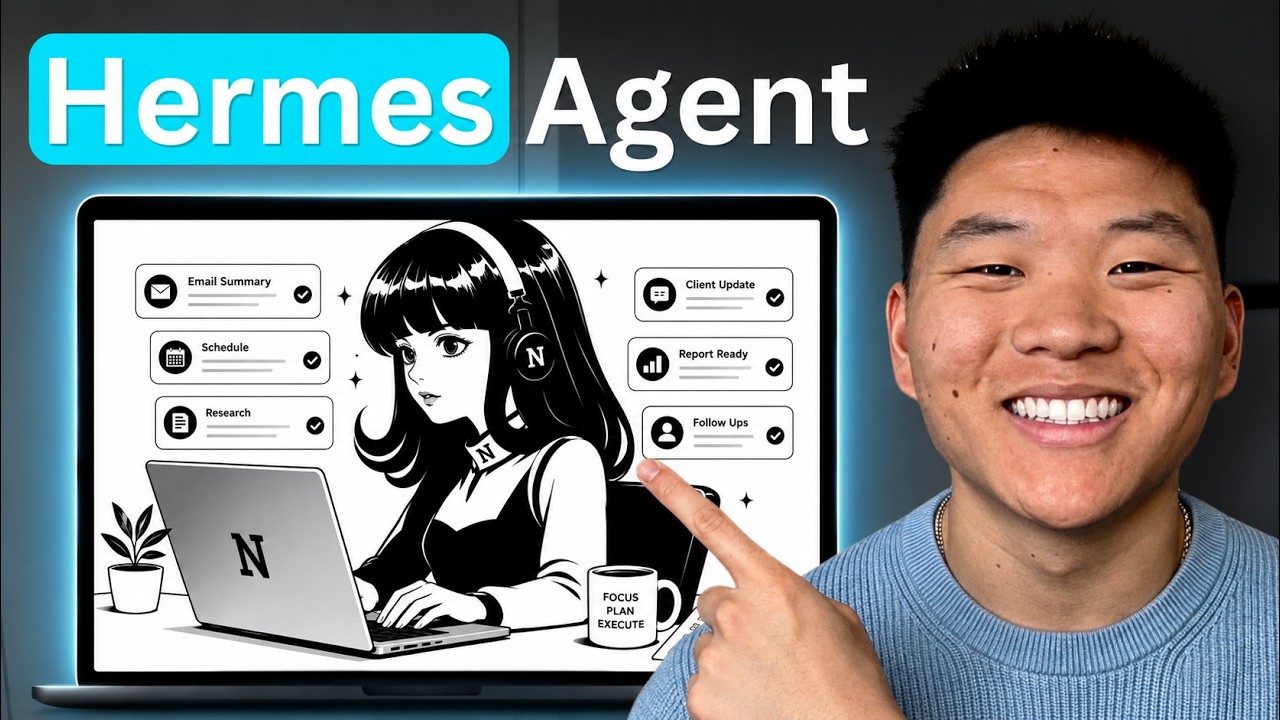
Hostinger now offers a managed Hermes agent that costs about $6/month and requires no VPS, Docker, SSH, or ENV files. The setup takes roughly 14 minutes and connects to a ChatGPT subscription via Codex, then to Telegram for mobile access. For most users, this is a simpler and cheaper alternative to running Hermes on a VPS.
Key points
The managed Hermes agent on Hostinger costs about $6/month and requires no server maintenance. It includes pre-wired Telegram and CLI access without Docker or SSH.
Setup involves creating a Hostinger account, selecting Hermes Agent, and connecting it to a ChatGPT subscription via Codex. Telegram integration uses BotFather to create a bot and link it to the agent.
The dashboard allows adding skills via YAML front matter and managing environment variables like Tavily API keys. Restarting the agent may be needed for new keys to take effect.
Tools mentioned
Techniques
- Managed agent setup
- Skill addition via YAML front matter
- Environment variable configuration
Stop scrolling. Start reading smarter.
Receive the day's most important AI & engineering updates in one concise email. No spam.
Transcript (captions)
So, Hermes's agents are great because it kind of feels like you have Claude code or Codex right in your pocket at all times. But, if you've ever tried to set one up before or you're intimidated to
because you're worried about like the local setup or buying a VPS, then this video is for you because I'm going to show you how simple and easy this is with a managed Hermes's agent that you
can get up and running by the end of this video. So, let's not waste any time and just get straight into this one. Okay, so real quick, I just want to cover what the difference is between a
managed agent and a VPS Hermes's agent. So, if you don't care about this, then just go ahead and skip past this part of the video. So, at a glance, here are some of the quick hitters. The managed
Hermes's starting off at about six bucks a month while the VPS can start off a little bit more than that. So, they're kind of the same price, but the managed is like slightly cheaper. There's also
no server to buy or maintain on this side, whereas on the VPS you are buying and maintaining a server. It's still a relatively easy setup. It's still a one-click install, but there is more
setup required. If you guys are interested in this version, then I have a video which I will tag right up here where I did it on a VPS. The setup is a lot more guided. It's a lot less
intimidating, even though this still is pretty easy, but there definitely is more to configure and kind of like more to remember cuz on this side you don't have any Docker, no SSH, no ENV files,
whereas this side you do, but it's still kind of builds you the container and the traffic. So, it's still not like you have to be super technical. You have full root access over here, full control
over a lot of the config and anything else that you want on your server, whereas that's pretty much handled over here and you just have one managed agent in a box essentially. You've got
Telegram pre-wired over here. You still get CLI access, and on the other side you have to set that up yourself. And you still own things like updates and backups and firewall rules and container
health, but you don't have any extra cost really beyond the VPS, but you can also scale up the VPS later. Because really a VPS is not just for Hermes's. It's basically a private server, which
you could scale up with more compute, more RAM. You could put other things in there. So, you can have a bunch of Hermes's agents in one VPS. You can have N8N in there. You can have a bunch of
other things inside of this box, whereas with managed, you're basically just spinning up a new app every single time. You just get more flexibility with the VPS, but if you're not looking to be
scaling up a server with tons of different things on it, then just start with a managed agent. It's easier and it's simple and it really will suffice for probably like 98% of you guys out
there. But now that we're ready to actually get this set up, all you have to do is go to Hostinger. Go to hostinger.com, create an account, and then when you're in sort of your HPanel
is what it's called, it will look like this. So, on the left-hand side you can see you can do things on Hostinger like websites, domains, emails, building sites. And in the past I've shown some
methods of, you know, setting up a VPS and putting something on that like N8N and Hermes Agent and Open Claw and other things like that. But today I want to show you guys a method that's so much
simpler and it's actually cheaper. All you have to do is come on the left-hand side and you'll see AI Agents. We can see Open Claw, Hermes, and N8N. So, obviously today we're going to click on
Hermes Agent. You can see that I have two AI automation apps in here and these are both Hermes Agents. If I wanted to spin up Open Claw or N8N, I could do so right here as well, but we're going to
click on Hermes Agent. We're going to click up top and go to get new app. And then all I have to do is click on get started for the Hermes Agent. And we're going to go ahead and choose the plan
that we want for this Hermes Agent. If you want to include AI credits, you can, but I would just turn that off. I don't think you're going to use those. You could also get 1,000 free web scraping
credits if you'd like and you can also get Agentic Mail. So, you can basically have an email address for your AI Agent. You could do this through Hostinger or you could also do this through something
like Agent Mail. And by the way, if you use the link in the description, you can actually get taken to this landing page that will help you set up your Hermes Agent automation managed app and you can
use coupon code Nate Herc to get 10% off if you're on a yearly plan. So, that has to be the 12-month or the 24-month, but you can use code Nate Herc here. It's the exact same product, it's just a
different way to get there. So, make sure you use the link in the description and use the coupon code Nate Herc. And now this is going to take like a minute to get set up and then we're basically
there already. Okay, so now we have to basically choose the model. So, Hermes Agent is essentially the harness that wraps around some sort of AI model, whether that be Clawd or GPT or Gemini
or whatever you want to use. So, you can click through here and insert an API key. But, what I think you should do is use your ChatGPT subscription because you're going to get way more inference.
It's going to be way cheaper. So, you can actually just check the box right there and hit continue and it makes it super easy. And now all you have to do is go to this link, sign into your
ChatGPT account, copy in this code, and then now your Hermes agent will be powered by your ChatGPT subscription. So, there we go. It said that I signed into Codex. I can close the page, and
then this is going to take like 10 seconds to register. There you go. Connected successfully. And now the next step is we need to connect this to Telegram. So, go ahead and get Telegram
if you don't have it already, and then we'll go ahead and get this set up. Okay, so this is going to be so simple as you can see. All we have to do first is we have to go in here and search for
the BotFather, which basically helps us actually set up different agents. You can see that I've made some over here. Now, what we have to do in here is do a {slash} new bot command, which helps us
create a new bot. So, I'm just going to go ahead and call this one managed Hermes demo and hit enter. And now we have to choose a username, and this is what has to actually be completely
unique and it has to end in bot. So, I'm just going to go ahead and see if we need to do managed Hermes demo bot and see if that works. Cool. So, now my agent is basically registered here.
You will find it at this address. You have this access token, which is what you have to copy. And over here in Hostinger, you're going to paste that access token in and then hit continue.
And then your next step is to get your Telegram user ID. So, you're going to come back into Telegram. You're going to search for user info bot. And once you do a {slash} start in here to the user
info bot, it'll show you your ID, which will be right there. You'll click on that to copy it, and then you'll paste that over here in Telegram and then hit continue. And now you guys can see we're
basically like done. We basically just have to go to the bot. We have to activate it and start chatting with it. So, I'm going to go back up here to my BotFather actually, and then I can click
right here on the name of the agent that we built, and then it'll take us into the chat window with this new agent. I can hit start, and this is going to pretty much start the activation
process. Now, it's a little confusing. You can see here if I type in hello, it's not actually going to register anything. Um, I actually I guess I cut off the screen,
but normally it will say typing up here, but we don't see that coming because we haven't yet finished the setup. So, don't get confused. Don't feel like you did anything wrong if you are starting
to freak out right here. As you can see, even when I send another message, nothing happens. So, we're going to come over here to the left-hand side and hit finish setup. And then we have to
actually choose the AI model to use. So, that's what basically is going to happen right here. It's going to apply these settings and then we choose the AI model within ChatGPT that we want to use. So,
this is where we do that. You can see obviously it says that we can change this at any time from the dashboard if we want to. And because we used our OpenAI subscription, our Codex
subscription, we're obviously only going to right now be choosing from GPT models. So, right now I'll just stick with Soul. I'll hit continue and this will actually say that we're all done.
And what we're going to do now is click on open app, which is going to open up this little like dashboard. It's a Hostingar dashboard, but it's a Hermes dashboard. So, we can control a lot of
stuff here. We can come in here and say hello. And now you can see that we're actually able to talk to our Hermes because we've fully set up. We've connected to ChatGPT 5.6 Soul and this
should come back right here. And now you can see if I go back over here to Telegram and I actually go ahead and say hello, now it should be able to see this. You can see up top it says typing,
which I actually cut out. Sorry about that. But now it should be able to spawn right here. It says, "Hello. How can I help you?" And so now you can see that we started two different threads. We
have one here in the dashboard. We have one here in Telegram. And we can actually see that. This one right here says, "Hello and help offer." This one shows that this is from Telegram. So, if
I say something else back here like, "I am Nate." This doesn't get sent over to Telegram, but if I come over here and say, "I am Nate." This should sync over once again to this side because it's a
Telegram chat. As you can see, it popped over. It said, "I am Nate." And it said, "Yes, you're Nate." So, now you can kind of control what channel are you speaking through? Here's Telegram as you can see.
And then here is basically just communicating through the dashboard. And then of course, all of this syncs to your phone. So, right here you can see that this is the exact thread that I'm
on. And if I actually pull up my Telegram real quick again right here, and I say "Hey, now I'm on my phone." It should be able to pop up right there, and you guys
can see that now I have my Hermes agent in my pocket, but I also have it on my computer here. So, anyways, what actually is this dashboard? So, you can see here that we can have tasks. So, we
can actually create scheduled jobs, and we can manage them here. So, very similar to routines that you might create in something like Claude or Grokbot or Codex. We also over here have
a Kanban. So, as we have the agent or a bunch of different sub-agents doing things, it can actually start to create tasks on here, and we can see who it's assigned to, and we can see where the
status of everything actually lives. So, if you guys have ever done the Hermes dashboard before, it's kind of like this, but this is basically just hosted on Hostinger. We can also start to add
in some skills here. So, there's a bunch of skills that already come in here that we can go ahead and turn on or off. We have Claude Code, we have Codex, we have computer use, we have creative skills,
we have email, GitHub, media, and of course, you can go ahead and add your own skills by basically just putting in the name, giving it a category, and then you can paste in the YAML front matter.
So, let's say for example, I wanted to go to my Claude folder of all of my skills, right? And maybe I want to use this like Excalidraw diagram skill. I would basically just open this up real
quick. This comes through like here. I would copy this all, and then I could just paste it right in there as it shows there, and then I can just call this whatever I need to, which
would be Excalidraw diagram skill, and then go ahead and add that as a skill. And you can see the metadata is basically the YAML front matter, which is the name and when to actually use the
skill. We also have the memory, so we can start to have notes on things that we add. We can have a user profile, we can have an agent soul, and we can have the project context. We have different
spaces, we have our own profiles. So, as you can see, basically everything can be managed right here inside of this little dashboard, and then you can just take it to go on your Telegram whenever you need
to. So, what does this look like on the HPanel? So, what you do is you come over here to your Hermes agents. You can see all of the different apps that you have up and running, and here's where you can
actually go in and manage them. So, for example, if I went into this one that we just created, and we wanted to add in some API keys, what we would do is come in here to environment, and we would
start to add them in here. So, let's say we wanted our Hermes agent to be able to use something like Tavily. Can you go ahead and try to use Tavily to help me do some research?
I want you to look up voice AI agents. Now, obviously, it's not going to be able to use Tavily because we haven't yet given it any sort of credential, but it's going to first do research to see
how that actually works because, of course, Hermes can search the web on its own. So, here's what it tells us. I tried, but Tavily is not currently available because there's no Tavily API
key. So, what you want to do is go to your HPanel, go to the dashboard, and add this environment variable, which is your Tavily API key, and then add in the key. So, I'm going to copy this. I'm
going to go over to our HPanel in our environment variable section and add one. I'm going to paste in what it told me to call it, and then for the value, we have to go grab that key. So, for
example, with Tavily, I'd go over here. I would grab this API key. I would hit copy, go back into my environment variables, paste that in, and hit add. And then we're going to have to apply
changes and make sure that that saves. Now, as that saves, it basically has to like reset the dashboard. So, if I come back into here, and I go ahead and refresh, it's not going to let us in
right away because it had to reset the environment so that the key actually applies. So, all you have to do to get your password is go back into the Hermes dashboard, you click on this button
dashboard, you copy your password, go back into this page, paste that in, hit okay, log in, and then you're basically back exactly where you were, and your chats are saved.
And now, Hey, so I just added my Tavily API key into the environment variables. Can you go ahead and just try to run that search again on Tavily and tell me the sources
that you pulled from? And so, as you can see, I didn't give it context on like what I wanted it to search for because, even though we like reset it, it still has all of this context. It still can
see this whole conversation window. I'll verify that the key is visible, then I'll run a Tavily search for current voice AI agent landscape. Although, right here it says the Tavily API key is
not visible. So, sometimes this happens. Most of the time what I just did exactly will work. But hey, if it says that it's not visible, all you have to do is restart it real quick. So, please
restart the Hermes agent from the H panel and then try again. So, same process. We'll go back into the dashboard. We'll click on this restart button right here in the dashboard and
hit restart. And then once again, it's just going to make you log in again. So, this is going to start up. You might as well copy the password real quick. Now it says that it's running. I'll click on
open app. That actually saved our login that time, so we didn't have to log in. Most of the time you will, so just be ready for that. And now I'm just going to come in here and say try again. And
now you can see I came back in here. I asked it to try again and then it comes back with research and has sources. And if I go over to my Tavily, you can see that we were at zero out of 1,000
credits and now that search used up five just to prove that it was actually using our Tavily account. But now you're pretty much off to the races. You have Hermes agent set up and that was super
quick and super easy. What I would recommend doing now is I would go to my free school community and grab this skill called the grill me. So, you can get this in my free school community.
Link's in the description. And basically, this grill me skill just helps agents interview you to get to know more about you. Because the first thing that I want to do with my Hermes
agents when I get them set up is make sure they have all the context about me. So, if you already have like an AI operating system and you have that backed up to GitHub, then just give your
Hermes agent that and say, "Hey, read through this GitHub repo. This is our file structure. This is my projects, my business context and just get to know me a little bit." But if you don't have any
of that or if you want to make it better, then go ahead and add the grill me skill. So, as you guys saw, we just did this earlier. I would go to skills. I would go ahead and add one. I've got
my grill me skill right here, which I will copy and just paste all of that in there and call this the grill-me and go ahead and add that skill. And now I'll just go back to the chat and say,
"Hey, so I want you to get to know more about me and my business and my goals so you can help me out as best as possible. Use the grill me skill on me to help figure out what I do." Okay, Okay, that
accidentally got dictated as grooming. So, I need to annunciate better. I'm going to change this to grill me and send that edit and now it should be able to find that. And if you guys have
already been using Cloud Code and stuff, you can see that this is very similar. The way that it like thinks and the way that it shows you what it's doing, that's what I love about working with
these systems, especially in Telegram, too. It will show you sort of like that chain of thought. So, here you can see that it located the grill me skill and it started a new project called
brainstorm. So, it's going to keep all of the data that we're talking about right now. It's going to save that to its memory. So, every time you do a grill me, it's going to get better and
smarter. Anyways, you guys are now set up and off to the races. Please let me know what else you guys want to see about Hermes. I wanted to keep this one quick and I wanted to keep it about a
setup. But, if you want to see some deeper dives on different ways to set them up and different ways to get the most out of it, then please let me know in the comments what you guys want to
see. But, that's going to do it for today. So, if you guys enjoyed or you learned something new, please give it a like. It definitely helps me out a ton. And as always, I appreciate you guys
making it to the end of the video and I'll see you on the next one. Thanks, everyone.