Enjoying this issue?
Get tomorrow's AI & engineering digest in your inbox — hand-picked, summarized, and always spam-free.
TLDR
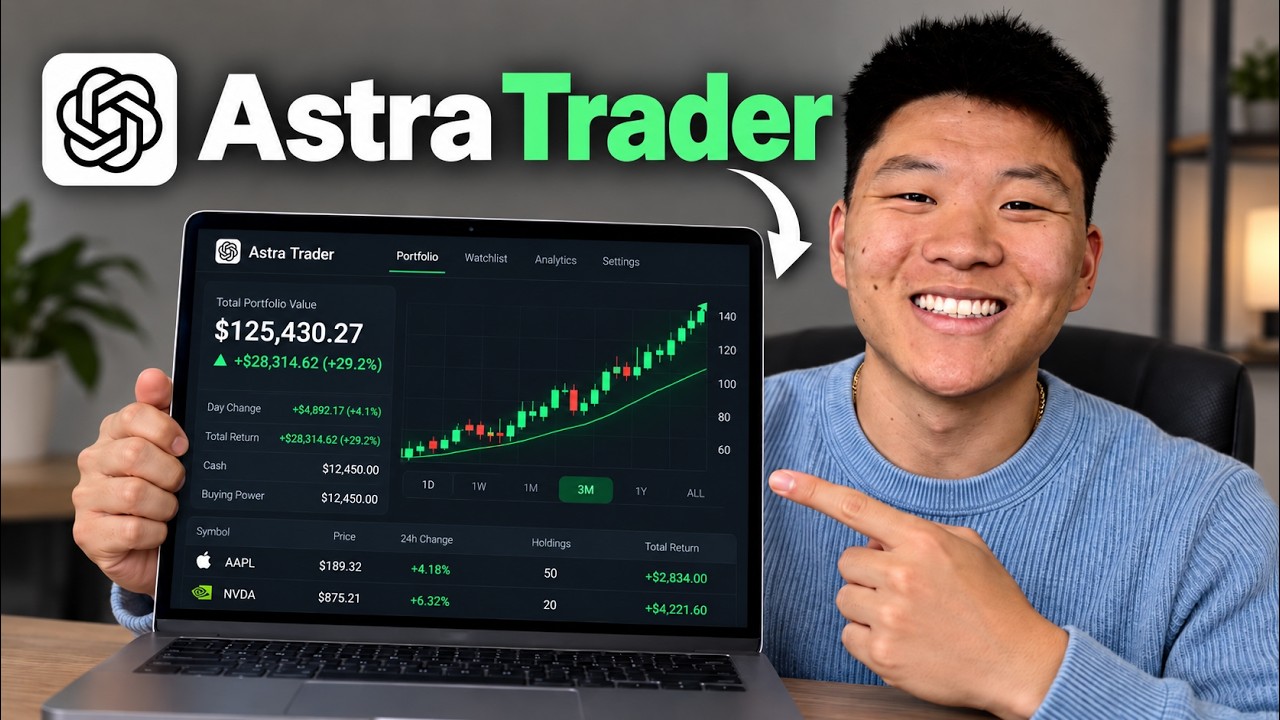
GPT-6 Astra can be turned into a 24/7 stock trader by setting up scheduled tasks in Codex that connect to Alpaca for trading, with continuity maintained through progress logs and handoff messages between stateless agent wakeups. The presenter demonstrates a 7-day challenge with $10,000 real money, using six daily wakeups at specific market times, and shows how to isolate the trading project to avoid context pollution. The real innovation is the handoff system that makes multiple stateless runs feel like one continuous agent.
Key points
The presenter previously beat the S&P by 8% in a month using Claude for trading.
GPT-6 Astra is set up with six scheduled wakeups per trading day for a 7-day challenge.
Continuity between stateless agent runs is achieved via progress logs and handoff messages.
Alpaca API keys are stored in a .env file and used for real trading with $10,000.
Notifications are sent to ClickUp twice daily to report trading activity and status.
Tools mentioned
Techniques
- Scheduled tasks for stateless agent wakeups
- Continuity via progress logs and handoff messages
- Project isolation to avoid context pollution
Stop scrolling. Start reading smarter.
Receive the day's most important AI & engineering updates in one concise email. No spam.
Transcript (captions)
So, I recently did a trading challenge where I gave Claude $10,000 of my real money to trade stocks. And at the end of the month, I was actually beating the S&P by a little over 8%, which I was
pretty impressed by. And now that GBT6 Astra is out and it's even more powerful, I'm going to do the exact same thing. So, before I kick off that $10,000 challenge, I wanted to actually
just show you guys how I'm getting this all set up so that you can replicate this if you want to turn Astra into a 24/7 trader for you. So, let's not waste any time and just get straight into this
one. All right, so before we get started, I just want to say this is not financial advice. I'm not recommending you give an agent $10,000 to trade. I'm recommending that maybe you start with
paper trading, you get a strategy that you like, and then you automate some of that. Or if you're already consistently trading every day and every week, then maybe just see if you can use AI to help
you get more updates or to help you keep an eye on things so that you're not having to like pocket watch different stocks or something like that. But anyways, let's just jump in here and let
me show you how simple this is to set up. So right here where I'm at is I'm about to set up all of the automatic routines so that this thing can run without me. So, I wanted to show you
guys, I asked right now in as simple terms as possible, explain our strategy and what we're going to do. So, here's what Astra came back with. We built the strategy around three constraints.
$10,000, seven trading days, and we're doing six wakeups or six checks per day. So, what I started off with was I literally was just having a conversation with Astra. I was saying, "Hey, I have
this challenge. I want to take, you know, a new strategy, so it's a little bit more risky. I have seven days to try to make money." And I asked it to just do a bunch of research. So, it fanned
out like 10 sub agents, and it researched a ton of stuff. As you can see, we've got this big dock where we talk about the strategy and it consolidated a bunch of research
information. Now, this is where I see there being sort of two paths. You have the path where you don't really have a trading strategy and you're wanting to sort of outsource that research and
thinking to AI agents or you've got the path where you are consistently trading every day and you want to just help yourself be able to move faster or not, you know, forget things. So, in this
case, what I did is I wanted to outsource that thinking and I wanted to have Astra come up with a strategy. I'm basically just helping guide it. And what it came up with is this schedule.
So 7:45 a.m. Central, we're going to read the news, check the account, and choose stocks to watch. So, let me just pull up a little calendar here to show you guys what that actually looks like.
Here's the first time that Ash is going to wake up on trading days about 7:45, and it's going to read the news, check the account, and choose what stocks to watch. Now, this is where I would say if
you are someone who's consistently trading, think about your day like this, you know, market open, market close, what do you do? Maybe before the market opens, do you look at some stuff? Maybe
an hour in, do you look at some stuff? you know, maybe before close, do you look at some stuff? And just sort of put yourself on this like 1-day calendar because then you can just basically make
agents to do those things at those times to help you out a little bit. But anyways, let me just keep going here with the proposed plan from Codeex. At 9:30 a.m., it's going to look for the
first qualifying trade. So now we have agent wake up number two. At 11:00 a.m., it's going to review positions and consider the last new trade. At 1 p.m., it's going to manage existing positions.
At 2:15, we're going to close out the remaining positions. And so it's kind of taking more of a day trading strategy rather than a long-term trading strategy. And then at 245, right before
a close, it's going to confirm we're out and record the day results. So that's how simple this is going to be. Every single trading day, it's going to do these actions at these times. And that's
how we're going to basically make this 24/7 trader for our 7-day challenge. Now, if you'd feel more comfortable having another wake up after the market closes, you can do that. Or if you want
another one before the market opens, you can do that as well. This is just what Astra came up with for this specific challenge. Now, the important piece that I wanted to call out here is about
continuity. Meaning, every single time that one of these agents wakes up, it's stateless. And so, what we have to make sure it does is that it reads through the project, it looks at our portfolio,
and it understands what it needs to do. It understands the context of what just happened in order to understand better what I need to do now. And so, the way that I'm kind of tackling this here is
having every single wakeup end with a progress log. So, that way we have basically this system where, you know, one agent wakes up and starts working. It will basically say, you know, here's
what I did today and here's what comes next. So then when this next agent wakes up and basically takes over, it will read that output. It will do its work and then go, okay, cool. Here's what I
just did. And then we just basically have this loop where every single time the next agent wakes up, it's able to take over all the work. It's able to orient itself with what's going on and
just keep actually feeling like it's one trading agent rather than having a bunch of different isolated workers. So you can see here it says continuity comes from shared records, not the AI
remembering the conversation. So every wakeup will read the strategy and the previous handoff, check Alpaca, which is where we're trading. I'll show you guys that in a sec to see what actually
happened, perform its assigned job, update the current account state and progress log, and then leave clear instructions for the next wake up. And if you don't have this continuity, it's
just going to feel like you're just kind of like throwing darts at the wall. Critical actions get recorded as they happen, so an interrupted run can be recovered without accidentally repeating
a trade. So all of this stuff is ready and now we just have to actually set up the connection to Alpaca and set up the actual routines. And setting up the routines is important. So I will talk
about that when we get there. But I did real quick want to show you guys some stuff in this doc. So here are the persistent files. The ones I wanted to call out are the progress log. You can
see here's everything that's going to happen. We have an actual journal as well which can be appended and we have evidence. Now I also brainstorm with Astra on some failures. So failure
behavior would be no previous progress record on the first run. Next model has no chat history. prior run crashed after sending an order, two runs overlap, missing or corrupt, or the machine or
app go offline. And by the way, guys, to make this easier, I did put all of this into a free resource guide so that you can basically give this to an agent if you want to help it sort of set up the
same sort of system that we have here. And you can get this for completely free by joining my free school community. The link for that is down in the description. You'll come in here, you'll
go to classroom and click on all YouTube resources, and everything will be in there. And you'll find the doc associated with this video and all of my other skills and repos and things like
that. So, if you want that doc, go ahead and grab it. But let's get back to the video. So, next up here is we need to go to Alpaca to get the actual connection set up. So, here is my Alpaca account.
You can see that if you make an account here, you can also have a paper trading account. So, you could get on here and connect your agent to this and just have it trade for you for, you know, a couple
months or a couple weeks or however long it takes for you to feel comfortable with the strategy. And then you can move it over to real money. But this is just paper trading. So, it's going to follow
the market. It's real stocks, but it's fake money. So, you can paper trade first and then you can open up an actual brokerage account here. And this is $10,000 of real cash in this account.
Now, so if you want to actually follow along with this sort of video, then you're going to want to go get an alpaca account set up. So you can grab the API key and put it into your codeex. You can
see right here there's API keys. It gives you this endpoint. And then we have the actual key right here. So what I'm going to do is I'm going to copy this key. And obviously this is like a
password to your trading account. So don't give this key to anybody. Also, don't put this key into the chat window of CEX. I'm going to show you where you put this. What you're going to do is
you're going to ask it to create you aenv file or if you're already in your AOS or if you're already in a project that has one, you're going to put it in there. Now, what I did specifically is I
put this trading challenge inside of my AIOS. So, if I open up these files, you can see this is what my project for this trading challenge looks like. We have our docs, we have our agents.mmd. We
even have a cloud. MD if we want to move it over. We have scripts, routines, we have ourv, but this actually lives within my HERK 2. So, it's in my Herk 2. It's in a folder called other worlds,
which is where I have a bunch of other worlds. And then we have our Astra trading bot challenge. So, I'm going to be running the routines in this project just so I can keep everything sort of
like isolated, and I don't want too much context polluting the window. I don't want confusion or bloat to get into my trading bot because all my trading bot has to think about or look at is trading
information. It doesn't need to know about my business or my projects. But, I do want my overall herk 2 to be able to have better visibility into the trading challenge just for context. So, that's
how I'm isolating this project. So anyways, what I'm going to do is I need to open up my files over here and I need to put my alpaca API key that you guys just saw me copy. I need to put that
into theenv. I'm going to go to the Astra trading challenge and I'm going to open up theenv and I'm going to paste it right in here. Now, when you do this with real money, you're going to have to
click on regenerate because that will give you an API key and an alpaca secret. And you do need both of those things. So you'll copy the key and then you'll put that in the right spot in
here. You can see right here, a alpaca API key. And now you can see that I've pasted in my API key as well as my secret. And I save that. And now we want to check if Codex can actually look into
that account. All right. So I just gave you those keys for Alpaca. Can you just make sure you can actually see in the account and that you understand the end points and everything like that so that
you can take action in there. There we go. So Alpaca reports your live account with $10,000 cash and equity. There's no positions, no open orders. And now what else I did inside of my account here is
if I go to the um plans and features, if we go to market data right here, we can see that I am on a plan for 99 bucks a month to get like real-time market coverage and I get extra API calls per
minute and I get just more data in here. Now, I'm not saying you have to do this to start. When I actually did my 10K trading challenge with Claude, I didn't pay for this. So, it was basically just
doing research on the web and using like secondary research in order to make the trades. But because this one is 7 days, I probably want more real-time market coverage. So, paying for a subscription
like this for a month just to be able to get better data for this challenge is going to be important for me. But like I said, that's not necessarily something that you have to do. And what else is
cool is if you go to the plugins over here and you search for something like Alpaca or you search for stocks, there's a bunch of other things you can connect. So right here, you can connect Alpaca,
but this typically gives you market data rather than letting you trade through it, which is why we do the API key. But there are also tons of other ones. There's alpha stocks, there's massive,
there's stock and ETF research panel, there's trading cursor, there's tons of other, you know, subscriptions you can get on or platforms that have other types of trading data or, you know,
technical analysis that you can connect to codecs for better research. So anyways, now you can see that Astra came back and said, "All of the keys work and I do understand how I can trade and how
I can use your buying power and I can do everything." And the next regular open is tomorrow, September 8th, because today is Labor Day, so markets are closed. So now that all of this stuff
has been confirmed and we need to start getting everything set up for tomorrow, we have to go ahead and start building that routine out or that scheduled task. Now here's the one distinction about
scheduled tasks. There are two different types. There is a local one or there is a cloud one. And so if I come here and I click this device, this means it runs locally. And actually for this challenge
specifically, we are going to keep it local. And I'll tell you why. If I go to cloud, you can see that it says this runs in the cloud even when the device is offline, which is great. chat project
model and reasoning settings though are not available and that isn't great because specifically we want to trade with GBT6 Astra. So I'm going to go back to this device and now I can actually
choose the project to work inside and I can choose the model that we want as well as the reasoning. So I'm going to leave this on GBD6 Astra and I'm going to leave this on high. Now the other
thing you could do here is you could actually have this run in the same conversation thread every single time. And we're actually going to do that because that helps us set up the ability
to have you know the conversation history be stored. And Codex has this really nice autocompaction where I hardly even feel like I'm in context rot territory. So we're going to keep all of
these running together. So what I need to do is spin up a new thread which is going to be the trading challenge because we're going to have to set up what is it six different routines. And
then we're just going to point all six of these routines at the exact same chat to actually run in. And the cool thing is we can actually get all this set up with Astra and just using our natural
language instead of manually coming in here each time. So what I'm going to do is we're going to discard that routine and I'm actually going to start up a new project here. We're going to keep this
local for now. I'm going to open up the actual folder. But first, I'm just going to call this trading challenge. And then we're going to open this up to the one inside of my Herk 2 where we set up all
of those like files and things. So now I'm in the Asha trading bot challenge. I'm choosing that folder and I'm creating that project right here. And I'm just going to say, hey, I'm just
kicking off this thread. This is where all of our actual scheduled tasks are going to run in this one thread so that we can keep everything consistent. So just kicking that off so that the
routine can actually pull from it. And I'm just going to go ahead and rename this challenge thread. Okay, cool. So now I'm going to go back to the actual chat where I was
developing the strategy and I'm going to send off the SLGO prompt to help us set up these six routines. Hey there, Codeex. It's time for us to now set up the routines now that the project and
the strategy has been configured and you're connected to Alpaca. So you should be able to understand exactly what to do already because we talked about the strategy. I want you to set up
the six different scheduled tasks inside of Codeex. They can run locally on this device and they will each be their own individual scheduled task. As you can see, we've got these six different ones.
But what's important to me is that I kicked off a thread in a new project called trading challenge. And I kicked off a thread and I named it challenge thread. And I want all of these six
scheduled tasks to actually happen inside of this thread. So you're going to have to choose the chat when you're setting up each of these scheduled tasks. And that way we keep everything
consistent and um you know we have the continuity in that way as well as the actual progress logging and everything that we did like that with the handoff messages. We can just keep everything
more consistent and um I guess you know unified by doing that. So do you have any questions about this? Um let me know if there's anything that's unclear and ask me any questions and then we'll go
ahead and get everything set up. And by the way guys, there is a way to be able to set up cloud routines that can work with Astra. um just not something that I was going to dive into in this video.
But you can see now it understood what we wanted. It found the challenge thread and it's using that for all of the scheduled tasks. It will return to that same thread. So now we have these being
set up right now. And I could basically click into here to see how they are set up. So I can see this is the scheduled slot number one. It's giving it all this information. It's pointing to the right
folders and files that it needs to look at. It's telling it what to do. If we go to the end, we should see follow the shared startup and end of run handoff. save what changed, actual outcomes,
remaining risk, unresolved issues, and the exact next job, even on a no trade or failed run. We can see that this one runs in the challenge thread, which is exactly what we wanted. So, this is all
looking very good. Now, there is one more thing that I recommend setting up that I didn't yet instruct it to do, which is that I obviously want to be notified if something fails, but I also
want to be notified maybe at the end of each day or maybe a couple times each day, and I would like for that notification to be sent to ClickUp. So, that's one more thing that I'm going to
shoot off while this is actually working. And I can click steer to inject that message in. So I would like to have two updates per day. I would like one sort of like midway maybe near like the
afternoon check and then I would also like one after market closes on you know what happened that day and our current position and everything like that. So if you could just set up that automation.
So it sounds like we'll need one more scheduled task or maybe two. They should run in the same thread. But what I want them to do is notify me in ClickUp. So I want them to send me a DM. um into the
internal automations channel to ClickUp. And so this is where you can see I when I turned off this previous one, this one was sending me updates over here in the ClickUp channel and it should be doing
the exact same thing. And that way I can just get notified right here. Now I can see that the challenge thread is spinning. So I wonder if it injected a message over here. You can see this said
by chat GBT from another task. It said the six requested Astra schedules have been created for this exact task and local trading challenge checkout. They have temporarily paused during
verification blah blah blah. But this is basically what it will look like when the routine fires is we'll see a message come in and it will say sent by chatbt from another task and then we can
basically have full visibility as far as every time messages got sent, what happened, what Astra thought about. And that's going to be pretty cool for us to just have that visibility here. And of
course, we'll be able to have full visibility inside of our actual account as well because we can see all the trades and all the orders and positions and everything like that, too. You can
see that I just got a test message here sent to my ClickUp channel. Now, this got sent as me. It was my profile. If I wanted to log into a different profile like the UPAI one so that I got these
notifications in a different way, then I could do so. But for now, this is going to be good enough for me to be able to get notified when something has happened. All right, so I went ahead and
set up two extra scheduled tasks there. 1 p.m. and 3:15 p.m. Central for notifications, and it moved the midday report a little bit. Reports send even when there are no trades. Test delivery
succeeded. So everything is perfect. Everything now runs inside of the challenge thread. So everything will be right in here, which is going to be great. And you can see that there's a
little clock symbol next to this thread because it knows how all of these routines, if I go to the scheduled and we go to these, you can see that these are all running and they all start
tomorrow, which is why they're currently paused, but tomorrow they'll all be here and active. And then we can look at them. We can see previous runs and we can open up the chat, which once again
takes us to the spot that they're all going to be talking in. Now, what else is really cool is right here, I'm on my phone. So, this is my phone just being mirrored onto the desktop. And if I go
over here and I click on remote, what this allows you to do is essentially remote into your local desktop. This is connected to right here. So in the challenge thread, or actually let's not
do the challenge thread. Let's just do the develop 7-day trading strategy. And I open this up here, I can basically have this be perfectly synced, which means if I come in my phone and I just
say hi, that will shoot off in my actual desktop right here as well. So it's very similar to the Grockpot way or the cloud code remote. It's perfectly synced, which means even when I'm not home, I
could come into here and open up the challenge thread and I can always check in on what's going on with my agents here with the trading strategy. So, if you didn't know about the remote, then
definitely make sure you're aware of remote. But that really is going to do it for this one. You guys saw exactly how I got this set up. You saw the strategy that we're using here. And
obviously, I'm going to be watching this thing over the seven days to make sure nothing is going too wrong. And if you want to follow along and you're interested to see how that actually
plays out with Astro, then definitely stay tuned. That video will be coming out in a few weeks. And if it all goes well, I'll keep running it for multiple months because I think it's really
interesting to see how intelligent this stuff is truly getting and how it's able to learn from its mistakes in the past and change the strategy over time. But like I said, that's going to do it. So
if you guys enjoyed, you learned something new, please give it a like. It helps me out a ton. And as always, I appreciate you guys making it to the end of the video and I'll see you all in the
next one. Thanks everyone.