Enjoying this issue?
Get tomorrow's AI & engineering digest in your inbox — hand-picked, summarized, and always spam-free.
TLDR
Grok Bot's real power is that non-technical users can create a team of specialized AI agents that communicate and automate workflows across apps like email, content creation, and invoicing—without touching a terminal. The video shows how to build agents that scrape YouTube, generate Instagram carousels via Higgsfield, post them with Blateaux, trigger DM automations, and track tasks in ClickUp, all by typing plain English into a mobile or desktop app. For the 90% of people who want turnkey AI automation, this is the most practical setup demonstrated so far.
Key points
Grok Bot requires no coding or terminal, unlike Hermes Agent or Open Claw.
Users can create multiple specialized agents that message each other like a team.
The platform integrates with Higgsfield, Granola, ClickUp, Zapier MCP, and Blateaux.
Routines allow agents to run scheduled tasks like scraping websites or posting content.
Templates can be shared to clone agent configurations with team members.
Tools mentioned
Techniques
- Creating agents with plain language instructions
- Using MCP connectors to integrate external tools
- Setting up scheduled routines for agents
- Building agent teams that delegate tasks to each other
- Leveraging memory and skills for persistent agent behavior
- Sharing agent templates to replicate workflows
Stop scrolling. Start reading smarter.
Receive the day's most important AI & engineering updates in one concise email. No spam.
Transcript (captions)
Grokbot is hands-down the most powerful AI tool you can use right now as a non-technical person. You can text it like a real employee from your phone, and it can do the work while you're
away. Right now, I have an entire team of AI agents working for each other. They make Instagram carousels, post them, and create DM automations automatically. They chase my invoices
inside of my email, and they take the action items from my meetings and delegate them to specific agents in order to accomplish these tasks. But, if you've Grokbot before, I could almost
guarantee you've only tapped into maybe 50% of its potential. So, this video is an entire course on how to squeeze the most out of this platform. So, by the end of this course, you'll have a full
team of AI agents that are doing your work for you. Now, this is going to be a really in-depth one, so maybe grab a coffee, and let's dive right in. All right, so before I show you guys exactly
how I'm using Grokbot, as well as how you can set it up with specific agents to help run specific parts of your life, we need to talk about why I am using Grokbot in the first place, and why I
think this is the perfect solution for 90% of people, even though there are other alternatives out there like Open Claw and Hermes Agent that most people are using right now. So, first of all,
Grokbot is extremely simple to use, and this is why I really suggest this as the go-to AI agent for beginners, non-technical people, or anyone who doesn't know how to code. I genuinely
think this is the right solution for the 90% of people out there. Now, let's go a little bit more into detail the difference between Hermes Agent and Grokbot so you can understand if you've
never used either of these before. First of all, the setup. something like Hermes Agent or Open Claw, you have to use the terminal, you have to run Python, specific config files, and you have to
set this up yourself. And this can be pretty daunting if you're non-technical like me. I had a bit of trouble setting this up myself. Even though you could customize it a bit more, it's just kind
of a pain. Whereas inside of Grokbot, all you have to do is download the app, sign in, and you can begin building out your agents and chatting with it as if it's an employee. And not only can you
use this on your desktop, but you could also use this on your phone so you could run tasks on the go. Next, let's talk about where both of these agent frameworks live. So, Hermes agent lives
on your machine, on your server. We host it and we maintain it, which can be a plus, of course, because if we are reliant on a platform like Grok in order for our AI agents to run, it can be a
little bit inconvenient. Since it runs on its own computer in the cloud that we don't necessarily have any control over. With that being said, you don't need to know how to host it like you might have
to do with Hermes agent. You can just use it directly inside of the Grok ecosystem, making it very easy for you to get started. Next up, let's talk pricing, because this is a big one.
Hermes agent is free and open source, so you don't necessarily have to pay to use the agent itself. You're just going to have to pay to use whatever AI model you're using inside of it. So, if you're
using a cloud subscription, ChatGPT API, you're going to have to pay for those specific models, but you don't need to pay for the AI agent harness, which is Hermes agent. And in order to use Grok
bot, you do have to be a paid user on the Super Grok or Cursor plans, which can add up, but honestly, if you're just getting started, again, I think this is the perfect solution, cuz you don't need
to worry about all this technical back and forth going on in the back end. All you have to do is just sign in and begin using this. So, to me, it's worth that extra cost. Now, who are both of these
platforms built for? I genuinely think Hermes agent is built more for developers, people who want total control over the models that they're using, all the systems and workflows
that they're building, and nobody can necessarily turn this off if they wanted to. Then, I think Grok bot is built for everyone else, and I think that's like 90% of people. If you can text it, you
can run it, and you don't have to worry about how to host it, how to set it up, and all of that technical stuff. Now, the simple way to think about this is Grok bot is basically like hiring an
employee that has all the skills, they understand how to do a job, etc. It could work from day one, the second that it steps inside of your office. Whereas, Hermes agent, it comes as a kit, and you
could customize this however you would like. And this might be better because you can customize it to your specific workflows, the specific large language models you want to use, etc. You have
more control over it. But for most people, what you need is something that's already assembled. Think of a PC, for example. If you're big into gaming or you're more technical, maybe you're
going to lean towards building out your own PC. But for most people, they'd rather just go to the Apple Store or Best Buy, pick up a MacBook Pro, and have it working and running the second
that they open it, which is what I personally prefer. Again, it's completely up to personal choice, but I just think Grok Bot is the perfect solution for most people out there. Now,
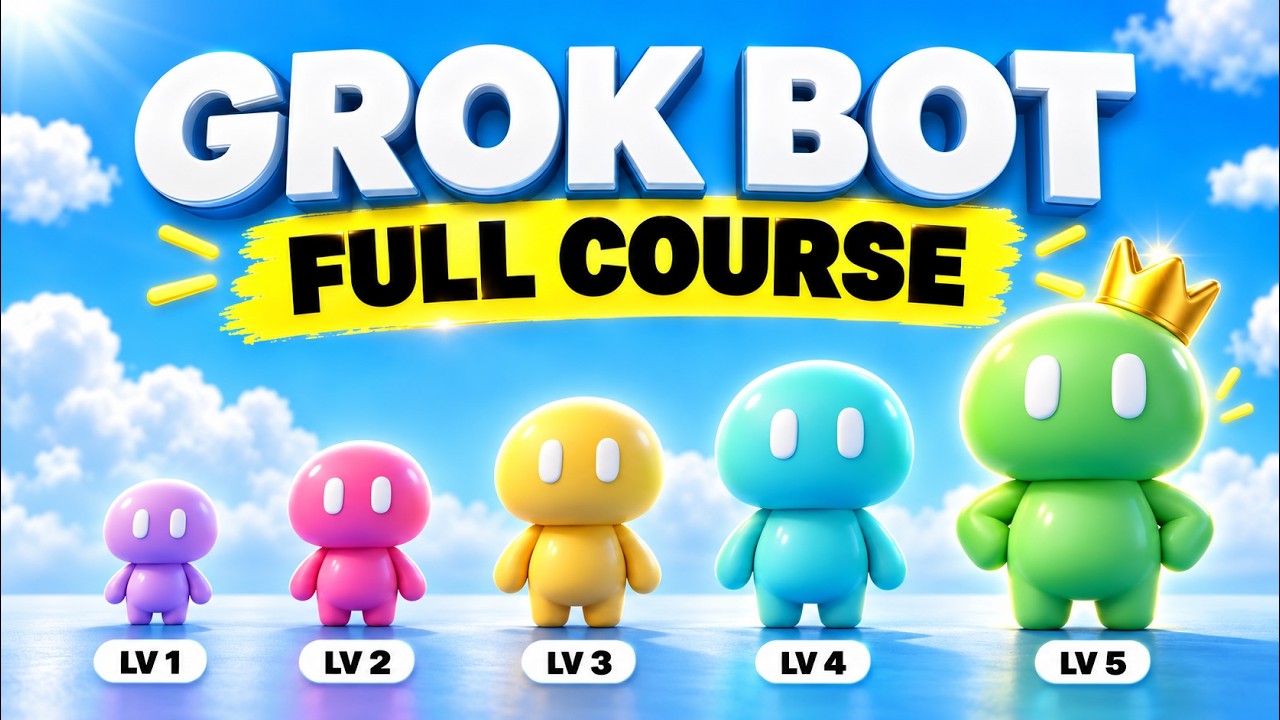
moving on to the levels of Grok Bot, and here's where I'm actually going to begin using this and showing you exactly how it works. If you've never used Grok Bot before, as well as show you tips and
tricks if you're already using it as well. So, first of all, we can simply just message it. We don't have workflows, we can just text it, and this is a very simple way for us to use Grok
Bot, but it'll give you a sense of exactly what it's capable of, especially once we add these other six levels that we have right here that I'm going to show you throughout this video. Now, the
first thing you need to do if you don't already have Grok Bot downloaded is go ahead and download it. There will be a link in the description to do so. This is for the desktop app for macOS.
However, you can also run this on your phone, which is my favorite way personally to use Grok Bot. So, go ahead, download it for both your desktop and your mobile phone if you want to
test it on both. Now, let's dive into my Grok Bot so you can see exactly how this works. Again, if you've never used this before. So, this is a bit different than different AI agents that you've probably
used, like Claude Co-work, Claude Code, ChatGPT Work, and kind of all these different AI tools that you could use. And let me explain why it functions fundamentally different than those. So,
instead of having like different tasks and chat messages that add up on the left-hand sidebar right here, we actually have specific agents that have persistent conversation over the past
couple days, couple weeks, or however long we've used these bots. I want you to think of these like messaging a friend or a teammate, something like that. It almost feels like Slack but for
AI agents. So, for example, if I click on my health agent, this is a very simple one that I configured that basically makes sure that I'm hitting my protein goals. So, I basically say what
I had for breakfast, for lunch, dinner, it tracks my protein, and on top of that, it texts me throughout the day making sure like, "Hey Brock, what are you eating throughout the day? Are you
hitting your protein goals?" It's proactive at following up with me in order to help me achieve my goals, whether that's for health or a specific business-related goal, etc. So, one
thing I want to point out is I've had some people comment and say, "Hey, why don't you give names to your Rock bots?" For example, I could name my health agent like Betty or Jason or something
like that, which I've seen quite a few people do. I personally just like to keep it simple. I have my health agent, I've got my main agent, brand partnership agent, I have my content
bot, inbox triage, invoice agent, IG carousels, short form. I have countless amounts of different AI agents here that are for specific use cases that I'm going to show you throughout this video
and help you build from scratch. Now, in order to interact with these, it's as simple as just texting it as if it's a friend. So, for example, it texted and said, "Hey, did you have breakfast yet?"
The burrito's been 30 g of protein every single day, usual mix is 75. If you got it, 190 g of protein is my goal for the day. So, it has a memory on what I usually have for breakfast. It's been
knowing that I have a breakfast burrito that's 30 g of protein. So, for example, I'm just going to come here and say, "Hey, I had the same breakfast plus a protein shake." That was 25 g, and it's
just going to go ahead and log that for my tracker for the day. Very, very simple use case here, but again, this is how we could just message back and forth with our AI agent. Now, one thing I do
want to point out that I'm going to dive deeper into later in this video, and that is the fact that our agents can interact with each other. As you can see here in this blue little rectangle, I
have my content bot and my chief of staff interacting with each other in order to accomplish different tasks. So, let's say I want to reply to a brand sponsorship that's in my email. I could
just message my main agent on the top right here, which is kind of like my chief of staff, if you want to call it that, and I say, "Hey, I want you to go and find all the brand partnerships. Go
ahead, draft an invoice, send it off, or something like that." And then, that agent will then text my email agent, and then that agent will text my brand partnership agent, and they're all kind
of working together as if it's a agent team. But again, I'm going to go over that later in the video, showing you how to configure these so you could build these out yourself as well. All right,
so now that we know how to message our agent and how the interface of GrokBot looks, we need to move on to level two. And that is plugging in the specific tools that we use every single day. So,
if you are coming from the Claude ecosystem, this is the same thing as a connector, is what they call it in Claude. Basically, this is how you connect GrokBot to the apps that you use
in order to pull from your email, pull from ClickUp, generate videos and images with something like Higgsfield. Basically, work across your entire tech stack. So, that way, not only can you
message your bot, you could have it go and perform tasks for you from your phone when you're not even using your computer. So, there's a couple different ways that we can plug in our tools.
First, we have the built-in connectors or plugins inside of GrokBot that are the native apps that we could use, or we could bring our own custom tools via MCP, which is a little bit more
complicated, but I'll show you exactly how to do so. So, let's start with the built-in connectors. I'm going to show you how to set this up now. All right, so if I come back into my GrokBot
account, on the bottom left we have this button that says plugin. So, I'm just going to click on this, and as you can see here, if I click on the very top, I have 17 different plugins connected. So,
let me go through some of these right now. I have Gmail, obviously, just for pulling my email. I have Google Calendar. I've got Higgsfield. One that I really love is X. Since this is a
product from SpaceX and X, and this is the entire ecosystem of Elon, it plugs directly into Twitter, which you don't get this inside of of So, for me personally, it's very good at scraping
content ideas or trending things on Twitter, where I get a lot of my news in regards to kind of what's going on in the AI space. I have it connected to Ramp, which is how I actually process
some of my payments for my business. I've got it connected to Remotion, so it could generate video graphics for me and edit specific videos of mine. I've got it connected to Clay, which is a lead
scraping platform, ClickUp, which I'm going to show, Granola, it's connected to Appify, Superbase, Slack, tons of different apps that I'm connected to. And if you want to go and search for a
specific app, all you have to do is come here to featured. You can click view all, or you could just search up a plugin, and you can see if there's a native integration directly inside of
GrokBot. Now, let's say that I want to add Google Drive, for example. I'm going to show you how simple it is to do so. So, I'm simply just going to click on add, and then once I click on it, it's
going to say needs authentication. So, just click the authenticate button. It's then going to open up that specific app in your browser. I'm going to select all for the Grok access, and then just like
that, authorization is now complete. So, I could have GrokBot go and pull from my specific Google Drive folders and grab video assets, or whatever the case may be, for certain files or documents that
I've uploaded to Google Drive. All right, so let's move on to the first use case, and I'm going to build this bot from scratch, so you can see exactly how easy it is to do inside of GrokBot. So,
this is going to be our content agent. So, let me quickly walk through exactly how the flow is going to work for this specific agent workflow. So, first of all, we have the ask. I simply text our
GrokBot and say, "Hey, I want you to make a reel about this, or I want you to generate an Instagram carousel." And since I could plug GrokBot into an AI creative platform like the Higgsfield
MCP right here, my content agent can communicate with Higgsfield in order to go and generate all of the image and video assets that I want to create, so I don't even need to go into the
Higgsfield platform and do it myself. From there, what comes back is a finished video, ready to post, specific images, whether that is a thumbnail or Instagram carousel, or even explainer
diagrams that I can use inside of a video. So, think of the content agent as like my chief of content or something that I could literally just text on my phone inside of the Grokbot app in order
to generate content on my behalf. So, I'm going to show you how to build this, and then I'm also going to show you how to generate Instagram carousels and automatically post them and schedule
them to Instagram for you. So, these right here were all with AI, and I'm going to feed this in as reference examples. So, that way I could have Grokbot go and create content for me.
And if I scroll down, this was not created with Grokbot, but rather Claude code, but I could do the exact same thing with Grokbot, and I'm going to show you the output cuz it is actually
very good. Take a look at this Instagram carousel here. This got over 2,700 likes and performed extremely well. It got a couple thousand comments, and all these people are now leads for my business
simply because I had AI generate stunning visual Instagram carousels like this on autopilot. Previously, this would have taken me 30 minutes to an hour to do inside of Canva because I'm
not a designer. All right, so the first thing we need to do is sign up for a Higgsfield account. You don't necessarily need to use Higgsfield. You could use any creative AI tool, but I
really love using this platform because it plugs directly into Claude, Grokbot, and any of the different AI agents I use, and it has all the top image and video models, and it's just very, very
simple for me to plug into my agents. So, there is a link in the description to get to this exact same page. So, once you have an account, what you're going to do is come over right here and select
Grokbot, and then we're going to follow these three instructions here, which is very, very simple to do inside of Grokbot. So, first of all, obviously, you need to have it installed, and then
we can click on this add Higgsfield plugin button. It's going to open up Grokbot. Now, it's going to pull up this little card here, and all I need to do is click on add. And just like that, we
have 89 different tools enabled. I'm not going to go through all these, but this could explore different models. It could generate images, videos, audio, generate image batch, generate 3D assets, so many
different things we could do with Higgs Field just from this simple MCP connection. Next up, what I'm going to do is come over to Grok Bot. I'm going to click this plus button on the top
left of our screen. I'm just going to select create new bot. The reason that I'm doing this and creating a new bot instead of using like my main agent for for example, is because this is a
specific task that I'm going to have Grok do. And I want to have different agents for different tasks throughout my business. This way it just keeps me a bit more organized as well as my main
agent can communicate directly with this one in order to tackle a task instead of creating a really long thread with one specific agent that does 10 different things. It just gets a bit more
confusing. As well as this agent gets its own set of instructions. So, we could be more hyper specific with what we want it to do. So, it's just asking me what is a job we want this agent to
do. So, I'm just going to give it a brain dump and explain. All right, so I want you to be my content agent. I want you to call this content agent demo. Basically, this is going to be
everything content generation related. So, you're going to have access to the Higgs Field MCP in order to generate image and video assets. I want you to be used for creating Instagram carousels. I
want you to be used for creating product videos from images, etc. So, as you can see that's a very very simple prompt. I'm just going to send that off and it's now going to start configuring the
instructions for this specific agent. And if we ever want to see the instructions or kind of the details of this bot, one thing about Grok Bot is it's not like Claude where there's so
many different buttons and you could see all the skills, schedule tasks, etc. right inside of the interface. I kind of like how hidden it is because it's sometimes unnecessary to see all that
stuff inside of this application. But if for whatever reason you do want to see the instructions of your agent, all you have to do is come over here, click on this computer icon, and then click on
settings. And as you can see right here, we have the name content agent demo. We have the description here, which we could go and change if we would like. All right, so now that we have our Higgs
Field connected, what I'm going to do is I'm just going to send off this prompt here. The first use case that I'm going to build out inside of this specific content agent is going to be the
Instagram carousel skill workflow. So, here's the prompt that I'm going to give it. Here are some examples of the Instagram carousel style that I want you to recreate. I want there to be a
specific cover style with a nice key visual along with big text so people can understand what the carousel is about and then the other slides will be more informative. So, I'm just simply going
to attach some reference images like the ones I showed you earlier so that way it can understand the specific style that we want to recreate. Giving good reference images is extremely important,
otherwise you're probably going to get something that does feel more AI sloppish. So, just give it some good reference images and you should be good. Now, let me show you the reference
images I uploaded so you could get a sense of what it is we're trying to recreate. So, here we have five cloud code hacks. Obviously, we have big text here and this is going to be the cover
of the carousel. So, it's a nice key visual with big text so people can understand exactly what value they're going to get when they view this carousel. Then, this is what the more
informative ones look like. This is a template here and then the call to action. The last carousel needs to have something saying like comment hacks for the free cheat sheet and then I'm going
to show you how we can connect a DM automation on the back end of this using another connector so that way not only will it generate the image assets, but when people comment for a link, it could
automatically DM them and start conversations there which could help us generate leads for our business. Then, here's another example of a different style for carousels. I think these are
pretty solid. We should get some decent outputs here, but we're also going to allow it to be a bit more creative, too, so that way we could not always just like recreate this these examples like
to a T. I want it to get creative and make them look different each time. All right, so about like 2 minutes later, it now locked in these two different styles. So, what I'm going to do is I'm
actually going to feed it a YouTube video that I created and repurpose that video into an Instagram carousel, and then we'll test the output. All right, so the video that I'm going to take and
repurpose is this one right here, five insane Grokbot use cases I can't live without. So, I'm simply just going to come here, copy the link, send it off to Grokbot, and it's going to be able to
actually go and scrape the transcript of this video in order to come up with the five different use cases that I showed throughout that video. All right, so that took probably about like five or
six minutes, and here are the final outputs. And to completely honest for our very first try, I think these actually turned out really good. So, let's take a look at them. We have this
header one First, we have the cover carousel. So, it says five Grokbot use cases. And again, this pulled from the YouTube video that I created. Shows these five little icons here of the
different Grokbot agents that I created. And if you could tell, it's in the exact same brand style as Grokbot. It has the blue clouds in the background. It has these little icons that look very
similar to the agents that you see inside of the user interface. So, this is a pretty solid cover photo, if I'm being completely honest. And then if I scroll to the next one, it shows hack
number four, never start blind. This one's cool. I mean, we have a little purple agent here. All right, little clipboard, photo to film, showing this Higgs field use case that I'm going to
actually show later in this video. Notes to tasks, using granola to sweep my different meetings. I mean, this is really solid. It even shows this right here, a way to connect to 9,000 plus
different applications. This is really, really good from literally just giving it a couple of reference images and then feeding it a YouTube video to repurpose. So, now that we have this working, what
I could do now is connect it to something called Blateaux, which can automatically schedule this to be posted on Instagram, TikTok, or whatever platform I want to post it on. I could
also add a LinkedIn as well. But, it could even create Instagram DM automations. So, when people comment Grok, it sends them a specific resource and can automatically DM them. So, let's
go ahead and set that up right now. Now, let's quickly walk through the Instagram carousel to comment funnel that we're going to create right now. It's very simple. So, first of all, obviously
we're speaking with our content agent. We say make a carousel about a specific topic, or we could even feed it a YouTube video to repurpose like I did earlier on. From there, we could just
basically say schedule it for a specific time. Plateto, which is the connector we're going to set up, will schedule it for us on Instagram, LinkedIn, TikTok, whatever platform we want to post it on.
Then, we could basically just say comment template to get the link, and it's automatically going to set up this DM trigger automation without us needing to do this manually. Before, we would
have had to use something like ManyChat in order to set this up, but we could simply use a Plateto MCP. So, that way it could just handle it all for us. All right, so in order to set up Plateto, we
obviously need to have an account, and then we're going to now connect that to Grockit. So, I'm inside of my account. These are some images, or these are some Instagram carousels that I published a
while back. I could see all of the ones that I've published, as well as see my content calendar with ones that I have upcoming. So, what I'm going to do is come down to the left, the bottom left,
where it says settings. Next, I need to connect any of the accounts that I would like to add. So, for me personally, I have Instagram and LinkedIn connected. And then, we need to go to API, and this
is how we're going to connect this to Grockit. So, scroll down, and you're going to want to find this right here, where it says other MCP clients. We're going to copy the MCP configuration.
We're going to come back to Grockit, and I'm simply just going to say, "Hey, I want you to connect the Plateto MCP using this." And we have this code here. So, all I'm going to do is click send,
and it should set it up automatically. All right, and that took like literally 30 seconds. Plateto is now configured. So, what I'm going to do is I'm just going to say, "I want you to take that
Instagram carousel that you generated, and schedule this to go live tomorrow at 5:00 p.m. Pacific time." And this is honestly the great part about connecting Grockit to the plugins and applications
that you use every single day, because we almost don't even need to leave the Grockit ecosystem anymore to do all these different tasks throughout our applications. This is just like one or
two use cases I've shown you so far. It's going to dive even deeper into other use cases that you could use by the end of this video. All right, so it looks like that is scheduled and it even
asked, "Do you want me to wire a comment Grok DM so that the keyword actually sends the video?" And I'm just going to say yes and it's going to set up that entire workflow for me as well. And if I
come back into my Blateaux account and I come over to the calendar, we can now see that this is actually scheduled to be posted tomorrow at 1:00 a.m. This is because I'm in a different time zone,
but this is actually 5:00 p.m. Pacific time, which is the time I want it to be posted at. And here we go, probably 30 seconds later, we now have this automation. If I click on it, basically
this triggers whenever somebody comments on a post or reel, leaves these keyword comments. So, if they comment Grok, it's automatically going to trigger this workflow. It's then going to send them
this message with the URL to that YouTube video as a call to action. So, you can configure this in literally just like a sentence that you send to Grok bot. No longer do you need to go inside
of ManyChat or an automation tool to set this up. This is actually pretty crazy if you think about it, how we went from generating the assets for that carousel to posting it and the DM automation all
on autopilot. Now, I want to show you a hack that I personally use inside of Grok bot and other AI agents like Claude Co-work, Claude Code, ChatGPT Work, etc. And this is giving your Grok bot or your
agent the ability to efficiently read through context, whether that is scraping competitor websites or scraping different social media platforms in order to get the right context on
something. This is really important because otherwise, we're reliant on all of the information that these models are trained on, which most of the time isn't up to date. And the way that I solve
this problem is by using something called Firecrawl. So, without using Firecrawl, it's almost like our agents have to browse like a real human. It goes through one page at a time, it has
to scrape all this different context. And this is going to eat up your tokens inside of Grok bot, which at this point is something that you really need to cherish cuz you could go through these
tokens pretty quickly. Now, with Firecrawl, you just connect this because it is a plugin inside of Grockbot, and basically this condenses all of that information and turns it into a readable
format that your AI can read through much more efficiently than a whole bunch of different links or walls of text from different sources that it's pulling from. If you're still having a hard time
understanding exactly what it is that this does, think of this like giving your AI agents direct access to the internet with live, up-to-date information, and it comes back in in a
clean format that your agent can read efficiently. Now, one thing that I really like about Firecrawl is the very cheap pricing. So, they are pretty generous when it comes to the pricing on
this. So, let me quickly break down the pricing right here. So, you could start on the free plan for $1,000 per month. You don't have to add your credit card. You don't have to go through the hassle.
Um you could just test this out yourself, and 1,000 credits actually gets you pretty far. And then the next step above that is the 5,000 credits per month, which is only $16 per month if
you click the yearly plan, or $19 per month if you want to go monthly. And And I can almost guarantee that this is the most you would need to pay per month in order to use this. I personally am on
the hobby plan, and I never run through my credits all the way, and I'm using this thing pretty religiously. And in order to set this up, again, it's very very simple. We come down to plugins.
We're simply going to search up Firecrawl. We're going to click on this and click add, and it will do this in just a couple of quick steps. Now, another thing that Firecrawl is really
good at is monitoring competitors' websites, for example, or any website for that matter. So, here is a hypothetical example of what you can use inside of Grockbot with Firecrawl. So,
you could create a deal scout. So, you could have it track the price of a specific product if you're waiting for something to go on sale, for example. Now, let's say we want to monitor once
AirPods drop under $180 or whatever the case may be, Firecrawl's automatically going to scrape that website and monitor it, and whenever there is a change to the pricing, it's automatically going to
ping us and our specific agent so that way it can text us. This way we could get deals on specific products that we want to buy or let's say we have a competitor and you want to monitor their
pricing, you could have Fire Crawl scraping that website without eating up your Grok Bot token usage in order to do so. Now, moving on to level number three of Grok Bot and this is really important
when we begin having multiple different agents that are interacting with each other for given specific use cases and this is an agent task management system, which I'm going to show you mine right
now. This basically tracks what each agent is doing, things that it needs to do, things that are in progress, specific tasks that have been accomplished because otherwise it can be
a little all over the place and it's hard to see what each individual agent is actually accomplishing. So, think of this like managing a team of employees or colleagues for example and being able
to see what it is they're working on day-to-day so you can audit that. The first thing that we need to do is make sure that we have ClickUp enabled so that way Grok Bot is able to pull from
our boards as well as create boards and change the status of these different tasks in there. And this is going to act as our project management system like I was telling you. So, what we're going to
do is come over to plugins on the left-hand side of Grok Bot and then simply we're just going to search up ClickUp and just like connecting all of the other applications is as simple as
clicking on this, clicking the add button, it's then going to ask you to authorize your account inside of ClickUp if you already have one and it will set it up for you. And if I look at this,
there are 58 different tools inside of ClickUp so it could do quite a bit of things directly inside of that platform for you. And if you're too lazy to go to plugins and look up ClickUp, you could
literally just go to your agent say, "Hey, go and add ClickUp for me." and Grok Bot will figure out how to do it and you'll just have to authorize your account that way. All right, let's dive
into my ClickUp so you could see exactly what my agent board looks like and what yours can look like as well. So, this is a pretty simple task management board. If you've never used ClickUp before, you
could customize it however you would like. But, I have three tabs here just to make this very, very simple so I could know what my GrokBot is doing at all times and not just my GrokBot, but
each specific individual agent that I have running. Let's walk through this very quickly. On the left-hand side, we have the to-do list. This is all the tasks that GrokBot knows that it needs
to do, whether this is a routine that I have scheduled, which is basically a scheduled task, whether this is something that it pulled from one of my meeting notes, which I'm going to show
you how to set up later on, and stores this as something that it needs to do over the next couple of days, or let's just say that I start my day and message with GrokBot and say, "Hey, here's all
the things that I need you to do throughout the day today or this week, for example." Let's go through some of the tasks that are in the to-do list. So, for example, right here, brand
partnership short form draft due mid-September. For confidential purposes, I didn't want to add like the actual brands. I didn't want to add all this confidential information. Here's an
example of kind of what this will look like when you set this up for yourself and the specific task and agents you have running. So, right here, it basically says the agent name, so brand
partnership agent, what it's doing, short form draft is due before mid-September, and then it breaks down the next step. So, it needs to get the draft in before the deadline, do not
invoice unless asked. And then, you could even see this comment right here that my GrokBot made when it created this task in my task management system. It shows that the short form offer was
approved, the draft is still due before September 5th, do not invoice unless Brock asks, and do not chase. That is just one task that it logged in my to-do list. Next, if I scroll down, you can
see this task from my investment agent, which says weekly money snapshot. So, I personally have an investment agent that goes and pulls from all of my investments to track how much my
portfolio's worth and how much it fluctuates every single day, as well as it kind of tracks the cash flow of my business. So, So, this is communicating with my invoice agent to make sure that
invoices are paid, and then it will auto add that to my investment agent and track it there. Now, if I click on this, the cool part is you can see that I have my investment agent toggled on and if I
go ahead, I have this drop-down menu of all of these different agents that I have. These are all the agents I have inside of my Grok Bot. And the cool part about this is I didn't have to set up
this board at all. I personally never have to go and change the progress status of any of these tasks. Grok Bot does all of this for me and I'm going to show you exactly how to set that up
right now. All right, so what I did in order to configure this, I just came and created a new Grok Bot. So, I clicked plus, clicked add new Grok Bot and I gave it a very basic prompt how I want
this to function. I said, "I want you to create an agent task tracker." The point of this agent is to look at what other agents are doing. If for example, I have my invoice agent going and scraping
emails and drafting some invoices, I want to be able to see what it is doing. We're going to connect this to a ClickUp board which is going to be used as a task management tracker. Come up with a
plan in order to make this as organized as possible so I can always see what my agents are doing. So, what it did is it came up with this plan here with a specific board to create inside of
ClickUp. Some of the information in here I thought wasn't necessary. I thought it was just going to make it a little over complicated. So, I decided to simple it a little bit. So, I said, "I just wanted
to have these three columns: a to-do list, in progress list and a done list." And then I also wanted to specify that if there is any deadline, I want it to add that to the due date inside of the
task management tracker. Now, one thing I want to point out is if I'm looking inside of this chat that I had with my agent tracker after configuring this ClickUp board, you can see that it says
right here that it had two messages with two separate bots. And if I click on this, this is how my AI agents are communicating with each other. And let me click on my invoice agent. My agent
tracker messaged it and said, "Here's a standing rule. I want you to ping me whenever you start, finish or get stuck on a specific unit of work." So, this is literally instructing the invoice agent
to let it know when it's working on a task or if it finishes a task for example. So that way my agent tracker can then update this inside of ClickUp. And if I go to any of my different
agents, for example, if I come back to my IG carousel agent, you can now see that it messaged this one as well. So now all of these agents understand kind of this standard operating procedure of
whenever it does a task or finishes it, it needs to update the agent tracker. Now you could probably begin to see the power of these different specialized AI agents interacting with each other in
order to get different tasks done cuz they are literally communicating with each other like they are working inside of a department inside of a real company. Now, let's go ahead and test
this out. I'm going to come to my IG carousel agent that we created earlier on in this video. And I'm just going to give it this prompt. I want you to do research on a topic that would make for
a good Instagram carousel. So I'm going to send that off and what we should now see is this interacting with my agent tracker that I created and then it will update this inside of my ClickUp board.
And here we go. It went and automatically messaged my agent tracker. I could click on this and see what it said. Basically, it said it's starting research on a strong Instagram carousel
topic, no due date, waiting on Brock. And if I come back to my agent tracker, it says IG carousel started researching the next carousel topic putting that in the in progress tab. Now, if I come back
to ClickUp, you can now see I have this task in progress. This is a very simple example, but you could begin to see how we could literally track what our different AI agents are doing in real
time to make sure it's accomplishing what it is we want it to do. Now, not only can you see this, but let's say you have a team and you want them to be able to see what these specialist AI agents
are doing as well. They can always have access to this. You just need to share this board with your team. All right, so for this next use case, this is going to build on top of that task management
tracker that I just created. And this is my meeting agent and this one has been incredibly helpful for me personally staying organized, but also for my team to see all of the things that we need to
do with the action items added to ClickUp. So, let's quickly walk through exactly how this agent is going to work, and it's very, very simple to set up, and I'll show you exactly how to do so.
So, first of all, let's say we have a meeting between either me and a team member, or let's say that I'm just doing a voice brain dump with all the things that are in my head that I need to do
over the next week or something. Next, what this does is Granola, which is an AI tool, automatically will record that meeting and then turn this into action items for my AI agents, but also for me.
And if you don't know what Granola is, it's basically an AI notepad that joins all of your meetings automatically and then creates very simple files for you to sort through. But not only can we
sort through these files inside of the Granola platform, but this is something that our AI agents can use as context because context is really crucial, especially for GrokBot, if we want it to
have all this knowledge on all the things we needed to do and context on our business or the work that we want it to do. And this is where it gets really cool. So, after Granola creates those
action items, my chief of staff agent inside of GrokBot is automatically going to route these tasks to whatever agent needs to perform a given task. So, right here, let's say that there is something
that a content agent needs to do. It will then automatically ping the content agent. Chief of staff will then ping the invoice agent for anything payment related. Or, if there's something that
one of my bots can do, it will ping me and say, "Hey, I need you to go and do this." So, let's say inside of that meeting, we chat about how we need to generate Instagram carousels. Well, not
only will our chief of staff read it and then send this to the content agent as an action item, but it's also going to add this to ClickUp, so that way we can keep track of what we need our agents to
do, but also so our agents know what they need to do. All right, so now that we know how this flow is going to work, let's go ahead and set this up. And again, it's very, very simple. We're
just going to use the Granola plugin inside of GrokBot. First of all, go ahead join Granola if you're not already using it. There is a link in the description. And then, as you're getting
so used to, all you have to do is come over to plugins, search up Granola, and it's very, very easy to add. Just make sure to add it inside of Grok Bot. All right, so now that we have this
configured, I'm simply just going to come back to Grok Bot, and let's just create a new bot. So, all I need to do is click on create a new bot, and then let's just give it a brain dump on what
we want this agent to do. Hey, so I want you to create a meeting agent. And the function of this agent is going to be to use Granola in order to join all of my meetings. It's automatically going to
then take those meeting notes and delegate any of the action items that are relevant for each of my AI agents, and delegate it to that specific agent in order to accomplish that task. On top
of that, I want you to update my ClickUp board with my agent tracker in order to keep track of all the things that my AI agents need to do, as well as that I need to get done. As you can see, that's
a very, very simple prompt. I love how I could just speak in plain English to Grok Bot, and it's able to set all this stuff up stuff up for me. It doesn't need to be complicated. And that's
honestly why I think this is the best tool to use for 90% of people. It's just very simple and intuitive to set up. So, now our bot is going to write the instructions for itself, and let's let
it go and do its thing. All right, and just like that, a couple of minutes later, we have this configured. So, we have this new little purple meeting agent here on the left-hand side, which
we can go and customize. And then, here is what this says right here. What it does. Weekdays at 10:00, 1:00, 4:00, and 7:00 p.m., it sweeps for new Granola notes. It then hands agent-ready work to
the right specialist. So, depending on what AI agent it is, it will then assign that task to it. It's then going to put your personal action items on Grok Bot to do. Pings the agent tracker, so the
agent activity stays current inside of my ClickUp account. And it gives me digest only when there is something that has actually changed. And now, this is a perfect time to showcase level number
four inside of Grok Bot, and that is routines. So, a routine is basically a scheduled task that we could have GrokBot run at any given time, whether that is a certain time of the day. As
you could see, this agent is now going to run four times throughout the day. You could have this run weekly, monthly, at whatever cadence you want this to run. So, we could basically do a task
once, we could save that as a routine, and then this will be able to run alone, and this is how our agent can go and ping us whenever there are new granola notes added to my granola account. And
in order to look at all of the routines we have configured inside of each of our individual bots. So, I'm going to come over here and click on my meeting agent, and all I need to do is come over to the
top right of my screen here. And as you could see, we have a couple things. We have a computer, which is the virtual browser and computer that GrokBot can use, or at least this specific meeting
agent can use. And then we now have a routine right here that is called granola action item sweep, and this runs every 3 hours on weekdays. So, if I click on this, there's just a pretty
basic set of instructions of exactly how this task is supposed to go down. But if I look at this, it's actually pretty in-depth, honestly, which is great cuz hopefully this will never make any
mistakes. And then we can change right here how often we want this to run. For example, if I want to make this run every hour, I could do that. Basically, we could customize this to whatever we'd
like um in terms of cadence. And if we ever want to create another routine, we could just add it right here. Not only can we have this run on a schedule, but let's say there's a new Slack message in
one of your channels, you could have that set as a trigger, and that will automatically trigger this agent to go and perform whatever actions you needed to do for you. And then obviously, at
any time we can click this black test run button, and this will just run this workflow. So, that way if it's not one of the hours of the day when it usually runs, we could just click it and it will
just, you know, automatically do that for us. All right, and now to show you exactly how granola works, this is what a note looks like. So, this is from a meeting that I actually had a little bit
ago, where I kind of break down kind of all the things that I need to work on. I just basically just gave it a brain dump um of everything that I need to do over the next couple of days and what it did
is it automatically took the transcript, which I could go and click on, and it turned that transcript into a list of the main talking points and action items from this call that I had. And it can do
this automatically for any meeting that I have. It automatically will join these meetings without me needing to do absolutely anything. So, for example, I came here and I said we need to generate
five carousels for the week, YouTube competitor scraping, brand partnership outreach, I need to generate a couple of invoices, and then it added the specific action items from this meeting right
here. Now, this is all great and I absolutely love Granola, but the best part about this is since this is plugged into Grockbot, this is now context Grockbot has on me and everything that
is a priority for me in my business that will move my business forward over the next couple days. And what I could do is I could come back and view any of these different notes that I have created with
Granola. And on top of that, it even shows all the different meetings that I have that it's going to automatically join. And not only do I just use this on my desktop app, but I also use this on
my phone, which is probably my favorite way to use it cuz sometimes I'll just be on a walk and I'll just start a new note and literally just give like a 15-20 minute brain dump of everything that's
on my mind. And this is kind of like a second brain for me and helps keep me organized and basically delegate things to my different Grockbot agents. Now, what I'm going to do is I'm going to
come back to my meeting agent inside of Grockbot and simply just say, "Hey, I want you to go and pull my last meeting inside of Granola." Now, take a look at this. Not only did it pull from the
Granola note that I had, it pulled all of the different action items from it, but it automatically routed from that note these different action items for these specific AI agents. And if I click
on this, you can see that it messaged all five of these different agents from that one note that I created. So, agent tracker, short form content bot, brand partnership agent, and invoice agent are
now all working on these tasks that I got from Granola. And over on the left-hand side, as you can see, there's these little blue dots, and that just means these AI agents have been working.
So, let's go take a look at what they did. If I click on my content bot, it set up a routine that automatically scrapes my YouTube competitors. That is pretty cool. I literally didn't have to
do anything. This is all from that meeting that I had that Granola took these action items from and is going and doing these tasks for me now. And it knows exactly which agent to delegate
these to. And then if I click on my short-form agent, it then went and researched some different Instagram carousels since it knows that I need to work on creating five different
Instagram carousels for the week. So, now I have all these ideas ready to go, and all I have to do is pick which ones I want to move forward with, and it will automatically route this task to my IG
carousel agent, which we created earlier on in this video. And if I come inside of my invoice agent, you can see it literally went and drafted this invoice here. And this is ready to go and ready
to be sent to this client over Gmail. Now, moving on to level five of Grok Bot, this is memory, and this one doesn't need much time to explain. It's very self-explanatory. So, the more and
more we use Grok Bot, and the more context we give it on ourselves, our business, and the different use cases that we basically want to use this for, it's going to collect memory, and we
also have the ability to create skills. So, if there ever is a workflow that you run and you want to turn that into a set of instructions, aka a skill, just like Claude, you can tell it to turn it into
a skill, and it will always remember how exactly to run through that specific workflow in the future. Keep in mind, this is something that will take a bit of time to build up cuz you're not going
to use this for 1 day and expect the memory on this to be good. You're going to need to give it a couple of days of actually using this thing over and over again before the memory kind of sticks.
All right, so if you made it this far in the video, you're probably realizing that the thing that really levels up Grok Bot and adds a lot of utility to it is the specific plugins that we use
because not only can we just chat with this like it's a teammate, but it's going and performing actions across those different apps that you use on a day-to-day basis. And this is really
powerful when you connect it to the right applications inside of your business. So, if I come here and just search for plugins, we have a decent amount of plugins in here. However,
there are quite a few apps that I personally use that I cannot find in this plugin marketplace directly inside of Grok Bot. And I'm going to show you a quick solution that will solve that
problem for you. I personally use something called the Zapier MCP. an MCP server that connects to 9,000 plus different applications. And I could plug this directly into Grok Bot. So, instead
of being limited to like the couple hundred apps that they have, I have 9,000 plus I could choose from. Now, to give you a real-life example that I use this for, let me quickly break down an
app that I use every single day to help run my business that I want to use inside of Grok Bot. That is called Drip. Drip is the email automation platform that I use. This is where I run all of
my email marketing campaigns. And there's no way for me to connect this directly inside of Grok Bot. But, inside of my Zapier MCP server, you can see right here that I have Drip connected
along with 20 different other applications in this specific server. So, any of these apps Grok Bot can now use. Now, let me show you exactly how you could set this up. It's very simple
to do. First of all, you are going to need a Zapier account. So, make sure to sign up. There is a link in the description to do so. I'm just going to click on get started here. And what
we're going to see is the ability to create MCP servers. I already have quite a few configured for the different AI agents I use. What I'm going to do is just click on create. I'm then going to
come down to MCP servers near the bottom. And from here, we just need to configure which AI agent we're going to be using. So, you could do this with Claude, Cohere, Claude Code, ChatGPT,
Open Claude. Basically, any of these AI agents you can use this exact same system with. But, for me personally, I'm going to click on Cursor because Grok Bot is a product of Cursor. So, I'm
going to click on this. I'm simply going to copy this prompt. I'm going to come back into Grokbot, and I'm going to come to my main agent and just type that in. Grokbot pulled up this card, basically
just saying, "Do I want to connect Zapier?" I clicked yes. Now, it's going to go and do it. It's literally this simple. Grokbot just makes it very easy to integrate with these different
plugins. Now that we have Zapier connected inside of Grokbot, there's something that we need to do very quickly inside of the Zapier MCP. So, obviously, I already have apps
configured here. This is because this is a pre-existing MCP server that I created. What you need to do is you're going to come here and just click add apps. Search for whatever app it is that
you need to connect, and it's as simple as just like clicking a couple of buttons, and it will auto add that app to our MCP server here along with all the different actions. So, for example,
if I come down to Drip, you can see there's 23 actions that this can perform. So, it could update custom fields, it could add new subscriber tags, new email clicks, new trigger link
click. All of these right here are things that I could do across that specific application. So, make sure to just enable all those. So, it has the most access possible. And in order to
test this out to make sure this is working properly, I'm just going to come here and say, "Hey, I want you to use the Zapier MCP to pull from my Drip account. I want you to pull some
information from my email campaign so I can get a rundown on what's going on for those emails." All right, so now it went and pulled from my Drip account. So, it's actually showing all of the recent
sends inside of here. So, these are all of my different email marketing campaigns. Obviously, it's pulling kind of some random information here. I could have it get really specific and have it
pull specific statistics like the click-through rate on the emails, how many people are opening it, the unsubscribe rate, etc. But, the moral of the story is now I can connect to an app
that I didn't previously have access to inside of Grokbot, and I did that thanks to the Zapier MCP. You don't need to use it, but if there is an app you want to connect to, make sure to go and test it
out, and that's a way to do so. Now, moving on to level six of Grokbot, that is templates. So, for any of the AI agents we create inside of Grokbot, we can go and share with our team members.
This is a feature that they added just last week, and I think this is really going to be very interesting. So, that way not only you can build out these AI agents for you and what you do for your
work, but you can give this to a colleague or a coworker, for example. Now, for example, let's take the IG carousel bot that we created earlier on in this video, and let's share this as a
template. So, that way I could send it to my business partner. So, I'm going to come over on the top right with this little download button. I'm going to click share as a template, and it's then
going to send off this prompt to Grockbot saying, "Create a template of yourself that I could share with somebody else." And there's a few things that are included in these Grock
templates, and it's really important you understand this because we don't want to be sharing confidential information inside of this specific bot. So, let's break that down right now. Now, there
are a few things that this clones inside of your Grockbot, and let's break those down right now. So, first of all, we have skills. If there's any skills that you've created inside of that Grockbot,
that will be included in the template. And for this specific one, I have one called IG carousel, which is just a set of instructions, the markdown file, in order to create the Instagram carousels
in our style that we trained it in. Next, it will also share any of the routines that you have. So, for this bot in particular, I don't have any routines set up. For example, you could see I
don't have any routines created right here. But if I did have routines, that would then also be included in this template. Next up, it's asking if I want to publish this. So, first of all, let's
take a look at the details. Here is the context. So, if I click on this, it shows all the instructions. It shares all of files as well, as well as all of the integrations. So, since this was
connected to Higgsfield, it'll automatically share my Higgsfield credentials with this agent. Now, I'm just going to select publish here, and all I need to do is click on copy link,
and I can now send this over to a friend. Now, I genuinely think templates inside of Grockbot is one of the best features that they've added to this product so far, because we can build out
an entire system or workflow with these different AI agents and share it with somebody on our team and I think this is going to be really helpful. So that way we don't need to go and recreate all of
these agents ourselves or have somebody on our team go and do it themselves. Moving on to the final level of Grok Bot and that is number seven, agent teams or bot teams. You've seen multiple
instances throughout this course already about how I have multiple AI agents that are interacting with each other and it's pretty powerful to see this in action. Basically how this works is you have you
who is speaking with your different executives. Personally I have my main AI agent and that agent will communicate with all of the other operators what I like to call them or specialist that you
have for any given task whether that is for generating an invoice, brand partnerships like I have in my email, my meeting agents. Then we have all of these combined together it's almost like
you have an entire company of people working together to accomplish a common goal. In order to see them communicating with each other you can see right here that it shows that my short form agent
messaged my agent tracker and we can always click on this and see the dialogue between these two agents in real time. Also what we could do is we could come over here and we could start
an actual group chat. So let's say I want to create a group chat between my Instagram carousel agent and my short form agent, I could just come here and literally introduce these two agents
together. Hey so I want you guys to communicate and figure out how you guys could work together in order to help me create as good of content as possible. Now look at this conversation that these
two bots are having together. So IG carousel said I'm down, clear split short form owns the idea hook caption and when it should post. I own the carousel visuals once the slide outline
is locked. This bot then suggests the best handoff and how they could work together in the best way possible and the short form agent literally agreed that that's the best way to move
forward. And the cool part is after using Grok Bot for a while taking a look back at some of the conversations these agents are having between each other is pretty crazy. The fact that I could be
completely hands off and this is running is pretty cool. And there we have it, an entire course on how to go from beginner to expert with GrokBot. We went over the seven levels to using this platform, as
well as I showed some personal use cases and how I'm using it. So, hopefully you can get a sense of what it's capable for you. If you enjoyed this video, leave a like. Comment down below if you want
more GrokBot content like this, and make sure to subscribe. With that being said, hope you enjoyed it, and I'll see you in the next video.