Enjoying this issue?
Get tomorrow's AI & engineering digest in your inbox — hand-picked, summarized, and always spam-free.
TLDR
A Claude command center that pulls real-time data from your connected apps is now buildable in about 15 minutes without code, but the critical hidden failure is not whether the connectors are toggled on — it's whether Claude can actually see the specific data you think it can. The presenter demonstrates a visibility check that catches problems like Claude reading the wrong calendar, and argues the real win is reducing what you need to think about, not adding more information to a dashboard.
Key points
The command center requires Claude to interview you about your role and decisions before building anything.
Each proposed dashboard item should pass a single test: would you act differently if it changed tomorrow.
The source map maps each command center item to the specific location where the data lives.
A green connection icon does not prove Claude can see the specific data you care about.
A visibility check asks Claude to show real examples of data from each connected source before building.
Tools mentioned
Techniques
- context interviewing
- source mapping
- visibility check
Stop scrolling. Start reading smarter.
Receive the day's most important AI & engineering updates in one concise email. No spam.
Transcript (captions)
A few months ago, if you wanted to build something like this with Claude, the tutorials usually started with terminals and claude code, which I mean is great unless you're non-technical and you look
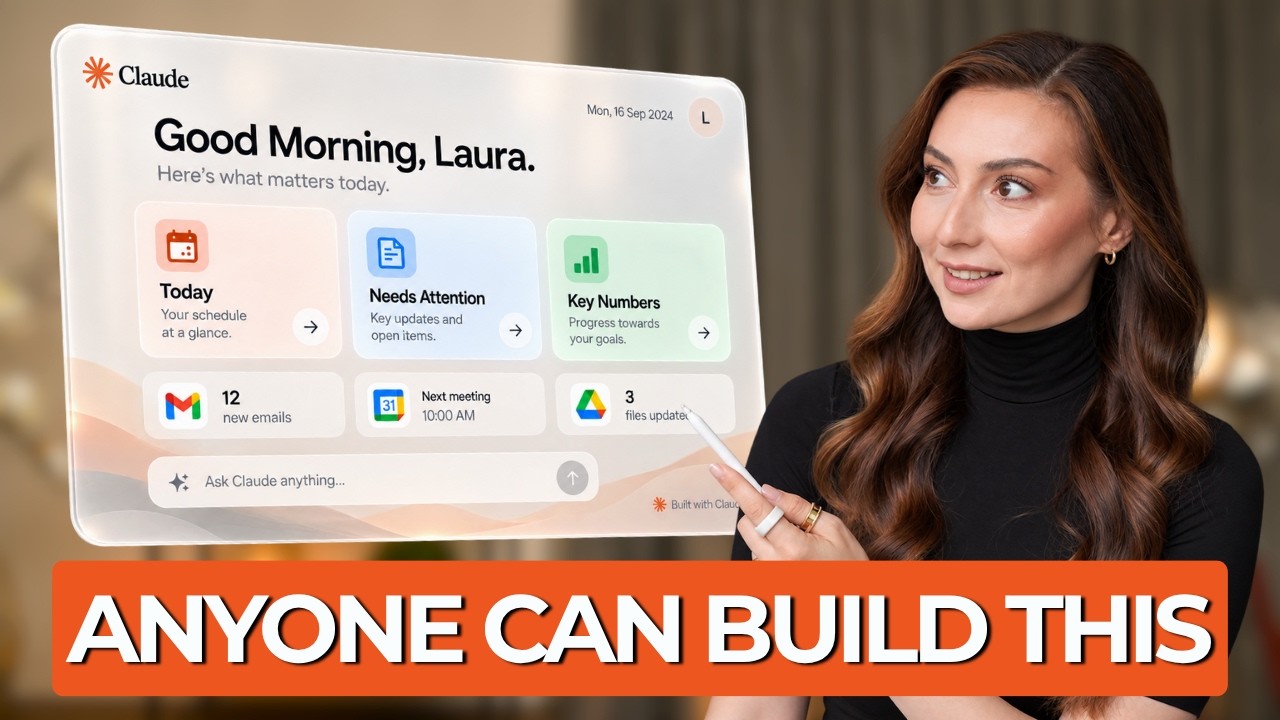
at that and think, great, I'm never going to build that because it required code, but not anymore. I built this command center in about 15 minutes without writing a line of code. And I'm
about to show you how to do it step by step. But there's one step before the build that determines whether this page is actually useful or just pretty and misleading. [music] Let me show you.
First of all, Claude needs context. And how much work you have to do here depends entirely on how you've already set Claude up. There are basically two situations. The easy one, if Claude
already knows you well, you can use that. Maybe you've got a project with good instructions. Maybe you use skills. Maybe you've already given Claude enough context about your role and your
priorities and your business and the way you work that it understands what you care about. Great. Good for you. You'll need to explain your professional life again just to build this page. That's
the good news. And this is one of the reasons that we've built the Claude Academy actually inside the founders community. [music] So if you feel like that's not you yet, you can come on over
to the founders and [music] we have 10 modules that teach you everything step by step. We go much deeper there into setting clot up around you so you're not feeding it the same context every time
you want it to do something useful. But if you're sitting there thinking mine knows absolutely none of that. That's also fine for this build. However, I'm going to give you a shortcut. You can
have Claude interview you. So rather than guessing what Claude needs to know, you can make Claude work that out by asking you questions. And before I run this, remember that later I'm going to
connect all of my sources. And there's one check after that which catches a failure that's almost impossible to spot by looking at the finished dashboard. So stick around. It's coming up. [music]
And if you want to build this alongside me, I've also put everything together into a free downloadable within our community. You get the entire [music] kit so you can copy paste and work along
with me. You get the context interview, the source map that we're about to make, the visibility check. So you don't need to take notes. You can just follow the order. I'm not going to spoil it too
much, but go check it out in the community. Now, let's ask Claude to [music] interview us. All right. And now Claude is going to start asking questions like what I'm
responsible for, which decisions repeat every week, what do I regularly have to go looking for, what do I wish I knew sooner. Now, of course, this does take a couple of minutes, but it's useful.
Trust me, because Clot is doing the work of extracting the context rather than making me write some enormous autobiography. And once it's got enough, it'll give you this, your command center
brief. Now, don't blindly accept it, okay? Claude loves giving you things. Maybe more sections than you need, maybe more metrics than you'd want to look at, maybe more boxes because it looks
pretty. [music] And a command center full of information is very easy to build. But a useful one takes a little restraint. Most people use AI to produce more information. The better use is to
reduce what you need to think about. So I give every proposed item one test. If this changed tomorrow, what would I actually do differently? Let's take traffic for example. Claude wants to
show me website traffic. If traffic changes 4% tomorrow, am I really going to change what I'm doing that day? Probably not. So I don't need it staring at me every morning. Now, this one,
three important customer issues that need escalation. Would I change what I'm doing? Absolutely. So, that's something that I need to keep. Of course, your situation is different. So, you need to
apply this filter to your exact business or role, but that's the filter. Information has no value until it changes a decision. So, for my command center, I'm going to keep this fairly
simple. I want to know what's happening today, what needs attention, and the handful of numbers that I really care about. I need to know what's coming up and which decisions are waiting for me.
That's enough for me to move on. So, Claude now understands what belongs on the page. The next question is, where does all of that information come from, right? Because the reason you're
creating the command center is for you not to have to find and hunt down that information every day or every time you need that update. So now we take the command center brief and map each thing
to the place where the information lives. I call this one the source map. But you have to think about it for yourself. Maybe your meetings come from the calendar and your key numbers come
from a spreadsheet or a dashboard or an app that you built. Maybe your project status comes from your drive or your notion or your Slack or customer issues might come from [music] email or maybe
teams or Slack. Whatever your setup is, the idea is very simple. For each thing Claude is going to show you, you want to know where it should look and be specific about where it should look.
This matters especially when the same information could appear in several places. Maybe somebody mentions a sale number in an email, but the number that you trust is the one inside that
particular sales spreadsheet. [music] So, you need to tell Claude that. For pipeline, for example, use that spreadsheet as the source of truth. And this way Claude does not have to decide
which number makes more sense or wins or is more important or more [music] recent. And the command center kit gives you this exact table because once you've done it once, this will become really
easy. So [music] go get your kit. So you want to build a very simple table. Command center item information needed source. And later we're going to add one more column. Can Claude prove it can see
it? We'll come back to that one. And now you need to make sure you're connecting the apps you need. [music] The calendar, the drive, the spreadsheet, the email, whatever your own command center brief
requires. Now, I'm not going to spend 5 minutes showing you how to click every connector because that's not interesting. All you have to do is go to customize, go to connectors, search for
every single one you need, and toggle them on. At the end of the day, the important part is knowing which connector is responsible for which information. Okay, everything is
connected. And this is the point where most of us would probably type build my [music] dashboard. Be honest, you probably wanted to. But there is one problem with trusting [music] this
screen. A green connection icon tells me Claude has access to something. However, it does not prove that Claude can see the specific information that you [music] care about. Trust me, the first
time I did this, because of the guardrails I set, I only gave Claude access to [music] its own calendar and not to mine because I hadn't shared my calendar with the account that Claude
has access to. So this way, when I asked it to do this, it saw nothing in the calendar. The connection wasn't the same thing as the data that I thought I had connected. Okay? So you need to make
sure that you use the real details from the source that you want to see. And that takes us to the step that I teased at the beginning. Here we need to do a visibility check [music] because before
Claude builds anything, you want it to prove what it can see. So you need to tell it something like this. Before you build the command center, verify every source. [music]
For each source, I need you to show me what you can currently access and one real example of the information you can retrieve. >> [music]
>> And then of course you can ask it to flag anything that's missing or empty or inaccessible or ambiguous all of that. And now you need to pay attention because if you gave it a spreadsheet
probably Claude can see the data but if you gave it a drive maybe can't give you a real file or maybe it can. If you gave it access to your email you need to get a real example of an actual email that's
sitting in your inbox. Connected your calendar you need to make sure that it actually gets to see your meetings. In my case, that was zero because like I said, I gave it access to the wrong
calendar or I hadn't shared the right calendar with the account that Claude has access to. [music] And I knew that was wrong because I was literally looking at the meetings in my calendar.
This is why this check is so important. Maybe you connected the wrong account. Maybe Claude is seeing a different calendar. Maybe access is incomplete. Maybe there is another permission level
that you need to grant. The exact problem will depend on your setup. But now you know there is a problem and crucially you also know before Claude builds the page. So you go ahead [music]
and fix that. And once you do then you run the exact same visibility check [music] again. So you need to make sure that the spreadsheet retrieves the real numbers. The drive provides the right
files. Email shows the real messages. The calendar has the right meetings and everything is properly [music] connected. Don't skip that step. Okay. Now everything's well connected.
Everything works. So now I trust the inputs because think about what would have happened if we skipped this. Claude could have built me a beautiful command center that said no meetings today and I
knew that wasn't right. It would look clean, it might also have pretty colors. But while everything would have fielded finished, [music] the information would have been wrong. And the most dangerous
dashboard isn't the one that looks broken. It's the one that looks right but is lying to you because it's using incomplete information. That is the failure that you need to care about. And
the rule that I would take from this is pretty simple. Never ask AI to build from data you haven't proved it can see. And now we are ready to build. And because we've already done the thinking,
the actual prompt is going to be much shorter than you might expect. [music] And I know this is the part that people usually want to start with the prompt. But look at everything clot already has.
It understands your role or your business. It has the command center brief that is properly [music] built. It knows which information is important to you. and it knows where that information
lives and can be retrieved from. And you've also verified the sources. So the build instruction can stay pretty straightforward and simple because the more context clot already has, the less
prompting you need later. So here's mine. That's it. We don't need a 900word prompt, no complicated framework. [music] That isn't because the task is
easy. It's mostly because most of the ambiguity has already been removed. A good setup makes prompts shorter, not longer. There it is. Now, before I start changing colors and moving boxes around,
I want to know whether it really understood the job, what I needed. So, today good needs attention. This is probably the section that I care about the most. And I want Cloud to tell me
why something deserves attention, not just simply throw a red badge next to it. So I think this is good. Let's take a look at key numbers. Okay, so these are the numbers that we agreed were
important in the brief, upcoming meetings, show something, and decisions needed. Think this is great. Now I can make the page nicer because I made sure that everything is what I wanted. Of
course, maybe I want needs attention larger or different font. Or maybe today's schedule should be smaller. That's fine. Those are easy changes. The important part is that I'm refining
something built on information that we've already checked. And while Claude is making those tweaks, [music] remember what we're testing next. I don't just want a page that looks good in the chat.
I want something that I can close, come back to, and still find useful when the information changes because it will. It does every single day. Probably same in your case. And that is the next part.
Okay. So the artifact is now saved to my cloud account. So I can leave this conversation and come back to it from artifacts and I can open it on the web. Makes it a lot easier as well. So I can
access it from anywhere. This is the part that changes how I use it because when an artifact is connected to my apps, I can come back and have it pull the current information those
connections can access. So let's test that. Right now, my next meeting is [music] at 5:00 p.m. and this number is 73. And this is the item that Claude says needs attention. And there it is.
Same command center but with current information. And I have not touched anything. This is so much more useful to me than building a dashboard once and then having to rebuild the whole thing
every time the underlying work changed. And also changes the rhythm of how I use Claude. Normally, I could open a chat tomorrow morning and ask, "What's on my calendar? What changed? What needs
attention? Maybe which numbers moved? What decisions are waiting for me? All those questions are now being answered [music] here already. The moment AI gives you something worth returning to
is no longer a chatbot. This is where I think these artifacts get much more interesting than a normal AI demo. The value isn't that Claude can draw a dashboard. We've seen AI make interfaces
before. The useful part is having one place organized around the information that you need repeatedly. And this is where our filter from the beginning comes back and matters again because you
don't want Claude trying to prove how much information it found. You want the important thing to stand out. At [music] this point, if you're happy opening this every morning, you're done. Seriously,
you can stop here. There is, however, one more thing that you can add, but I would only use it when something on this page is important enough that you don't want to rely on remembering to check. If
scheduled co-work tasks are available on your plan, [music] you can take one part of this system a step further. The command center is what I open when I want to look. A scheduled task is useful
when I want Claude to come back and find me. For example, maybe I don't need a notification every time a number moves. That's annoying. But maybe there is one condition where I genuinely need to
know. Maybe a customer issue reaches a certain level or a critical project gets blocked. [music] tomorrow contains an important meeting that I haven't prepared for maybe or a number crosses a
threshold where I know I'm going to take action. That's a much better candidate. And that's where you can work with Claude and create a scheduled task. So then it checks the data that's updated.
And if one of those criteria is met, it sends you a notification. And you want to deliberately keep that narrow, right? You don't want Claude messaging you about 12 things that are completely
normal. If anything can interrupt you, nothing is a priority. Right? So this part is optional. But if opening the page is enough, don't automate another thing. Just do it when something is
really critical and really deserves your attention. [music] And that's the full command center. About 15 minutes of actual building, and we've got one page that knows what you care about, knows
where the information lives, has verified that it can see it, and gives you something useful to come back to. Now, if you build your own, the step that I would absolutely not skip is the
visibility check. A pretty interface is easy to trust. Make Claude prove the information underneath it first. Okay? And if you want to build it together with thousands of other people, you're
always more than welcome to join our communities. The link is here as well as in the description down below. You can come and get your kit and you can build it with us or you can build it on your
own. In the meantime, like this video if you did. Be sure to subscribe if you haven't done so. Share it with anyone in your circle of friends or family or co-workers who you think could benefit
from having a command center build with Claude, but they're maybe not so technical. And until next time, I suggest you go ahead and watch this video here and I'll see you soon.