Enjoying this issue?
Get tomorrow's AI & engineering digest in your inbox — hand-picked, summarized, and always spam-free.
TLDR
Using GPT-6 Astra and the Seedance 2.5 (as well as GPT-image 2.5) integration with Hicksfield, a user can replicate a premium, animated website (e.g., for a private jet charter) in about 30 minutes by providing reference images and a narrated screen recording of the desired interactions, rather than code. The key workflow involves studying a reference award-winning site, capturing clips of its scroll-driven animations, feeding them alongside reference images to Astra, and correcting visual issues with additional screen recordings instead of text prompts.
Key points
The user built a luxury private jet website in under 30 minutes using GPT-6 Astra.
A narrated screen recording of the reference site was provided so Astra understood scroll-driven animations.
Astra used Hicksfield to generate images and videos via GPT-image 2.5 and Seedance 2.5.
Visual corrections were done by recording a new screen recording with verbal instructions.
The user sourced design inspiration from Awwwards.com and reference images from Pinterest.
Tools mentioned
Techniques
- Providing narrated screen recordings to convey scroll-triggered animations to AI
- Using reference design from award-winning websites as a starting point
- Iterative corrections via screen recording with verbal fix instructions
Stop scrolling. Start reading smarter.
Receive the day's most important AI & engineering updates in one concise email. No spam.
Transcript (captions)
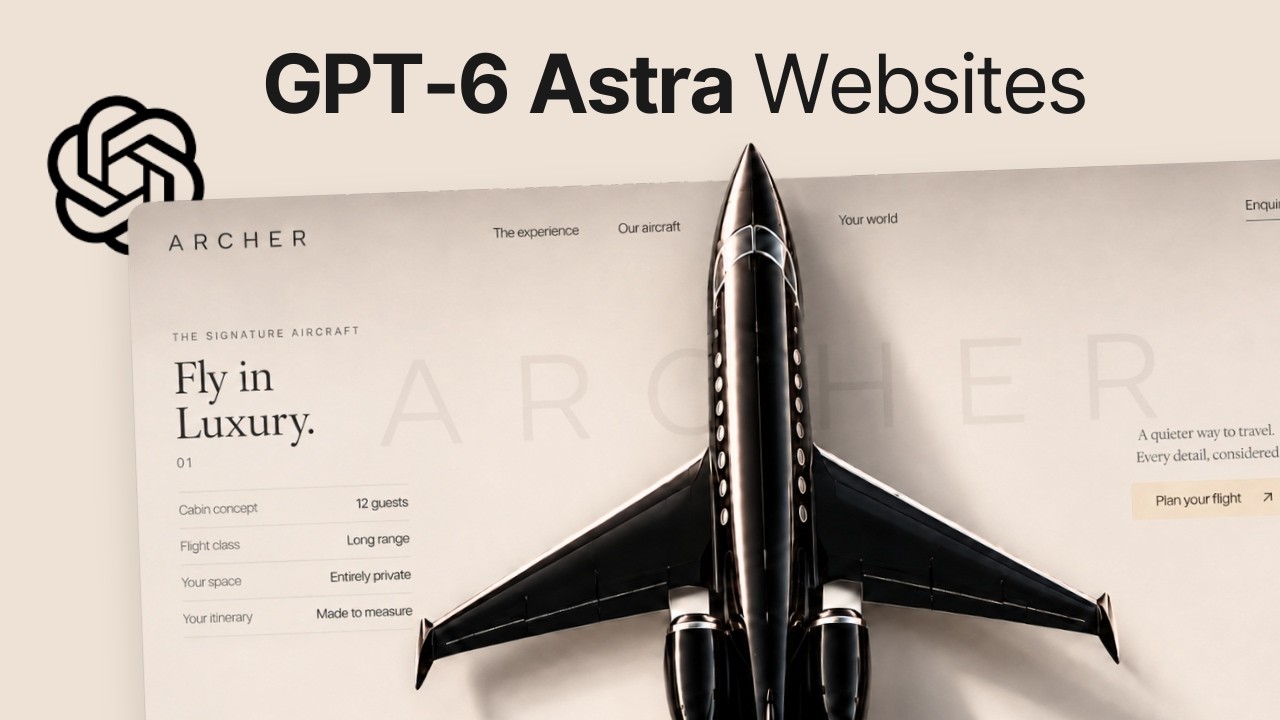
In this video, I'm going to show you how I use the new GBT6 Astra to build this beautiful premium website. And as you can see, this is not a simple website that looks viodated. It feels luxurious
with a smooth cinematic scroll animation here that would probably cost $5,000, $10,000 if you were to get someone to build this. And I actually struggled to build this part with Cloud Fable 5, but
Astra did it in just under 30 minutes. So, I'm going to show you step by step on how to create a website like this, including all the prompts that I use. So you can do this even if you've never
created a website before. Let's get started. All right. So before I start prompting, I want to walk you through what I have here. So basically, this is a website for a private jet charter. So
if I reload the page, it's going to have this uh cool animation of the window going up. And then as I scroll down, it has this cool effect of going outside in the clouds. And then we're going to kind
of descent. And as I scroll down, it automatically highlights the text here. And if I scroll down more, it fades away into the next section where the plane actually rolls in from below. It goes up
and then flies over the text and it reveals another section here with some specs about the plane itself. And as I scroll down even more, it actually fades out to reveal kind of the seat map
blueprint of the plane, which I think looks really cool here. And then if I scroll down more, it brings you to the next section, which is pretty standard. And then we've got this spinning globe
here, which looks really good with the word limitless behind it. And I think this looks fabulous. And if I scroll down more, it's got this uh scrolling testimonials here that I've just added
as well. And then we've got the photo here. Now, as you can see, this is a gorgeous website. But you might be asking, how did you come up with all these ideas? Well, the answer is I
didn't cuz I actually found this website called JCO Jets. And you'll see that it has the same design layout with the airplane window here. And you've got the jet coming in from below and also the
spinning globe. And I think this is a very important first step whenever you are building a website. Before you start prompting, you want to find a good reference. Cuz without a good reference,
the AI is just going to guess what you mean by beautiful or premium, and it's just going to default to the design that it's been trained to produce, and you're going to end up with a website like
everybody else. Now, if you guys want to find inspirations for web design, I like to go to this website called awards.com. It is basically a collection of websites that has won awards, and you can
basically find a website in any category here. And this is where I found this JCO Jet website. Now, when we're taking this website as a reference, it doesn't mean that we're copying it exactly. But what
I'm doing here is I just want to take the base structure and the concept of the website and adapt it for our own product with our own typography, our own color palette. So, for example, some of
the things that I want to change for our website is this passenger window here. I think we can find better ones. And I'm also not a big fan of the color theme here, especially the fonts and the
placements, how it's overlapping with the window here. And obviously the jet here, I do want to pick a different color jet. Maybe let's pick a black color jet. So I just go to Pinterest and
I just type in black private jet just to get some reference images. And for example, let's pick this one here. And reason why I like Pinterest is because I can go into this rabbit hole of, you
know, if you click on one image, it will show you more images like it. So there's just a lot of options that you can choose from here. And we don't even have to find a plane with this top view angle
here cuz we're going to use AI to regenerate that plane in this angle. So, I'm just going to save this one here and just save it in a folder. And the other thing that I want to change is probably
this window here. I don't really like the aesthetic for some reason. And again, I went to Pinterest and just type in plain window here. And you see that we have a bunch of uh options in terms
of colors and everything. And I particularly like this one cuz it has this golden hour look. So, I'm just going to grab this one and again save it into a folder. All right. So, we're
ready to prompt here. So, I have Codeex open here and I just connected it to a folder here. And just to show you what I have in the folder, I've got this subfolder called references. And I just
like to keep things organized. And inside here, I have the picture of the plane that we just took from Pinterest. And I also have a window here that also grabbed from Pinterest earlier. And I
have this third file here, which is called walkthrough. So this is basically a video file of me explaining what the animation looks like for this reference website here. Cuz if you just give it a
URL here and ask it, hey, can you just clone this website? it's not going to be able to pick up the visuals here in how the elements react to your cursor because as I scroll down my mouse here,
you see that the plane moves in and it's not going to be able to pick it up if you just give it the URL. So, what I did was I just screen record this website here and I also recorded my voice as
verbal instructions as well, just as if I was explaining this to a human designer. So, that is what I did here. This is just a recording of my screen of me going through the website. And if
you're on a Mac, you can just use QuickTime. They have a free screen recording or you can use Loom and just save that recording here in the folder as well so you can watch it. And then
now I'm going to paste in the prompt. So what I'm saying here is build a luxury private aviation website called Archer. So I'm going to call it Archer using this website as a reference. So this is
basically the URL to the reference website and I'm going to explain to it and in the project folder you'll find three files and because I am connected to that folder here I'm just going to
give it added instructions. Hey, I've got a picture of the jet, picture of the airplane window, and also walkthrough video showing the animations and the interactions. Now, for that video, I'm
actually using the watch scale here to watch the walkthrough video. So, this is a free skill that I downloaded from GitHub, and it allows either Claude or Codeex to to watch any video either on
YouTube or Instagram or even an MP4 file. So, what this skill does is actually is going to match what you say in the video with the visual. So, it understands the full context of what
you're trying to say. Now, without this skill, Codeex is still going to be able to watch your videos, but I feel like it's not as accurate. It's just going to eyeball the content instead of
understanding frame by frame. And I'm just going to provide that scale down below if you guys want to download it. So, so what I'm saying here is just study the video, watch it, and pay
attention to the scrolling movements, all the zoom effects and transitions and everything like this, right? And I also said that the brand should feel luxurious. And I actually indicated a
color theme that I want which is black champagne gold color palette. So instead of this blue and beige color theme here, I do want this to be like a champagne gold and black. I think that conveys
luxury, right? And use a black private jet matching my reference image which is already in the folder. And I also said come up with your own typography cuz I mentioned before that I don't really
like the fonts here. So I ask it to come up with its own fonts. Now, because we have to generate images and videos for this website, I'm going to use Xfield CLI to help us generate the videos and
images as well. And I'm a bit particular in the model that we're going to use for this one cuz JGBT image 2.5 just released last week. So, I want to use that to generate images for the website
and also Cance 2.5 for any video generation. Now, if you guys don't have Hicksfield connected yet, it's very easy to set up. You can just go to this link here. I'm going to provide this link in
the description below. Select chat GBT and copy this and just paste it into your ChatG session. Just open a new chat and paste it there and set it up. And it's going to prompt you with a login.
So you just have to log into your Hickfield account and just make sure that you have enough credits and you should be good to go. Now the rest of the prompt is just me telling Astra to
explain to me what it understands about the reference design. And before I actually build the website, I do want to approve the images and videos first. So it doesn't build the entire website and
work for hours and come up with something I totally don't like. So, I want to approve the concept. I want to approve the images. Show me the results before you build the entire thing. And
then I'm going to hit go. And this usually just takes a couple minutes for it to watch the video and learn everything. And it's also going to call Hicksfield to generate all the images
and videos that we need so I can approve it. All right. So, just after a minute, it reviewed everything and it was able to give me a plan here. And this is what it proposed in terms of the design that
we're going for based on what it understood from my screen recording. And it was able to also generate some images from Higsfield and gave me the preview of the private jet. Here we've got this
black one and also the cloud and the plane window as well. So I think all of these look good and I think this is the beauty of having that connector to Hicksfield cuz you don't even have to
jump between platforms cuz you can control everything from one chat session. So I think I'm pretty good with all this and all I said here was okay good to build. And in just a couple
minutes this is what we get. So, we've got this beautiful black and gold color theme here that I just requested. And we've got this video of the cloud actually moving. It's very subtle, but
it is there. And if I scroll down, it's going to move into the window here going outside. And we've got this text here. And I actually don't like this separator here. I think this should be a little
bit more cleaner. So, I think we can fix that. And we see this transition from the cloud scene to here. Okay. So, I've got the plane coming in. So one thing that I noticed here the text is actually
not under the wing here. So it should be under the wing as you can see here from the reference design. So it has this shadow here which gives you the effect of the plane just rolling on top of the
text here. So that is something that I want to change as well. Okay. So it gets smaller. So the fading actually works which is cool. And the other thing that I want to change as well is obviously
this frame here which does not really look good in my opinion. So, I want to make sure that this is actually gone as well. And let's scroll down a bit more. It's got this image here which is
generated by GPT image 2.5. And if I scroll down here, we've got this scrolling city here. And also the spinning globe, which actually is a lot better than the original, to be honest.
So, this is what we have. And this is the original. And I think this looks a lot better. It's got more detail. And we've got this uh moving ticket here as well. So, it's it's subtle animation
here, but it looks really good. And we got this word limitless behind the globe. But yeah, let me know what you guys think if this is better or this one. And if I scroll down more, we've
got this footer here, which is actually very simple. There's nothing special here, but it's clean. Now, it's good that we have some errors here, so I can show you how I would actually fix this.
And I think most people when they see something like this, they'll just take a screenshot and they'll just type in their correction in the prompt. I think that would work for simple things like,
you know, changing the color of something. But if you are trying to explain what you want in terms of animations here, in my experience, screenshot is not the best way to do it
because it's going to just waste a lot of time back and forth just to fix one simple thing. So what I do is again screen record the entire website going through the entire website and verbally
just give it instructions on what you wanted to fix. So you can say something like okay this website this part looks good but as I scroll down here I am able to see this line here which does not
look good. I want this to have a smoother fade in. I don't want this line to exist at all. And in this part, I do want the plane to have some shadowing. And I also want the plane to appear on
top of the text. And also when a plane gets to this point, I don't want to see this line here. And I just save that recording here in the folder. And I just right click just to reveal the path name
here. So it knows exactly which file it is. Go back to codeex and simply invoke that watch scale that I have. So I can just do slashwatch paste in that URL and just hit go. Now it's going to watch
that video and again make corrections the website and it's going to give us a new version. All right. So in just a few minutes it's done correcting all those mistakes. So let me try to zoom in and
see if they're actually fixed. Go down. All right. So it looks like that line disappeared now. That is awesome. So it was able to pick up my instructions from video. And let's go down a bit more to
see if that plane animation looks good. So plane moves in. So I can already see the shadowing here on the bottom of the plane. And yeah, so it is actually on top of the text here, which looks really
good. And if I scroll in a bit more, that box frame is also gone, which looks really good. And then it reveals the seat map on the bottom. Perfect. Now, of course, you can customize everything
else like the text here or this one on the right or even the seat map here. You can customize it to however you want. But I just wanted to show you how you can correct visual mistakes easily
through a screen recording. So you don't have to do tons of screenshots and markups cuz that's very annoying. And as you can see that this is a lot quicker. Now if you guys are curious on how this
image here was created. If I go to Higsfield and I click on images and this is the image it generated for the seat map here and you can see the exact prompt on the right side and this is
written by Estra. So I didn't even touch the prompt here. So, if it gives you something totally off, for example, what you want to do is you want to go to Higsville and actually check the prompt
cuz usually it's because of the prompt. But I think for this one, I'm quite satisfied with it. Now, I think the website looks really good. I mean, it followed the design reference pretty
much to the tea with of course changes in color palette and everything else. And I think the font here and the overall feel of website here is so much better and looks more premium than the
original to be honest with you. And let me know if you guys agree with this. But what if you want to add more components to this website? Because this is a service business. I think a testimonial
section would be nice because this one does not have any. And in order to do that, you can just prompt, hey, I want a testimonial section. Can you please add that in? And it should be able to do
that no problem. But what I like to do is actually like to go to a third party website here called 21st Dev. So this is kind of a directory where you can find any type of template. So if I'm looking
for a pricing section, I can just select any of these. And some of these are animated actually. Or if I want to add a login form, I can just grab this one here, which is animated, which is pretty
cool. And they also have templates for testimonials. So if I click on that, you'll see there's a bunch of designs that you can just grab and give it to JHBT to implement on your website. Now,
I think this one looks pretty good with the scrolling animation here. So, if I like this one and I want to add it to our website, I can just simply click on copy prompt here. And I can go back to
chat GBT and I can say, hey, can you add a testimonial section to our website and place it above the footer and adapt everything to our design? And I just paste in this code here that I got from
21st dev. And basically, I want to make sure that the design is adapted to our black and gold color theme. And I just hit go. And in a few minutes, we got a new update with the testimonials. So,
let me just scroll down all the way to the bottom of the page and let's see where it is. There you go. So, we've got the same type of scrolling testimonials here. But all the colors and font is
adapted for our website. And it even populated all the profiles here with real photos, which obviously you can change if you wanted this to be published. But these are some of the
things that you can do with just one prompt. All right. So, I'm going to provide the link to this website. You guys can play around with it. and also the exact prompt and the step-by-step
instructions on how I built this, including the watch scale that I use here. So, everything will be in the description below. And if you guys learned something today, please make
sure you subscribe because I do these videos weekly. But thanks again for watching. I'll see you guys in the next