Enjoying this issue?
Get tomorrow's AI & engineering digest in your inbox — hand-picked, summarized, and always spam-free.
TLDR
Claude Fable 5.1, combined with image and video generation from Hicksfield, can now rebuild an animated app like Finch, including a fully animated character and interactive buttons, using only natural language prompts. The workflow involves giving Claude screen recordings and context, then iterating on animations and onboarding, with the result being a functional React Native app that can be published to the App Store. This capability was not possible a few months ago without design tools like Illustrator or After Effects.
Key points
Claude Fable 5.1 can generate an entire app, including animated characters and interactive buttons, from natural language descriptions.
The workflow uses Hicksfield for image and video generation, with a direct connector to Claude, and supports pay-as-you-go pricing.
Providing Claude with a screen recording of the target app helps it understand the pages and button behaviors, improving the build.
Claude can animate characters and elements, and users can request changes by recording a Loom video with voice comments.
The final app is built with React Native and Expo, requiring an Apple developer account for publishing to the App Store.
Tools mentioned
Techniques
- Using screen recordings as context for AI app generation
- Iterative animation design via natural language prompts
- Integrating external image and video generation models with an AI coding assistant
Stop scrolling. Start reading smarter.
Receive the day's most important AI & engineering updates in one concise email. No spam.
Transcript (captions)
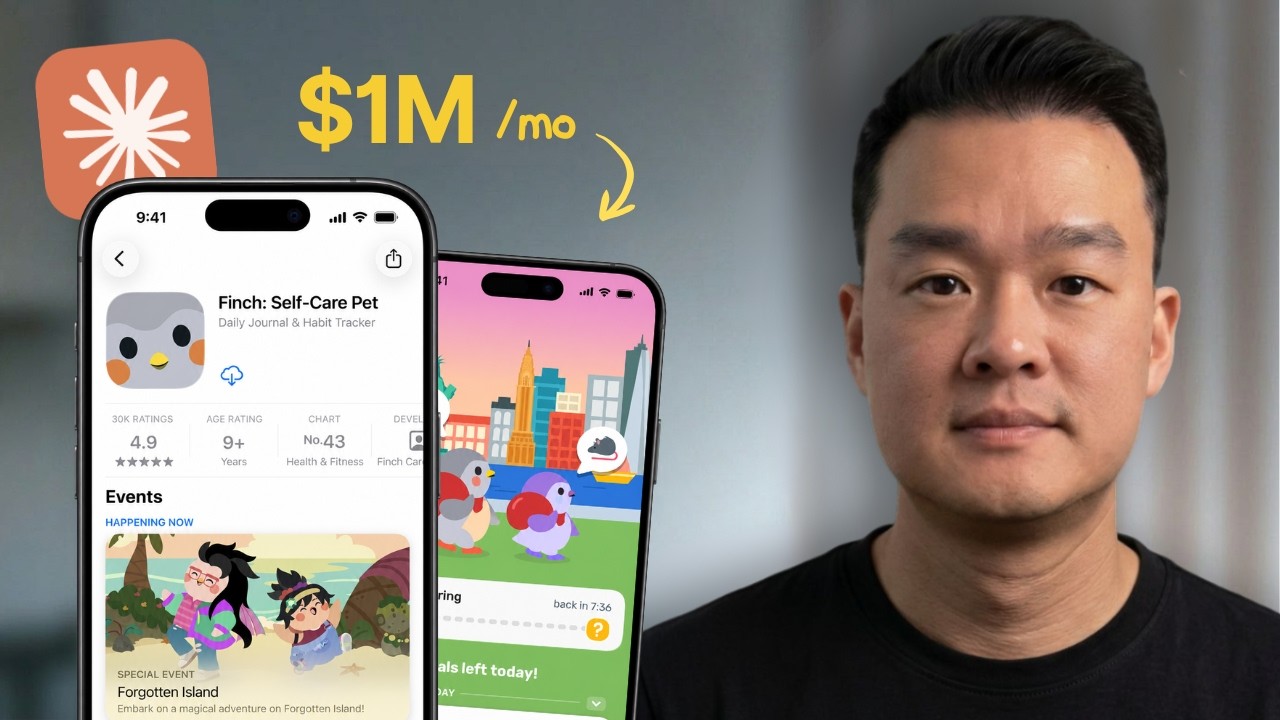
So, I found this mental health app called Finch, and it's apparently making a million dollars a month in the app store. And in this video, I'm going to show you how I was able to rebuild this
app using Claw's latest model, Fable 5.1. Now, this is not a simple habit tracker. Anybody can vibe code that in just a few minutes. But this app has a character that fully animates with
interactive buttons, which makes the whole app feels alive. It's basically the kind of experience you get in million-dollar apps like Dualingo. Now, to get animations like this, you usually
need a whole team of illustrators, motion designers, but I was able to rebuild my own version and made every single one of these characters and animations using Claude by just
describing what I want in plain English. This was not even possible just a few months ago, unless you know how to use Illustrator or After Effects, but now it is. So, in this video, I'm going to show
you step by step in how to rebuild all of this. And even if you've never built an app before, by the end of this video, you're going to be able to make one that looks and feels this good. So, let's get
started. But first, let's take a look at the app that we're trying to rebuild here. So, this is basically Finch. It's called Self-Care Pet. At first glance, it looks like a game, right? But it's
actually an app that helps people with their mental health. And as you guys know, mental health is a huge category in the app store. So, there's a lot of demand here. But a lot of these mental
health apps out there are usually pretty boring. Like, you're writing down your thoughts or breathing exercises, you're tracking your mood, things like this. But this app, Finch, actually took that
same exact idea of helping people with their mental health and turned it into a game. So every time you complete a small task for yourself in the real world, you log in this app and your pet gets that
energy to go on maybe fun adventures. You get to level up and you get to unlock some products that they've created here. So they're trying to gamify this process so that the whole
experience feels more fun. And by adding this animated character here, it makes the app more engaging and keeps users coming back to use the app. Now, I thought this was going to be a really
good example of showing you how to create an app that is not only functional, but also feels fun and engaging using animations, just like what you've seen here with Dualingo,
which is a huge language learning app. They've got all these characters that makes people hooked on learning a language, right? cuz I believe that adding animated characters like this
makes your app more user friendly and it builds excitement around the habit that you're trying to help people build. So, in this video, we're going to focus mostly on the design side of things like
creating this animated characters, how to build out all these pages with all this confetti and make the visual really good on your mobile app. Now, for today's build, I'm going to use the best
and the latest model from Claude, which is Fable 5.1. You can definitely build this using GP6 Astra. It is a very capable model as well, but I still feel like Fable 5.1 has a slight edge in
terms of design. So if I'm building anything that is designheavy, I'd personally use Fable. But whichever model you use, the workflow is going to be the same. Now, because Claude does
not have its own image and video model to generate the characters, we're going to use Hicksfield as they've got all the latest AI models like GPD image 2.5 and Cance 2.5. But of course, you can use
any tool you want for this, but I just enjoy using Hickfield cuz it has a direct connector to Claude. So I can control everything in my chat session. And by the way, they also just released
their API pricing yesterday. So instead of paying a subscription, you now have the option to pay as you go, which could be a lot cheaper if you don't do a ton of generations. So basically just paying
per request. And if you look down here, the pricing is actually 30 to 50% cheaper than their competitor, File AI. And they're also doing a promotion for the next 7 days. So if you use your
business email, you can actually get $15 free credits added to your balance. So you can start playing around with the tool, but it's only valid for the next 7 days during this promotion. So I'm going
to put the link to this page down below so you guys have access to all these discounts. All right, so right now we're going to start building the app with cloth. So I'm going to take this and I'm
going to take all the features they have here and I'm going to try to rebuild all their pages. But of course, we're not going to copy it exactly. I'm going to come up with my own character. But we're
going to take a look at what is working for them and use that for our own app. Now, what I'm going to do today is I'm going to split this tutorial into three different levels to make this easier to
understand. So, level one, I'm going to build out the home screen and all the main pages of the app and pick a character that we're going to use. And number two, we're also going to add a
full onboarding flow. And onboarding is basically the pages that you see when you download the app. It guides the user through the welcome screens and also the payw wall. So, this is a place where
people start a free trial or they subscribe to the app. Number three, we're going to animate the entire app so that the characters that you see will come to life and it becomes a fully
working app. And of course, at the end of the video, I'm going to show you how to get everything live on your phone so you can actually preview the app. So, we're going to be using Cloud Code today
and I won't be showing you how to set up Cloud Code today. I'm going to assume that you guys already have Cloud Code up and running. But, of course, for those of you who are new, I'm going to leave a
link down below if you need some guidance in how to set things up. But here, you're going to see that I'm already connected to a particular folder here called Chewy. And I think the first
step here is to determine what your character is going to be for the app. So I went to Pinterest and I found this cute BB alligator here that you can probably use for our mascot. So I've got
this saved in my folder. And the second thing I have here is basically a screen recording of the app. So I actually went through the original Finch app and I just screen recorded everything. And
this is something that I wanted to give to Claude so that it knows what are the pages, how each buttons behave. So it has all the full knowledge and context on what features are on here and and
what to implement for our app. So both these files are in here and now we're ready to prompt Claude. So I'm going to just copy and paste the URL of this page here. So Claude can research more about
the app. You can learn all the features from the screenshots here and it can also read the reviews here. So that will give you additional information. So if you see there's a feature that a lot of
people want, you can actually add that to your app. Now I'm going to just dictate my prompt here. So I'm going to say, "Hey there, can you check the mobile app link above? I want to build a
similar app. Instead of using the character, though, I want to use a baby alligator that is attached and I'm going to call it Chewy. And I want to build the same features. I want to build an
iOS app. Can you break down the features and the screens that I need to build? I want to plan this out before we build anything." Now, because I'm already connected to a particular folder here
called Chewy, and I've got the tool files that's sitting in there. I don't have to attach anything here. I understand everything. So, I'm going to hit go here, and I'm going to let it
work for a couple minutes, and I'm going to come back when it's done. Okay, so that is done. So, it actually came back with a description of what the Finch app actually does, and it was able to watch
my screen recording video as well. So it lists out everything that it saw in the video and it suggested all the features that we should build if we want to copy the app. So I can say okay great I want
to build all those features. Let's focus on the home screens and the main tabs first. I want you to use Hickfield MCP to do any type of image or video generation especially for the backdrop
and also the alligator. And and by the way when I say backdrop what I mean is this background image here because we're using an alligator. I think it should be some type of outdoor, maybe uh a swamp
or a small lake in the backdrop. So, I can add that to the prompt as well. And for the backdrop of the app, I do want this to be outdoors in a garden with a lake, but illustration needs to match
the style of the character that I'm building. And I also want the style and the color theme of the app to match the alligator. And now I actually want to use claw design to design the mockup of
the app. And because we have the latest update, we actually can invoke claw design directly inside of cloud code. So I can say something like /design use this scale to build the mockup of the
mobile app. And I want to be able to preview it in local host in a phone mockup. And then we're going to just hit go. All right. Right. So, just in a few minutes, it's starting to isolate all
the characters here cuz the original image has all this extra things that we don't want. For example, the stars here or the hearts. And if you look closely, this is actually a sticker design. So,
there's an outline here that we don't want. So, we want to remove that. And it's able to do that very, very easily. And I think the characters look really clean now. And it also gave me the
backdrop that I asked for. So, it is that swamp with the small lake in the background. I think this looks good. and it matches the character that we have. Now, if you're curious, if I go to
Hicksfield, these are actually the images that it was able to generate. And this is the backdrop that you just saw. And you can see the prompt here. This is written by Claude. And I never had to
even write this prompt. I just had to describe it with my own voice. And it was able to call Higsfield and generate this exact image just like what I asked for. And now I think our app is ready.
It is sitting in our local host. So, let's open this up. There you go. So, we have our app here inside of the phone mockup just like I asked for and actually put everything nicely together
with this alligator here on top of the backdrop that we just asked for. I think the styling matches perfectly because I did give it this alligator image as a reference so it knows. Okay, so this is
a design it needs to follow. And in terms of the rest of the page, I think this looks really good in the first try. Uh let's see if this works. Okay, so I can complete this task. Okay, so there's
there's little confetti there, which is nice. Brush your teeth. Okay, I can check it off. Let's drink a glass of water. I can skip it. Okay, so that button works. If I X out of this. Okay,
so let's look at the other pages. Quest. Okay, so this is looking good as well. All right, unlock in 3 days. Let's see what this does. Okay. All right. It even give me the shop with all these products
here. I can click on this. I can buy this or not. Okay, so not enough shells. So the back end functionality is obviously not set up yet. But I think it got the idea by watching my screen
recording. So that's why it's very important for you to give it as much context possible. And I think the easiest way to do that is just to do a screen recording, right? And let's
continue. If I go to friends. Okay. So I can invite more people. Chewy. Okay. So this is the profile. All right. So I think this looks good already. But wouldn't it be nice if we can just have
a little bit of animation here because visuals are kind of dead, right? that the alligator is not moving and no movement here is not very exciting. So, I'm going to show you how to animate
this character here so that it's more engaging and more fun to use. But first, I think the more important thing here is to build out the onboarding. So, like I mentioned before, this is the page when
you first download the app. It will ask you a series of questions. And here is the screen recording of the onboarding for Finch. So, you get an idea of what this looks like. So, we'll ask you if
you want to hatch a new pet or you want to log in. And now you can pick your egg and it will crack. And there you go, you hatched a bird. So I'm just going to scrub through all this. So it's
basically a series of questions that will get you invested into this idea, what you're struggling with, the areas of support that you need, and then they're going to hit you with a pay wall
here. So basically, you can subscribe, you get a free trial. So that whole onboarding flow is actually about 17 18 pages. And I think for an app like this, it's really important to get the user to
buy into the concept and then you want to hit them with the payw wall here. Now, we're not going to get into the marketing psychology of this particular onboarding flow cuz what I want to focus
on today is basically the animations that you have here and the onboarding cuz we're going to use this for our app. Now, I've already given this to Claude. So, Claude already knows and it
understands all these pages already. So, we can simply ask it to recreate the same exact onboarding for us. And we're just going to swap out the character with our own alligator. But of course,
if you're doing this for a real app, you do want to change a lot of these things. You don't want to copy it. Exactly. But I want to show you how to actually build the skeleton and get it to about 90% and
then you want to make your own changes for your own app. So I'll just give it the next prompt. Hey, I want you to build the onboarding for this app. And I have recorded the onboarding flow in
this folder. Please watch that video and I want to recreate the same exact flow. come up with all the pages, all the wording. And I want you to use our alligator here and choose the
appropriate expression that you think will fit in every page. And then I'm just going to hit go. And now it's calling Hicksfield again to generate the images. And it gave me all this mockup
illustrations of how the hatching of the egg will look like. So that when you actually tap it with your finger, it's going to crack, show the actual alligator inside of the egg. And just in
a few minutes, it's ready. So, I've got two here on the home screen, which is actually exactly like the Finch home screen here, but slightly different type of button here, which is good. So, it's
not exactly the same. So, I'm going to click on hatch a new pet. All right. So, we got eight different colors of eggs that we can choose from here. Okay. Let's pick this one. Maybe hatch my egg.
Okay. Skip for now. And tap the egg. One, two. There you go. Nice. So, that was cool. But if you notice this one is a little bit cut off here on the sides which is okay. I think we can fix that
very very easily. And now if I click on say hello. Okay it's ask me for gender. Next I can come up with another name. Okay cool. And I think it'll be nice if I can just type in my own name as well.
But let's go with this one. That's the one. All right. So it correctly displays the character that is in the button here. And there's a little bit of animation here. Click next. Okay. Nice
to meet you. All right. So that's the pay wall right there and try for free and day one streak. Let's go 5 days. Commit to this goal. Add a widget. No. There you go. So I think that is pretty
good. It took me about 10 15 minutes to wait for it to generate this whole app. Of course there are mistakes but you can easily ask cloud to correct that as well. Like here I just sent a screenshot
of the broken image here and ask it to fix it. And then here I just ask it to remove the outline here. I don't like the egg with the outline and also the broken images here in these cards.
Right. So just ask it to fix this errors and I was able to just correct it. Now the problem with this is that like I said it's not animated. So now I do want it to animate all this including all the
pages here in the onboarding so that everything flows very very nicely. Now I'm back to claude and here is the prompt that I just pasted here. It's kind of a long one, so I don't need to
dictate this one. But what I'm saying here is like, hey, I want to animate the alligator all the way from the onboarding pages to the home screen as well. Now, for the home screen, I want
you to animate the alligator walking around, and I'm just giving it this vague prompt. So, I wanted to figure out and give me your best shot at this. Right. Also, for the background, I want
the water to animate as well. So, along with the plants and the trees. So, so we have a moving backdrop, right? I want you to reference our character which is the alligator and the background image
in Hicksfield and I want you to use Cance 2.5 to animate these assets and I want you to swap it out the current version with the animated version basically. Now for the onboarding also
do the same thing. I want to start with the character of the alligator on the first page and I wanted to have the user pick different colors of the egg and when they select that egg I want to be
able to tab the egg and watch it hatch. And that's it. I'm just going to send it off. Now, while we're waiting for the images or the animations to come back from Higsfield, which is usually going
to take about 10 minutes or more, so Claude is pretty much idle at the moment. So, we're going to ask it to actually build out the functionality of the app or the back end of it, right?
Cuz I want to be able to preview everything on my phone. So, everything in the back end needs to be wired up cuz what you see here is just a preview or a mockup on my Chrome browser, but I want
to be able to preview it and experience the app on my actual phone. All right. Now, what we're going to be using to build the app is React Native. So, that is the building block that we're going
to use to build the iOS app. This way, if you ever need to build the Android version, you can use the same codebase. Now, the second thing you need is something called Expo. Right? So, in my
previous videos, I've been showing you guys how to preview your app easily by using Expo Go, right? So, Expo Go allows you to preview your app via the Expo Go app on your iPhone. So, you can swipe
through the pages and you can see if everything works correctly. But the problem with this is it doesn't allow you to add a database or if you want to add a Google sign in. So it's very
basic. So the other option which is the better option here is using EAS built. So this is another product by Expo. This allows you to preview your app as if it's already been approved in the app
store. So you can have an app icon and if you want to install like Google signin, you can do that as well here. But the problem here is that you do need an Apple developer account which will
cost you about $99 a year. And you do need an expo account as well which is free. But of course, if you're just playing with this, you just want to preview the app really quick, you can go
with Expo Go. But if you are building something real to be published to the App Store, this is actually the way to go. Now, I do already have an Apple developer account and I do have an Expo
account. For this example, I'm going to use this option to preview the app on my phone. So, while we wait for the images to generate from Hicksfield, I'm just going to say, "Hey, Claude, while we're
waiting for the images to come back from Hicksfield, in the meantime, I want you to build the functionality of the app. I want you to use React Native to build the app and use Expo EAS build to build
out everything. I can preview it on my phone. I do have an Apple developer account and I also have an Expo account. So, please guide me to connect everything together. If you need any API
keys, any credentials, let me know and I can provide them for you. And I'm just going to hit go. Now, in this video, I'm not going to go through every detail on how to set up the Expo account. But if
you give Claude that exact prompt that I just gave it, it's going to be enough to trigger it to ask you questions and guide you through the process as well. And I'll probably create a separate
video just on that cuz this video I really want to focus on creating the animations and getting the app to preview on the phone. And fast forward to another few minutes, it's back with
the animation. So now you can see that the alligator is moving around. I did ask it to, hey, just have it wiggle around and look left and right and blink. So it did that. I think it looks
pretty good. Now, let's go through the onboarding again to see how the animations play out between all the pages. Hatch your new pad. Okay, I'm going to click this egg here. Okay, skip
for now. Okay, so I think that looks good. It looks so much better than just having a static image obviously. So, say hello. That's the one. Let's go through all
this. Okay. Right. So, this one is just an image which is fine. And again, if you want this to animate, you can also ask to do it. Just take a screenshot of this and ask it to make some
adjustments. Now, one trick here that I always do whenever I am asking it to make adjustments, what I do is I just record a loom video of going through all these pages and just use my voice to
make comments, which is a lot easier than taking screenshots and annotating each one cuz now Claude can watch your video and can understand what you're pointing at because you have the mouse
moving around as well. So, I think that's a very easy way to make comments and ask for adjustments and it's definitely a lot faster. So, let's move on here. Okay. So, I think that's pretty
cute. Next. Maybe later. Okay. So, it didn't fix that one. Didn't fix this one yet. Um, okay. Let's fast forward real quick. I want to get to the home screen. And that is the home screen. All right.
So, we've got this animation here. And I think that looks pretty cute, but I think the alligator is a bit glitchy here. Now, it's big, but it's turning into a small one. It's walking around.
Turn into a big one again. So, that is a bit glitchy here. I think we can fix that. And also I I do like the animation of the water here with these two plants moving around. I do like that. But I
don't like the fact that the cloud it doesn't loop perfectly. So I think with this one, we can definitely make it stop moving while keeping everything else the same. So I'm just going to take a
screenshot of this page and just drop it into Claude so it knows which page I'm referencing. And I think this time I want to be more elaborate when I'm explaining the animation. So, I'll say
something like this. Hey, I want you to fix the animation for the alligator. I want him to be walking from left to right, then coming back to the center of the screen. Maybe pick up a cup of
coffee, drink it, put it back down, and then walk back to the starting point. And also for the background, I want the cloud to be still and not animated while keeping everything else the same. And
once you're done, I want you to update the mockup. And I'm going to hit go. And just fast forward to a couple minutes later, we have the app ready here with the updated animation. So, we're going
to have to go through all this again, unfortunately. So, I'm going to do it very, very quickly and get to the home screen. And let's see if that works. All right. So, walks. So, it's walking all
the way to the right, stops, goes back to the center. All right. Picks up the cup of coffee, drinks it, put it back down. Let's go. All right, perfect. So that is good. You
see how easy it is for us to create any type of animation by just describing what is in our head, right? By just talking to Claude and then Claude will create the prompt and generate all these
assets in Hicksfield without us having to generate all these videos ourselves, right? And it did also fix the backdrop here. Now the cloud is not moving and it didn't touch the animation of the water
and the plants, which is good. Now there's one more thing that I want to show you. What if you want to animate some of these buttons? Maybe you want to have an animated loading screen or a
confetti when somebody taps on one of these goals here. You don't want to create every single animation from scratch, right? So, what I do is I like to go to this website called Li Files.
So, they have a bunch of free animations that you can immediately use. So, for example, if I'm looking for a confetti animation, I can just filter by success maybe. And then there's a bunch of check
marks and some confetti here. And I found this one that I like that we can probably grab for our own app. And the nice thing about Lotty here is that you can even change the color of these
elements here. So it's not really baked in into this color. So if I click on color palette here, I can pick and choose something that matches closely to the design theme of my app. I can save
animation. And I can even change the speed of the animation as well. But let's leave it at 1x. And once I'm ready to download this, I can just click on download here. And they'll give you a
bunch of options here. I'm going to take this one and just download it to my computer. And I'm just going to upload it to Claude. And I'm just going to drag that file into Claude and say something
like, "Hey, I want this animation on the home screen. When one of the goals is selected and the user press is complete, it should appear and animate in the center of the screen." And I'm just
going to send it away. And it will apply that animation and update the app for us. Now, fast forward. That just took a couple minutes. So, if I click on any of this, this check mark here, then that
animation appears. And let's try another one. Hit yes. And there you go. Now, of course, you can indicate where you want the confetti to appear. Do you want it to be bigger or placed slightly above or
below? You can communicate that in just plain English to Claude. Now, last but not least, Claude actually did finish building out the back end of the app as well. So, I'm ready to connect to my
phone. So I'm connected to my phone here on the left side and you'll see that I already have this app icon here that I also generated using Pixfield. So on the right side is my Chrome browser and then
the left side is just a mirror of my iPhone. So I can click on this app icon here and it goes and open our app. So again I can go through all the pages here again and it's exactly the same
with what you have on the right side here. But the difference is that now it's on my iPhone. I can test out how the buttons feel. Do the pages move correctly? The swiping gestures and all
this. It's a different feeling when you're clicking on the screen versus actually swiping it with your fingers. So, so let me know in the comments guys what you think about this app. I know we
went through everything relatively quickly. I don't want this to be a 2-hour long video. So, if you have any questions about anything, any part of the process that you are not clear
about, whether it's about design or building out the back end or setting up the Expo accounts or even publishing the app to the app store, let me know in the comments below and I'm going to address
those questions in my next video. But if you made it this far, thanks again for watching till the end. If you want to watch me build another app, I think you're going to like this next video.
So, click here and I'll see you