Enjoying this issue?
Get tomorrow's AI & engineering digest in your inbox — hand-picked, summarized, and always spam-free.
TLDR
Claude Co-work, combined with a Notion task database, can be configured as a personal assistant that delivers a daily briefing pulling from Google Calendar, Gmail, Slack, and Notion tasks, all set up in roughly an hour. The system uses scheduled tasks, a folder-based memory, and a separate task executor to action approved items from the Notion database.
Key points
The daily briefing runs at 8:00 AM and includes calendar, tasks, Slack, and email.
The setup uses Claude Co-work with connectors to Google Drive, Google Calendar, Notion, and Slack.
A Notion task management database is created with views filtered by person and status, usable by both AI and humans.
The system includes a scheduled task for the briefing and a separate task executor that actions approved tasks from Notion.
Tools mentioned
Techniques
- scheduled tasks
- connectors
- folder-based memory
- context map
- simplified technical English
- Notion database as source of truth
Stop scrolling. Start reading smarter.
Receive the day's most important AI & engineering updates in one concise email. No spam.
Transcript (captions)
It is now very possible for non-technical people to build themselves in an hour a personal assistant that [music] will look after their email, calendar, tasks, meeting notes, and
information and brief them daily on what they need to focus on. It's a matter of building the right thing in the right place. And I'm going to show you exactly how to do it today with Claude Co-work
and a little bit of notion thrown in for good measure. This is how to build an automated daily briefing personal assistant in no time at all. And if you want to fasttrack the initial build and
just make this process super smooth and beautiful, well, you can go and check out Coowork OS. It's a complete readymade system which has been blowing my mind and get Coowork OS set up from
scratch better than 99% of people. And you can watch a full video on how to do that over on this channel and linked in the description if you want to go further. I'm also about to release the
Agentic Business OS, a complete notion workspace which will run your entire system in notion. Your team, your AI instructions, everything readymade and ready to go. Let's do it. So, a personal
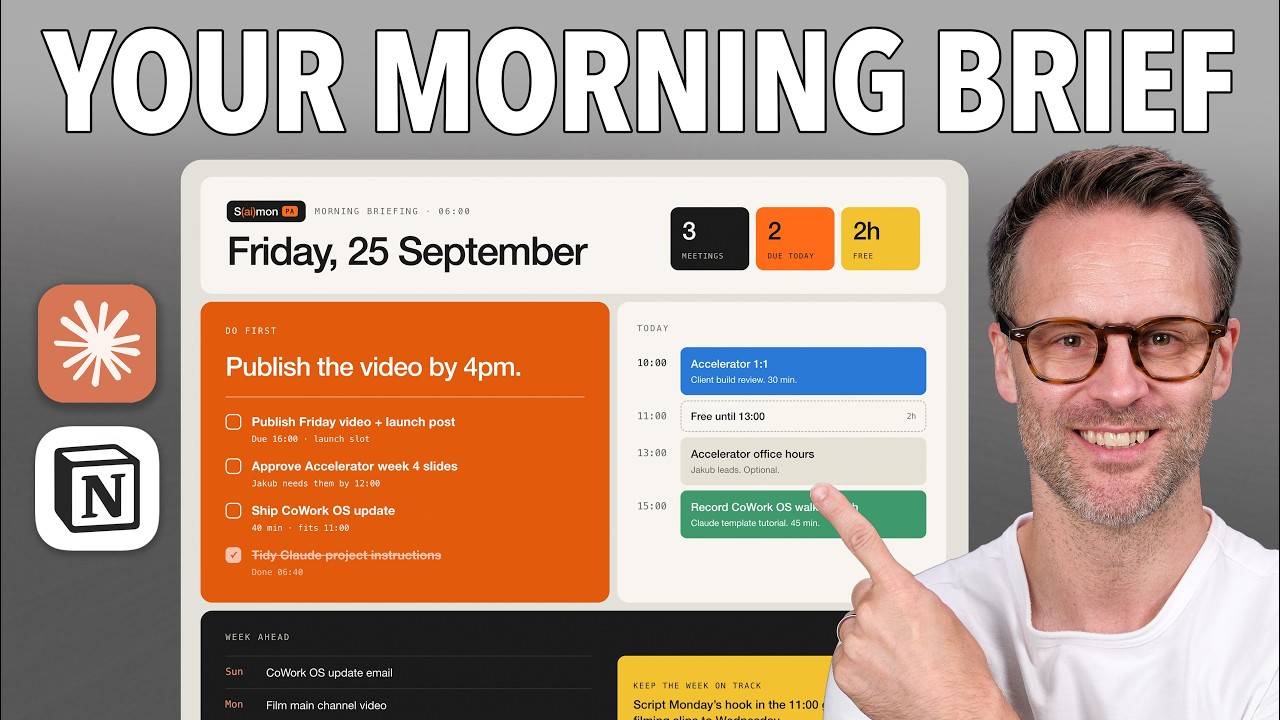
assistant. Let's first of all see what we get. This is my PA morning briefing. It runs on a scheduled task over here. There it is in Claude Co-work. And each day at 8:00 a.m. I get a report. And it
looks like this. I have a full list of what needs attention. I have my day listed from my Google calendar with all of my action items from my notion task shared dashboard. I have what's relevant
in Slack from my team, issues raised by my team and what my team is doing and all of my backlog and personal stuff. It's absolutely incredible. So, the first thing you're going to need to do
is download the Claude desktop app and install it on your computer. And then you'll have a view a bit like this. Co-work is the system that runs on your computer. So mine is this co-work
folder. And if we jump over to my finder, this is what it looks like. I actually run mine in Dropbox because it allows me to use it across all my devices. And this means if you keep your
uh files in Dropbox like this, you can go to make available offline. And that means that it will be a local file as well as one on the web. That's why I think this is a particularly good
option. But I'm not going to go into my Coowwork OS setup right now. You should watch my how to get started with co-work video before this or check out my video on how I have set this up to be on
multiple devices for something like co-work. So you select your folder that you want to work in. Tell me about the information you're working from. when you speak to me because it's working in
that co-work folder it will now read the context of that folder and answer and as you can see my co-work folder is the source of truth I have persistent memory separate folder where a memory is stored
across clawed surfaces live connectors for anything current or specific to your work things like notion gmail slack general knowledge and web search so that's the way to think about setting up
the basic I I want to go into customize and click on connectors. And you'll see a great range of connectors that you can connect to. This is where you should connect to
any place that you have information that you want your assistant to be able to read. I've got my Google Drive, my Google calendar, but you can also access your entire uh company's SharePoint if
you want if you're on Microsoft. And for me, I've actually even got my own agentic business guide MCP that we provide to our community full of knowledge on how to do these kind of
things. So once you've gone through the discover tab, you go back to yours and you'll see everything you have connected. And if I therefore look at notion, you can then see your detailed
permissions. So you have control over what it reads, what it's allowed to do without asking, what needs approval, and what it must never do. And you can customize this in a way that you want.
Now, I really love this, by the way, downloading a notion skill. It means that Claude can now take all of your skills from notion and add them into your workspace in Claude. So, you've got
synced skills. Really cool. So, for this example, I want to make sure that we're going to read my calendar. I want it to be able to read Notion, and I want it to be able to read Slack and my local
folders included. The next thing we're going to need to do is give it instructions of what to do and how to read that information. But I want to get two other things in place
first. The first one is what it looks like. So if you click on design, it will take you to Claude design. Now this is absolutely brilliant. And let's use this to create ourselves a look and feel.
This is my design system that's connected. So I'm going to find a version that I like. So you could use one that they already have or you could create a design system and we could say
create me an Apple Swiss aesthetic design system. I want it to feel really easy to interface with as daily morning briefing. Imagine that it was designed to work seamlessly with an Apple
aesthetic and had a bit of a DA Rams vibe and I'll send that off. Now obviously I'm saying DA Rams and Apple because I really like their design language. Uh, but it gives you an
example of what it can do. What claw design will normally do is then ask you a series of questions so you can answer those quite quickly. I like all three. Let's do all three and send the answer.
So, this is going to give you the interface that you relate to. So, we've started with context and now we're moving on to the architecture of how you read it. These are the first two letters
in my Cassa framework. Sign up to my mailing list for more. What you could do now is sit here and watch it build something beautiful out for you if you wanted to. And this gives you that kind
of vibe of what it might look like. I love this look. It's doing restraint. It's doing colorways. This is epic. It's totally up my street. Now, while it works, I'm going to also design the
other element before we connect this together with the instructions, and that is to go over to Notion. Because for many of us, this is actually a much better place to manage tasks than in say
just a document where it's written down by Claude. Now Claude could do that anywhere. You could make an Excel sheet or you could just give it markdown files and say write this up as text and delete
and update it as you go. But I personally think that notion is a brilliant place to build a task list where you can have views and systems by individual. So what I'm going to do is
I'm going to start a new chat with my AI. I'm going to use Notion AI and ask Gemini to help me. I'd like to create a task management database that can be used by both AI and people. It will be
managed by my AI assistant Claude and it will be viewed by both me and my virtual assistant. Secondly, create the database within a parent page which becomes metric reports and visualizations to
make it easy to read as a dashboard. Show linked views filtered by person and status from the source database. Now, you can copy that if you want. We'll see how it goes. This is just showing you
what prompting can do, right, to get these things done. So, we're going to let that run. You'll see it's using my AI operating system. So, make sure you're subscribed if you want to learn
more about how to customize your AI to work exactly for you and how you think. We jump back to claw design. We should now have an amazing setup. I really like the look of it. Now, you could obviously
iterate this so on and so forth. So, once you're happy with it, you can then click share and copy the link. I'm now going to go back to Claude Co-work and we're going to start building the
instructions. I'm going to paste that link in. I'm going to add a folder. And for today, I'm just going to put it where I keep the rest of my Claude setup. Going to go into co-work. Here it
is. New folder. And we're going to call this demo PA. And open it. So, we're now working within that folder. I would like to create a scheduled task that is a
personal assistant that runs a daily briefing on my current circumstance. We're going to do this only inside my demo PA folder. Now, to make this similar, let's imagine that you don't
have my co-work set up with all your custom instructions. Let's see how well it does it just from absolute scratch. Please create two things. one, a first draft of a scheduled task which asks you
on a Monday morning at 8:00 a.m. to deliver a briefing of the day and the week and every other working day it delivers a daily brief. The report should be delivered both in the chat of
the scheduled task but also as an artifact in a briefs folder inside the demo PA. create a memory file and project file for how the demo PA should work that exists in that folder so that
you have a clear set of instructions of how to operate. I want my personal assistant to be able to brief me across the work I have coming up for the day, my clear important priorities, what's
happening for my schedule, and it will need to read my Gmail, my Google calendar, and a specific notion task database that it will read from to inform its decisions. Now, of course,
you could put anything else into it. I'm going to use Opus 4.8. We've gone past that by now, but I I just think this is a quite a nice model for this kind of work. And I'm going to add one more bit
of context in which can inform it. Let's add a file in my coworkos system in about me. I have built something which is my voice profile, about me, and writing rules of how to make it write
not like an AI. And I'm going to open those. Finally, I'm going to say I've attached three files which define how I speak, the writing rules you need to follow
when you write reports and a file about who I am. Create copies of these in your demopa folder and ensure that your main instruction file in that folder instructs you to read them each time you
operate. Let's see what happens. The reason we ask it to deliver it in the chat is that it means that on mobile you can always access it, find the report, click on it and easily read it. But if
you want to you could also make it generate this as a artifact. So you can see here it will update this every day and this is an artifact that it updates in claude. So there's different ways for
it to deliver and it just means that wherever you're at you get to read it. And as you can see, it looked for the MD file that governs its behavior and realized it didn't have one. So this
would be exactly how it worked for you. It's now looking at the design system and to find the notion task database before it asked a couple of questions. And let's just say because I think
notion is still working. It is. Oh no, there's the hub. There's the database. We can copy the link and we can say this is the notion task database you will use and send that in. Now you'll see very
shortly that rather than creating this actively in here and using all the setups by doing it in this way we're actually going to get Claude to just build it for us in this custom approach.
And I just find it makes the whole thing much smoother. Let's go back to notion and see how it's getting on. We can see a bunch of imaginary items in here because we're doing it as a demo. But
we've got a great setup. We've got a camb board of material to work through. Interestingly, Notion actually created something where it's given us whether or not these tasks can be automatically
done by the assistant or by us. So, we can potentially use this on the scheduled task, tell Claude to read this and action the items. So, you actually have in a single scheduled task the
potential to have it go and do scheduled work for you. This is the power of using a notion database like this as your source of truth for your AI. So you can have a I've got like a imaginary virtual
assistant Q for my colleague, one for me and then one for Claude AI and we could call this AI PA Q for example. Anyway, that's all ready to go. Let's go back to Claude and see where we're at. Okay, so
it's worked its way through. It's got its designs ready and it's now going to ask us some questions. So, your inbox is organized and you've said to be careful with email. What should this morning
briefing pull from Gmail? Oh, that's interesting. Unread and need reply today, but also separate it into two parts for me. I have a Simon's inbox tag, so stuff for me specifically to
look at, and then separately anything that's in the unread pile in the main inbox that might need my attention that isn't partnership outreach from other brands. I get a lot of that. So you know
you can list this. The demo task database has tasks for you. Claudia on a virtual assistant. What should the brief do? The instructions should be three-fold. These should be tasks that
it can report on the fact it is ready to action them and ask for approval. Everything else should be shared as a personal view. And you called this a first draft.
Great. Uh leave it off for now. It's kind of as simple as that. Now what we should see in a moment is it creates the task and we can go and look at it instructions. Now I'm going to show you
a version while we wait for that which is the one I've already created. So if I go into edit my PA morning briefing this is what the instructions look like. So it says you are say personal assistant
it gives the context. So mine uses my co-work so that it's able to work within it. And actually in my uh co-work system, I have an entire templated system for a PA which is this work areas
admin PA captain's log. Now this is a setup I have in my claude account where I can log daily thoughts and just chat to the PA and this means it has a kind of running commentary of what I'm doing.
So here you can see some example captain's log. So when I do a quick log it's logged what I talked about, what I'm working on and it just keeps it updated. So it means that you can have
this kind of ongoing memory of what you're doing. So I'm going to add that to this system in a moment. It has a clear process to gather information, render the results using the design deck
we've done, and where it delivers it. So essentially where it finds its context, how it presents the information, and how it delivers it each time. And you can have it either work in a folder or work
in the cloud. And I personally think it's better not to have it working on the computer because it means you can access it and run it anywhere. And so far it's created its demopa operating
instructions. So this is the briefing file for the system scope rule. Only ever read, write or act inside this demo folder. Do not touch anything else. You can have these kind of limits. So it
needs to read these work out the date, what the brief is, what's happening today, his clear important priorities, what needs doing and what's waiting on him. Now, this would mean you can have
one that reports and then one that takes action. It's got the design system, safety boundaries. Great. So, it's creating those instructions. It's got the briefing template. Looks nice. PA
project. It's got the folder map. And it also has a PA memory standing notes and it can log information. Okay, here we are. It's created all of the items and it said
it's ready to create the schedule task. Run this briefing. Read the run book. In short, go through these steps. Fantastic. Now, you could set it up, of course, as a scheduled task with all the
instructions inside it. This approach means that everything is saved within the folder, making it transportable and movable if you wanted to take this off Claude and use it somewhere else. So, as
you'll see, the scheduled task is now actually an instruction to say go and read the folder system. Now, I think this does seem a bit more complicated, but it's a much more robust and
sustainable approach to building a personalized system and and note that we've done this with none of my other existing Cowork OS instruction set to make it even more refined. So, you can
do this today. So, I'm going to click schedule and it's ready [music] to run. Okay, so it's run a test. So, essentially it is systematized the S of Cassa. So, scheduled. We go in here. We
have There it is. The daily briefing demo. Interestingly, you'll see here if we edit it, it's running on the computer. And I'm going to tweak that in a moment to show you how to make this
run at any point and still access the files. Uh, but we'll leave that as it is for now. We've done a test run in here. And let's take a look at what it's created. There you go. There is our
report. So, we can see it's pretty accurate. We have my 20% focus for the day. filming, finalizing contracts, sign off this imaginary task which is from notion. There it is. If I just wrap
that, you can see it. Draft weekly community digest. These are imaginary tasks that we've done for our demo. So, that has drawn on my calendar um and on the task list. So, that's working. We've
got my schedule that has come from my real schedule today. That all looks correct. And what's really cool about this is we've now got this ready for Claude AI. So, approval to action, ready
to run. And it says, "If you approve it, I'll action it on the next round." So, we could do it like that or we could have a second uh setup. So, that's really cool. And we've got stuff waiting
on me. Nothing there. And stuff in the inbox. And we can see the sources. Notion calendar, notion tasks, Gmail, and you could even plug in Slack and all the rest of it, right? It's really cool.
So, let's now collapse that and let's give it a bit of feedback. Okay, this is looking great. A couple of improvements. I think the tur nature of this isn't quite right. Let's allow a little bit
more of a feeling of a capable focused assistant briefing me in the first paragraph with a kind of focus and reasoning and then all of this information where it says waiting on
you. I think it's important that we're clear if it's coming from email or from tasks. And probably it should be email waiting on you in that final section. Now, the other thing I want to do with
this scheduled task is not make it be completely reliant on the local folder. So, I'm going to say this. My system is set up in Dropbox. So, you should add to the instructions for the schedule task
that it can access the files locally if they're available. And if they're not, it should go via the Dropbox connector to the same folder route. meaning that it can be a task that is not held
locally to the computer and run on the cloud. For any tasks that are ready for clawed AI and need approval, give me options to select which of the tags in notion it should update. meaning that it
then updates those tags and we have a separate scheduled task that runs personal assistant to go and do those tasks from the notion database. So that would mean this scheduled task would
just update their entries in notion and the other scheduled task would actually get the PA to go and do real work. Finally, I'd like to add a workflow, which means that anytime I respond to
you in one of these chats based on what you've shared that is added as a captain's log in a captain's log folder in the main demo PA folder and you use that to update the relevant notion task
database also. Great. So, it's going to make those updates and I'll show you the difference. Now, one more thing. I've been working on something called AFD STE 100. And this is a thing called
simplified technical English. And what it does is make your AI speak to you in a far more focused and clear way. And if you'd like that prompt, it's something that we share with our wider community.
So, make sure you join my mailing list. So, I'm going to go back to the daily brief. Oh, it's got some more notes. Yeah, we'll do that one. And when should the separate task executor run weekdays
at 10:00? One more thing, I'd like the VA to use these guidelines for how it communicates with me in the reports. Drop those in and send it. Okay. So, I'm going to let that finish. Then I'll show
you the results and the exact process of how you would use this day-to-day so that you can do the same. So you'll also see it's added the writing style guide here and that's now
been added as an MD file uh on how to write using STE 100. And now you'll see we not only have our clawed MD file which gives the instructions of the process of how it should run as a
personal assistant. It's now essentially a project but we have our captain's log folder available offline and inside it the first entry of the captain's log. and it means that it will be able to
read this and understand how to work with me. Now, second, it's created me a task executor for the demo PA. This is a task executor run. Your job is to do the notion tasks Simon has approved and it
gives all the information. Read the demo PA folder work with that and the rules are only tasks that assigne is Claude AI and the status of to-do AI can be done and it sets the statuses like this.
We're going to click schedule and it's telling me that I've reordered the tasks. Email is now having its own section. and the tone has shifted a little bit and there's an approval loop.
Looking really good. So, we'll go to schedule tasks. You'll now see that the demo brief does not have to run on the computer. It's not working in a folder. That is much much better now. And the
task executor is ready to go. That means we can now run it. So, what I'm going to do really simply is just go into the daily briefing PA and just click run. Now, so this is how you test it. You
should see under scheduled a new item come up. And this is what the actual process would look like when it runs. Now, of course, you could also link this into a more established team system for
notion. In my new Agentic Business OS operating system, we have a shared collaborative AI hub, but we have this a meetings, issues, and actions dashboard. Imagine this is your task list for your
team. You can also have a place to raise issues which you could also get your PA to be aware of and a place to capture team meetings or meetings and then have automated processes that watch this
database. And when a meeting is complete, it creates action items for the team. And this just gives you a full system to be able to completely stay on top of work. And just see how quick and
easy that was to set up. All right, we have some results. So, it's created what we need. You'll see it's worked through Dropbox. So, it is now working remotely. And this is the result. We've got a full
report. Today is a delivery day. Got some clashes. The main focus for today. This is great. This is what I'm doing right now. Uh we've got the schedule, my week. We've
got tasks and deadlines. These are all looking great. And emails. So, it's working really nicely. So, here's a little example of the kind of thing you would do. I'm using Whisper Flow to
dictate it. We can then share that and we should see it do a couple of things. One is it should update the notion task list in line with what I've said via the uh connection that we've created. But
two, it will then add a captain's log entry so that it has a report of where we're at. And you'll see now that it's no longer just in a chat. We're actually working within a scheduled task list. So
each day you can go into the current day and see what it's doing. And here, because I'm having a dialogue with it in the actual chat, it will now make updates to the relevant areas.
And there you go. It just made the update in front of us. So now I'm going to turn on the task executor, but I'm going to get it to run. Now you can obviously turn it on like this. And you
can edit these from here. So it's now doing that. And let's see what happens. It should do the one task that we've allocated in notion, which is to draft the weekly community digest and cohort
announcement. and it should update its status to needs review. That's what I'm expecting. It's querying the notion database, finding that it has Claude AI and to-do AI as the status. Great. One
task is cued. That's what we want to see. This is where the briefs are kept. So you can find them as files on your computer. And in system, we have the PA memory. So, it's also built as a memory
folder where it will update its memory and understand how it needs to work, which is great. Now, the maybe the one thing it doesn't have is where it's output should go when it executes the
tasks. But let's see what happens. Yeah, look, it's written in review execution notes and it's basically putting them in there. So now the next step would be to say when you execute tasks, this is the
map of where to put stuff. So really it's just about the logical thinking of how you activate it and iterate its quality and activate is the final A of Cassa. So that is the Cassa framework
applied to building a personal assistant. The final thing [music] I might change about this system is build something like this a context map because if
you're going to get your PA to then execute tasks based on the task database it's given currently it doesn't know where to put things. So it's just doing a quick write into this execution note
area. So you'd want to update the instructions in Claude to explain that it needs to write to a specific place. Currently it just has output. And one of my favorite ways to do that is to build
a map. This is the Aentic context map for my new business OS. And this basically gives you a map of where to put everything. So you can see there's where work happens, where client
delivery is, where uh content might be put. So, it should probably use this and go, "Oh, right. Uh, newsletters and information will be put into here." So, you build yourself a context map that
the agent can read. Put that into the context. Whether you write that in Claude or in notion, you're good to go. So, that my friends is how to build yourself a daily briefing personal
assistant in Claude and to connect into Notion in what that took me an hour at the most. And I was filming. Now, before you go, one last thing cuz you can make these scheduled processes for anything
you're doing. I'm currently trying to buy a house and we're trying to move house. So on Wednesday and Friday afternoon, I get Claude to search for specific types of properties and the
results look a little bit like this. It's finding great properties across South London where I'd like to live. And maybe we were like, "Oh, I like the idea of Little Borns and Dulich, a
mid-century house." We can click on it, open the link, and immediately it's finding me places to purchase. Looks great, but it might not quite be right. And man,
properties are expensive in the UK. Well, let me know in the comments how you get on. You can also check out Claude Co-work OS, which is actually really a platform agnostic version of an
entire Co-work OS setup. It onboards you into Co-work. You set a skill running and it helps you do it. And included in that is my full admin PA template. And if you're
interested in my agentic business OS for notion, that full setup you've kind of seen happening, the best thing you can do right now is jump over to this site. Make sure you join the wait list and
you'll be the first to hear not only about business OS, but also about the cohort supported process that we are offering around changing your systems and for the better to make your life and
work easier with whatever business you run using this Cassa framework. So, setting Claude up with Dropbox is right here. And how to set up Cowwork OS and Claude perfectly is down here.