Enjoying this issue?
Get tomorrow's AI & engineering digest in your inbox — hand-picked, summarized, and always spam-free.
TLDR
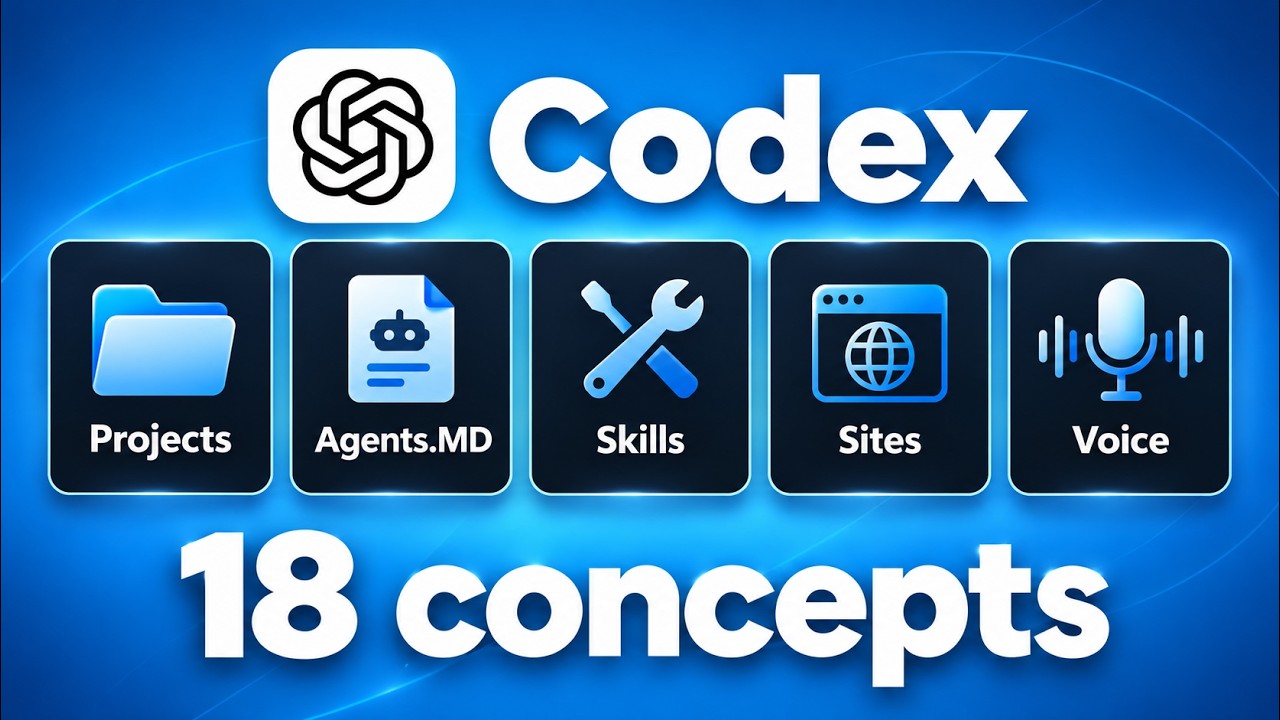
Codex's 18 core concepts revolve around a persistent project-based architecture where an agents.md file provides consistent context across all chats. Features like sub-agents, scheduled tasks, and voice mode transform it from a simple chatbot into a co-founder that can delegate, automate, and orchestrate complex multi-threaded workflows without manual intervention.
Key points
Codex uses a per-project agents.md file to pre-load rules and context across all chats.
The agent loop lets Codex reason, use tools, and act autonomously in a visible chain.
Skills are reusable markdown workflows that can be invoked by natural language or slash commands.
Sub-agents allow the main agent to delegate parallel tasks to cheaper models like 5.6 Terra.
Scheduled tasks automate recurring Codex sessions using existing local files, skills, and models.
Tools mentioned
Techniques
- agent loop
- skills as reusable markdown workflows
- sub-agent delegation
- scheduled tasks
- browser use
- local vs cloud environments
- work trees
- agents.md context injection
- fast mode
- effort levels
Stop scrolling. Start reading smarter.
Receive the day's most important AI & engineering updates in one concise email. No spam.
Transcript (captions)
Today I'm going over the 18 core Codeex concepts that you actually need to know in order to start using it right away and getting value from it. It doesn't matter if you're not technical at all or
you've never used Codex before. By the end of this video, you'll understand exactly how this thing actually works so that you can start using it right away. So, let's not waste any time and just
get straight into this one. All right, so I've split these 18 core concepts into four different parts and they get cooler as we continue to go on. So, part one, we're going to start off here is
foundations. So, we're going to kick off with concept number one, which is projects. Now, a lot of you guys, I'm assuming, have used chatgbt or claude in the web before where you can talk to an
LLM and it can, you know, give you an answer. But the problem you face is that every time you're talking to it or you start a new chat, you have to kind of familiarize it with you and your
business and what you're working on that week or that quarter. So, with projects, you can basically keep everything organized into one project so that as you keep working inside of it, it only
gets smarter about knowing who you are. So, right here on the lefth hand side, you can see that I've got a few projects going on. I've got Herk 2, I've got Hyperframes, I've got Trading Challenge,
I've got AIS demo, and I typically am always just working inside of my Herk 2 project. My Herk 2 project is basically what I call my AI operating system. And what a project is is actually very
simple. It is just a collection of folders and files. So right here, this is inside of my file explorer on my computer and it's called Herk 2. And this is exactly the project that I have
open in Codeex. When I say right here, I'm inside of Codex, right? This is the file path that I'm working in, which is if I open this up, my Herk 2 project. So what that means is this project has
rules about me. It has, you know, credentials. It has all my projects. It has all my YouTube videos. This thing has so much knowledge about me. So now when I come into the chat and I say,
"Hey, can you just give me a rundown of what we've been working on this past month?" This thing basically gets familiarized with my project and then it looks at everything that we've been
working on together. It even looks through all of my previous chats that I've had with Codeex. So here you can see that it looked back from the past month and it said, "Here's what we've
worked on. We've been improving your Herk 2 and your AISOS. We've been working on YouTube content and strategy, AI model testing and demos, apps and product experiments, websites, branding,
business operations. So, this is no longer just an AI chatbot. This is now a co-founder. This is a personal assistant, which brings us on really nicely into concept number two, which is
something called an agents.md. And don't let that MD intimidate you here. If I go over to the right hand side and I open up my files, you'll notice if I scroll down, I have
something right here called an agents.mmd. And when I open this up, it's literally just a markdown file. That's what the MD means. And it's just rules. Like this is a very simple thing
that you all can read and it's not technical at all. So this is basically like the rules for your project. So you remember inside of my Herk 2 project, I have this agents onMD. Well, if I was
inside of my Hyperframes editor project, there would be a different agents.m MD. So this thing basically just sets the ground rules for the project that you're working in. So right here you can see
that this one says, "Hey, you are Nate Herk's AI operating system. Your job is to help him spend less time on operations so he can focus on making YouTube videos." And then I give it
things like core operating rules for how to work with me. I give it some stuff about how to be safe on my desktop. And then the real bulk of my agent MD is what I call routing. So this is a
routing map. It basically means, okay, so yeah, Nate's project is huge. There are hundreds, probably thousands of files and folders inside of this project. So let me just explain to you
how this actually works. If you need business stuff, you go to the wiki. If you need corporate structure, you go to the corporate structure section inside the wiki. If you need his voice, you go
here. If you need course knowledge, you go here. If you want active projects, you go here. So everything that I'm doing, we're routing it back somewhere so that my agents.mmd file tells this
project where everything is so that every time I open up a new chat, like I said, I don't have to reexplain things. And basically the way that this works, if we picture this being a chat thread,
you know, you come over here and you say, "Hey, you say, "Hey, Codex, I need you to help me do this." And before Codex actually even like reads this message, what it does is it first reads
the agents.mmd. So I'm just going to put a here and that stands for agents.mmd. But codeex will basically read this and then it will read your message and then it will respond with something like, you
know, hey, how can I help you today? So the kind of stuff that you want to put inside your agents.mmd is the type of stuff that you want codeex to know about you every single time you're talking to
it in that project. And now moving on to concept number three, we have something called the agent loop. So you'll hear about something like codecs or claude code or Hermes agent. These are all
called agent harnesses. And these harnesses have their own agent loops. And real quick, if you're wondering about codecs versus like work, chatbt work, I always use codecs. The majority
of my work is not building products or building software, but I only use codecs because it's just the most powerful. And once you get through this video, you'll realize how easy it is to use. But
anyways, the reason why this is called a harness is because they have this thing called the agentic loop, which at the highest level basically just means when you ask the agent a question, it has a
bunch of tools at its disposal and it basically thinks and it reasons and it uses tools and then it responds to you and then it thinks and then it reasons and it takes action. It uses tools,
responds to you and that's basically the agent loop. And what's really awesome about that is you can see it in action. So right here you can see that this said worked for 25 seconds. And if I open
this up, we can basically see what it did, right? So like it hid this response and it gave us our output, but it had a reasoning loop inside. It first said, "Okay, I'll check our recent tasks and
project nodes, then I'll pull together the main themes from the past month." And when it did that, it ran all these commands. It ran this, which you don't have to know what this means, but
basically what this did is it looked inside something right here called a memory.md. So very similar to the agents.md, but this is about memories rather than just like rules. It then
looked at other chats. And so we can basically watch it do things. So, to show you guys a real example of this, hey, could you just check my most recent YouTube video that I uploaded and give
me three comments that you thought were funny from that video. Now, as I shoot this off, what I want you guys to pay attention to is what we're watching. So, first it said
thinking. Now, it says, "I'll find your latest upload, read through the comments, and pick three that made me laugh." And now we can see what it's doing. So, it's looking through the
memory. It's looking at these things. It's running these commands. And these commands are basically right here. It's reading, you know, files to get established and to get oriented with
what it needs to do. And so, you can actually learn a lot about how codeex works and how to best work with it by when you ask it a question, you just kind of watch what it does. So, you can
see what it had to do was it had to run a command in order to actually go talk to YouTube, look at the data, and pull it back. And now we can see three comments. We have this one, never seen
anyone so excited to lose money. Trading with AI is very easy. I just prompt Claude only take profitable trades. And if I want to lose money, I can do it myself faster and better. And what
you'll notice is how quick that all happened. Now, I do have my Astra on fast mode, but I will talk about that later because that is a core concept that's coming up. All right, and moving
on to the last concept of part one. It's a slashgoal. And this is honestly one of my favorite things about AI ever. It's the ability to do something called a slash goal. And right here, you can see
that that says set a goal to keep pursuing. Now, AI agents are super goal oriented, which is super cool. So, let's say you have Mr. AI agent right here and you basically say, "Hey, here is your
goal. You know, this is what you need to do." And you give it this objective goal. What happens is it will basically just keep working and keep working and keep working until it actually hits that
goal. And it's cool because even if you kind of like give them a roadblock, they are going to be so goal-oriented that they're going to keep retrying different things and they're going to just
basically keep going until they're able to succeed and hit that goal for you. Now, obviously, the more objective a goal, the easier it is to prove that. So, if you say, "Hey, can you, you know,
work on this until you've pulled in 257 sources and then write the report." That's an objective goal, right? 257 sources and written report. But you can also set goals that are a little bit
more emotional. Like your goal could maybe be more like, you know, until you're fully satisfied or until you've, you know, verified this over and over and you feel good about it. And in that
case, you're still going to, you know, get there and it will still decide when it's done. But as you get more objective with your goal, the goal prompts are just more effective. But let me show you
one goal that I actually did that you guys have already been witnessing in this specific example is I went to my hyperframes project. And hyperframes basically lets your coding agents build
HTML and then render it as video. So essentially it creates video. But what I did here is I shot it off a/goal prompt. You can see this one says sent as goal. So basically what I did is I said I need
you to help me create some motion graphics for a YouTube video. So all the motion graphics you've seen so far were from this exact prompt right here. I'm going over 18 different Codex concepts.
I want, you know, an intro. I want transition cards. I want all this. So, I basically defined that I wanted one intro scene and that I wanted 18 cards. And then you can see that it said I
finished and I visually checked, meaning it actually took screenshots to make sure everything looked good before it decided to be done. And now we have all these animations. But what's cool about
the goal prompts is that models nowadays are getting so good, the AI models are getting so good that it's actually better to give them a goal and then step out of their way. If you really just try
to like micromanage them, you're kind of just like muzzling their capabilities. So, if the situation isn't super super risky, give them a goal and you can get out of the way. Now, there's one quick
thing that I felt the need to address, which is basically the question, "But Nate, what if we've been using cloud code for a long time?" Well, I'm really glad that you asked. It's actually
really simple. Really, the main difference is the agents.mmd, thecodex, and the aagents. Because in cloud code, you basically have like your claw.md and you have yourclaw. So when I first
started switching over from cla code to codeex. All I did was I said, "Hey codeex, take a look at this herku project, I've been building this up using claude code for the past couple
months. I need you to help me get this codeex ready." And basically what that means is I made a copy of my claw.md and called it agents.mmd.d. So I have two of those now. One one agents.mmd one
claude, but they're basically the same file. And then I made a copy of all my claude skills and put them in the agents folder. And I made a copy of all of my like claude settings files and I put
them in my agents. And the cool thing is you don't have to do any of that manually. You'd literally just say, "Hey, Codeex, look at the documentation, analyze my project, and make this codeex
accessible. Make it codec ready." So, anyways, if you were feeling a little bit of doubt about all that kind of stuff, that's the way I did it. And now you have a bunch of local files and
folders that you can use on any agent harness whenever. It's very flexible. It's very tool agnostic, and that's what you want to be building at the end of the day. So, anyways, had to address
that real quick. Let's get back to the video. All right. Awesome. So, let's move on to part two of these core concepts, which is environments. So the first piece of environments is number
five, which is local versus cloud. So there's a couple things to talk about here. The first thing is if someone says, "Oh, is this running locally or are these local files?" All that means
is does that exist only on the machine that you're currently using? Whether you're on a MacBook right now or you're on a desktop PC like I am right now. When you say local, it just means it's
only accessible by you. So right here, if I open up my files, these are basically local files. Now, they're syncing with one drive when I want them to. So that would kind of push them into
the cloud, but otherwise it's completely local. So like if you're working on a Word doc on your computer and you forgot to save it and then email it to yourself on so you could work on it on a
different laptop, that was a problem because it was locally on that other machine. But something like Google Drive is always in the cloud obviously. But this also goes beyond just files. This
goes to like things that are produced. So right here you can see that it actually created me this little site for all these motion graphics. So if I open up this site, you can see that I can
view all of these videos. I can click into the different ones and it threw this together for me really nice and it served this to me on a local host. So right here you can see that this URL is
127.0.0.1 and the port of this local host is 8008. Now realistically that's not super important. You don't really need to understand what exactly this means. But
this is just a local host. But this is a little confusing because it looks like this is a web address that if I, you know, emailed to you, you could open this up and have the site. But what
would happen is this would show on your screen or it would show on your computer as nothing actually lives here. So like if I copied this and I pasted this into a new browser but I changed the number
to 7. I don't think I have anything running on port 8087 on my local machine even though you might. So nothing actually loads up. And it's quite funny. I remember seeing
these these tweets where I think it was a joke but it was like uh someone was pretending they were a beginner and they were like wow cloud code and codeex it's so cool. Look what I built in one day.
and then they, you know, attached a bunch of local host addresses and obviously no one else could open that up because they're not on that local device. So anyways, that is the
difference between local and cloud. Now, the other piece here is that when you're spinning up these new chats, you can kind of have these be either local, meaning right here, you know, I'm
working in my local files and folders. And that's great because codeex can actually like edit these files, right? It can delete things, it can make new ones, it can edit them, it can move them
around, it can go to my downloads, it can go to my desktop, it can do anything on my computer really. or you could actually have these work in the cloud. And what you'll notice here is when you
choose cloud, you no longer have the ability down here to actually choose the model you were using and the permissions because this sets up sort of like a cloud sandbox environment. Now, I'll be
honest, I hardly ever do this because when I'm working locally, as long as I keep my machine on, as long as I keep my PC on, it feels pretty cloudlike. And here's what I mean by that. Right here,
you can see that I'm mirroring my phone and I'm in the Chat GBT app. And if I go over here and I click on this right here, which says remote, this lets me see all of my actual codeex chats that
are right here. So if I go to Herk 2 and I go to summarize past month, this is exactly what we were just looking at right here. You can see this is literally the same conversation. It has
those three chats and I could come in here and I could say hi. And this gets sent in my actual codeex right here on my laptop or sorry on my desktop as well as my phone. So, as long as my machine's
on, even though this is running locally and I'm out on a walk, I'm out at dinner, I could even be in a different state and I could control my desktop from my phone right here. So, let's say
for some reason I left a file locally on my computer, I could just say, "Hey, can you email that file to me?" And then I could use it on my laptop. So, anyways, just wanted to show off that remote
capability. And that's going to bring us into concept number six, which is work trees. Now, honestly, this is something where if you're not really building software or, you know, production apps,
this isn't going to matter to you too much. Like I don't hardly ever use work trees, but it is good to know about since you will see these in the interface. So right here you can see
that if I was to go to um the local setting, it says that you can work in a new local work tree which says create a copy of Herk 2 to work in parallel. So basically because I'm working in Herk 2,
if I was going to do something like risky or if I wanted to try and experiment with something or for example, if I was building software and I wanted to try to change the way that
the onboarding flow worked, but I wanted to like not interrupt the main branch, especially if other people on my team are working on that main branch, I could use a work tree to basically create a
copy and I could test in there. And then what you can do later is you can merge it back into the main. So it's basically just a duplicate that lets you test. But like I said, there's hardly any times
for knowledge work that I ever use work trees. And if I ever am building software and stuff, a lot of times Codex will say, "Hey, by the way, you might want to use this. You might want to do
this in a new work tree." So, I wanted to call it out because it's important because you might see things like this master branch and you might see other work trees that might have been spun up
automatically. But, I will say it's not something that I'm actively thinking about or think that you need to be actively thinking about in order to get the most out of codeex. So, wanted to
bring that up. But, let's move on to number seven, which iscodeex. Now, this is really interesting. We talked about how when you're inside of your project, you have things like an
agents.mmd. Now, if I go to my files, there's also something in here called a codeex. So, if I open this up, what you'll see in here is I have some agents and I have some workflows, but I also
have a config. ML file, which is basically like some local settings. And there are basically going to be two different places where a codex file lives. And that's either going to be
inside of your project. So like in this example, this is my codeex inside of my Herk 2. But there's also going to be one which is user or global, which means this lives under your actual user. And
these are settings that hold things like memories and sessions and automations. These are things that will apply to your global codeex. So whenever you're in codeex, regardless of what your project
you're actually in, the docex will have personal settings and app data and stuff like that. Now once again, I think this is something it's important to understand where that lives and what it
does. But this isn't a folder that I'm actively thinking about and actively having to like maintain. But I did want to call that out because sometimes if you need to have a certain setting
applied or something like that, that is where it lives. Now, the cool thing about this is if you're ever confused, you say, "Hey Codeex, what did you do there?" Or, "Do we need to add this to
mycodex or do we need to move this to a different folder?" You can just ask it questions because it can search through its own documentation and understand how to do things like correctly. But I do
think that understanding the difference between project scope things and user scope things that's definitely important especially as we get into the agents which is going to come up later. And
that is a great segue into part three of the core concepts which is control and customization. So number eight here is about different AI models. So when you are starting a new chat you can choose
the model you want to use. You can also change the model in between messages. So, I could shoot off a message on Astra and then I could, you know, change this to something else and then I could shoot
off another message and I can keep changing if I want. Now, if you're watching this video way later, maybe the model names look different, but essentially the theory is the same. You
have different models to choose from and they all have different prices and strengths. So, like right now, GBD6 Astra is just the absolute strongest, but it's going to cost the most. It's
going to eat the most of your weekly limit. Right here, you can see that I'm at 100% because it just got reset. But as you chat with Astra, it will drain your weekly usage faster than you know
5.6 Soul would, which would drain your usage limit faster than 5.6 Tarot would. Now, right here, I just want you to look at the API pricing so I can explain to you how these models are actually
billing you. So, they build by tokens, and they usually build by 1 million tokens. Meaning, on Astra, for every 1 million input tokens, it will cost you $10. And for every 1 million output
tokens, it will cost you 50 bucks. And here you can see the different pricing for these different models. And you can see how it gets cheaper as you go down. Now, this is API pricing, which means if
you were building an automation that was programmatically using these models, that's how much it would cost you. But this usage inside of Codex, that's not programmatic. This is usage limit or
subscription limit. So, when you pay 20 or 100 or 200 bucks a month for Codeex, this is what you're actually your usage limit is eating up is that subscription. And you're getting way more inference.
Like, this is a $200 a month subscription. And if I use all of my weekly usage every single week, I'm getting about $14,000 worth of inference every month and I'm only paying 200
bucks for that. So the subscriptions are much cheaper than if you were using the API pricing. But if you ever do go over your weekly limit, you'd have to buy extra codeex credits. I don't exactly
know why they price it like this, but you know, you can see they just give you codeex credits instead. So let's say I went over my weekly limit. I could go here and I could click on buy credits.
This would bring up this screen which lets you buy credits by like the thousands or something like that. And that is what I wanted to show you guys. So like 2500 credits, 5,000 credits,
25,000 credits. And this is how it would charge you based on those tokens. Now, if you've never heard of tokens before, I know that might be a little confusing. Think about it as roughly four
characters or roughly 3/4s of a word. And there's an OpenAI tokenizer right here where if I paste in some text, it will show you how many tokens this would be. So this paragraph for example was
about 240 characters or sorry 274 characters and about 56 tokens. And it's interesting because sometimes punctuation is a token, right? Like this period is a token, this comma is a
token, this word's a token, um this word's a token. And this is basically just kind of breaking down what it might look like for these tokens. But anyways, you can see this was 56. And what else
you might notice is that I earlier said input tokens or output tokens. Input tokens are whatever you're feeding in. So your prompts or if it's reading like a PDF or a word doc those are input
because they're going into the model and output tokens are anything that it outputs. So even its reasoning here is output tokens. This entire thread is output tokens and that's why the output
tokens are more expensive. Okay. So let's move on to number nine which is about effort. So within each model not only do you choose the model but you can also choose the effort level. So right
here I can move Astra down to medium or I can move it down to low or I can move it up to extra high or if I go like ultra I have to allow full access because that can get you know pretty
autonomous. But anyways the point being as you move up on these effort levels you get more quality like you get more intelligence but you also get more cost. It's more expensive to run it at higher
effort levels. And that's why when you see these benchmarks, when there are new models released, you'll see the model, like for example, Cloud Fable 5, you can see this mark was on low and this one
was on medium and this one was on high. So, it shows how one model can behave differently and also cost a different amount based on the effort level that it was being used and tested at. Now, it
actually is pretty nice to play with these because sometimes Astra High is just so much more powerful than what you need to do. Like if you were using GBD6 Astra High to help you write an email,
that's overkill and you're paying way more than you should realistically to write an email. I could probably come down here and use 56 Terra and be just fine with that and it's a lot cheaper.
So definitely try to play with the model and play with the effort based on your task. But a lot of times if you're just doing a lot of knowledge work, I would just chuck it on sole and I'd maybe just
go to medium and just call it a day there. Now the other thing about effort is you can do something called fast mode. This obviously makes the model respond quicker and do things quicker.
And it it's 1.5 speed, but it costs you more usage, so it will eat your weekly subscription faster as well. All right, and moving on to number 10, we have permissions. Basically, right down here,
you can see that this is orange and it says full access. This is basically Codeex's yolo mode, which means that it's not going to stop and ask you a bunch of permissions and questions. Can
I do this? Can I do this? If you go on ask for approval, it's going to always ask to edit external files and always ask to use the internet. So that's if you want to sit here and really sort of
like manage it and you're wanting to make sure everything's safe, you know, maybe start off like this so you can just understand, oh, okay, it's asking me if it can run this command or it's
asking me if it can open up my browser and then you just get familiar with what it looks like for Codeex to actually run that agentic loop. You could also go on approveof for me. So it's only going to
ask you if actions are detected as unsafe like maybe deletes or maybe certain sorts of like API calls or things like that. So that's how these permissions work. And if you really want
to get granular about, oh, I want to like make sure these certain actions never happen, you can ask Codex about that and it can work things into those config files like we talked about
earlier with the codeex that it can certainly like block things out. But now let's move on to number 11, which I think is my favorite one, which is skills. Skills are so so important.
They're basically reusable workflows. They're recipes that let you do something once and then teach Codex how to do it the same way every single time. So now you can just run all these
skills. So like I said, a skill is basically just a recipe. So, let's say you come in here and you make, you know, a chocolate chip pancake and you followed a recipe to make that pancake.
You would basically say, "Okay, if I ever want to make chocolate chip pancakes again, I'm going to use this recipe because I know that I'm going to get a good result." But let's say that
you burnt these pancakes and you said, "Okay, well, what I need to do is make a quick update in this recipe to say, hey, you know, cook it up 30 seconds less on each side." And the next time you run
the skill, you basically see, okay, are these better? Are these good? Do I need to make any more feedback in here? Or now, is this skill just the way I like it? And then your agents are able to use
these skills. So here's an example where I basically gave it a YouTube video. So you can see that this is literally just a local file path of a YouTube video. And I said that I needed a video
description, timestamps, and a LinkedIn post. It went ahead and it ran its agentic loop and it gave me a description, timestamps, and a LinkedIn post. And then I said, "Okay, now I need
you to turn this into an X article." And put the draft into my X as a draft. And it knew exactly how to do this with a thumbnail, with a title. It also put screenshots from my actual video and it
sprinkled them throughout my whole X article. And this is because it used a bunch of skills to be able to know how to do this. So right here, if I asked it, what skills did you use? It used my
YouTube description skill, my timestamp skill, my LinkedIn post skill, my ex article skill, my ex article from video skill, my format X article skill. It used all of these skills because I've
taught it how to do something good once. And then every time I run these skills, I just give feedback. Hey, that was good. You know, I liked this, but I didn't like this. Update the skill. And
now what's cool is you can just invoke these either with natural language. It will be smart enough to do it with natural language, or you can do it as a slash command. So, I have one in here
that I can call like the audit. And you can see this will run my audit or I have one in here called the 3D brain. And this runs the 3D brain. Man, I think I planned this out so good. This is going
to bring us on to number 12, which is agents. So, we talked about codecs and agents is basically the exact same. It just holds different things. So, right here, you can see that the agents holds
your skills and these once again can either be project level skills or they can be user scope skills. So, they can be global skills. So if I come into this chat right here which is inside of my um
you know Herk 2 project and I go to open up the files and I go to my agents folder which is right here we have a folder called skills and this is a bunch of skills as you can see. Now if I open
up an actual skill so for example let me go to my YouTube description skill. This is an actual skill.md. So once again MD just means markdown file. So what we have here is some metadata and this is
what codeex will read to understand okay do I need to invoke the skill or not. So, it has the name and it has basically when to use the skill. And then all the skill is is just instructions. It's,
hey, for Nate's YouTube descriptions, keep them short, two to four sentences, paragraph form, no bullet points, no m dashes. Here's the process. You read the video outline. You identify the core
topic. You write a short paragraph. And that's the skill. It's a very, very simple prompt. But if I go to my ex article one, they can also be way more in-depth. So, this one is way longer.
There's a lot of other rules and a lot of other criteria. There's way more steps. There's way more things to do. And also what's cool is skills can reference other things. Skills can
reference other skills. They can reference other agents. They can reference Python files or context files. So in this example, this skill references my voice guidelines like my
LinkedIn style guide as well as my X article style guide. But that is where your skills live inside of the agents folder. And then moving on to number 13. Here we have plugins. And this is where
a lot of the magic actually happens because you can super easily come over here in the Codex desktop app. You can go to plugins and you can connect a bunch of things. You can see all the
stuff that I have installed like Alpaca, Gmail, ClickUp, Clay, Google Drive, GitHub, Canva, and the list goes on and on. You can also search for different plugins. So, let's say you were really
interested in connecting something like, I don't know, let's see, do they have a LinkedIn plugin? They have a LinkedIn plugin where we can find the right profession. We can grow our business
with ads. We have all these other sorts of plugins, too. So, if you want to try to connect your different apps, just come in here and see if you can connect them using these plugins. Maybe they
have Composio, they don't have Composeio, and if they don't have a plugin here, you can still connect it using AENV, using an API key. But plugins are so much easier because you
can just basically sign in once. They've got ones for creativity, for developer tools, for business and operations, for data analytics, communication, and they're basically always growing this
plug-in library. All right, so that now brings us on to part four, which is tools and scale. Okay, we've got five left here. Number 14, we have the browser. Now, this is definitely one of
my favorite things about Codeex. If I open up the tab over here, we can open up a browser, which is really cool because I can basically just control this. So, like I could go to school.com.
And what you'll notice is when I log into school.com over here, I'm just going to zoom out a little bit. You can see right here that I'm already logged into my school account. So, I could
manage my different communities, which also means that Codeex can help me manage my communities from here. Because when you save these login inside of the Codeex browser, it then saves them. So,
if you say, "Hey, could you go to that account and pull the report for me?" or hey could you go into school and could you make this post for me it can do it through the browser if there's not a
plugin or if there's not like an API or MCP server and the browser use of codeex and specifically with GBT6 Astra is the best that I've ever used ever I'll play a clip right here where I asked it to
basically open up Canva and paint me and draw me using the tools in there and I gave it just a picture of me and it was able to replicate it in a way that I thought was really really good. So silly
example, but it definitely demonstrates the vision and the browser use capability of this agent. All right, so number 15 we have sites. So if you go over here to explore and you click on
sites, this is very very cool because it basically lets you put things out there onto the cloud. Remember earlier we talked about local versus cloud. Codex can build something for you and it can
be a local host but then you say, "Hey, can you just put that on a site real quick so that you could have your team log in or so that you could share it with, you know, other people and make it
publicly accessible." Like right here, you can see this London and Paris one is everyone whoever has this URL could go ahead and open this up. Whereas this one is just me. So it would literally have
to be logged into my account in order to be able to open up this site. And what else is amazing about that is you can open up the analytics for the site. So you can basically host things. You can
connect your own domain and this is basically going to replace something like a Verscell or like a I don't know a Squarespace, wherever you wanted to host your sites normally. You can now just do
it right here from the Codex desktop app which is pretty cool. You can also even connect a database. So on the back end if you had to store like user login data or you know permissions or settings or
you know a database of customer records whatever it is you could actually store that here too and it's really cool. All you need to do to actually use a site is you just basically have to do either say
hey can you turn that into a site or you could do slash site and then it will basically know that you can you know host a site or build a site. So great touch here from codeex. All right so
number 16 we have sub aents. So, sub agents are really cool because it lets you delegate work out to a bunch of different CEX agents. So, right here in this main chat, you can see that I'm
talking to GBT6 Astra, which is a really, really smart and intelligent, but also expensive model. So, let's say I wanted to do a bunch of research, but I didn't want to waste Astra's brain on
that. Or let's say I wanted to do like a bunch of different testing and just do a lot of stuff at once. Astra here that I'm talking to can delegate workout to tons of sub aents. Hey, I need you to
search through X and search through YouTube and also dig through my own comments. So, just find, you know, what are people talking about right now in the AI space? Is there any big news or
drama? I don't want you to do this research though. I want you to basically just delegate a bunch of sub agents out to do the work. And I want all of these sub aents to be using 5.6 Terra as the
model. So, shoot off those agents and let me know what they find. So, this is really cool because I can specify that I want those sub aents, those little like researchers and workers to use different
models. So right here it's using its agentic loop and it's going to spin up these agents. And whenever you see these little colorful things, these are different agents that it's spun up. So
right here, this one's called X. And when I open up X, it is actually this sub agent working right here. I can watch this sub agent go through its agentic loop and I can watch it like
pull in data and everything like that. So this is the same thing as over here, but this one is just a different model and it's not the main session that you're currently talking to. You can see
we have two others that started working. We have this one called YouTube Pulse. And once again, it's going through the same exact aentic loop. We have this one called X drama. We have this one called
audience comments. And we can basically watch all of these work, but we don't have to manage them because once these agents are done, the main session here will say, "Okay, cool. All five are
done. They reported back to me. Here's what they found." And this is really good for gathering different perspectives or researching out a bunch of things in parallel. And these
intelligent models are really, really good at delegation. So sub agents are definitely something that you need to be using. So, while these sub aents are fanned out and they're working, let's
move on to number 17, which is scheduled tasks. Scheduled tasks are awesome because this basically lets you have your codecs working autonomously for you. So, on the lefth hand side, if you
click on scheduled, you can basically ask codecs to schedule things for you, reminders, updates, or run full sessions because all a task basically is is it injects a prompt into a codec session
like this. So it uses your same local files, it uses your same skills, it uses your model, it uses everything, the agentic loop, it just does it automatically for you. So in here, you
see that I could create one and I could set it up manually. I could have it run locally or I have could have it run on the cloud. I could also choose what project to work in. So Herk 2 or, you
know, Hyperframes editor. I can also choose what chat. So every one of these routines could be a new chat or it could be a new chat for this task or it could be even in an existing thread that we
already have going. And then you can basically choose when to schedule it. So it could be daily, it could be hourly, it could be, you know, weekly, or you could get it really, really custom in
here. And the cool thing is you can describe everything in here manually, or you could basically just ask Codex to make one for you. So, for example, I have these like seven or eight different
ones that are running for um trading. They're literally trading $10,000 of my real money. And I have this set up as scheduled task so that they can basically all work together, talk to
each other, check the market, make trades, things like that. And of course, you guessed it, these run in a different project right here called trading challenge. And they all run inside of
this challenge thread. You can tell that this has scheduled tasks in it because there's a little clock icon next to that thread. And moving on to the very last concept we have for today, number 18,
this is voice mode. Now, everything that you've learned so far, skills, sub aents, projects, agents, all of this can be controlled by using your voice to have a real conversation with codecs.
With your voice, you can manage different codeex threads. You can delegate different agents, you can run skills, you can set up schedule tasks, you can build sites, you can do anything
here with your voice. And all you have to do is come down to the bottom left and click on start new voice chat. So, forgive me here as I'm awkwardly like hunching down because my headphones
don't reach far enough. But watch this. Hey, Codex. So, I need you to help me out real quick inside of my Herk 2 project. Can you start a new thread to make a thumbnail? I'm making this
YouTube video about 18 CEX concepts. So, if you could make me a thumbnail for my YouTube channel where you see me sitting at a desk working on a laptop and I'm pointing to the right and there's like
18 different little AI agents. Um, yeah, just start start with that. And then once you have finished that thumbnail, could you send it to the thread that is currently working inside of my HERK 2 as
well and it is doing research on YouTube and X and um looking at my channel and stuff like that. Could you just send that thumbnail to that thread? >> All right, let me check on that. Okay,
I've got your thumbnail brief queued up with you with the laptop pointing toward the 18 ages using your existing photos for reference. And now found your research thread. So I'll send the
finished thumbnail there. Now, do you guys see how this is all coming together? It started a work tree chat. It was doing the agentic loop. It also created a goal down here. It literally
created its own goal because it knew that we had this, you know, task for it and it started working. And you know, the voice chat's still going. So, I don't know what it's going to think of
this, but I just wanted to call that out because all of what we just talked about is all coming together because even you can see over here, it started making that actual prompt. Like, it shot off
this prompt right here and it started off this new thread. And now, this is working in a work tree and it's going to create that thumbnail for us and then it's going to send it over into this
actual chat and we'll see that actually happen. But as you keep navigating, like you can go to the web and you can go to, you know, other things and you can keep this voice working. So as you're just
working on your laptop, it'll show you what's going on and you can keep talking to it. And you can also do all this on your phone as well because of the whole remote thing, you can use voice mode
when you're on your phone, too. Okay, so that finished up and you can see what happens is it actually can send tasks or messages to each other, right? So, what happened was this was the original
thread that it created to make the image and it made this and then it sent it to this thread and said, "Hey, Nate wanted me to send this to you. Here it is." So, with just your voice, I know that was a
very simple example, but you're able to coordinate a bunch of different codec threads, manage them, multitask while you're on the go, while you're flipping between different apps. Very cool. But
anyways, guys, that is going to do it. I hope you enjoyed. I hope you learned something new. But if you want to keep diving into more stuff with Codex, and I've made so many videos, I'll tag a
playlist right up here that has just a bunch of Codeex content. So, hope to see you guys over there. Thanks for sticking to the end, and I'll see you in the next one. Thanks everyone.