Enjoying this issue?
Get tomorrow's AI & engineering digest in your inbox — hand-picked, summarized, and always spam-free.
TLDR
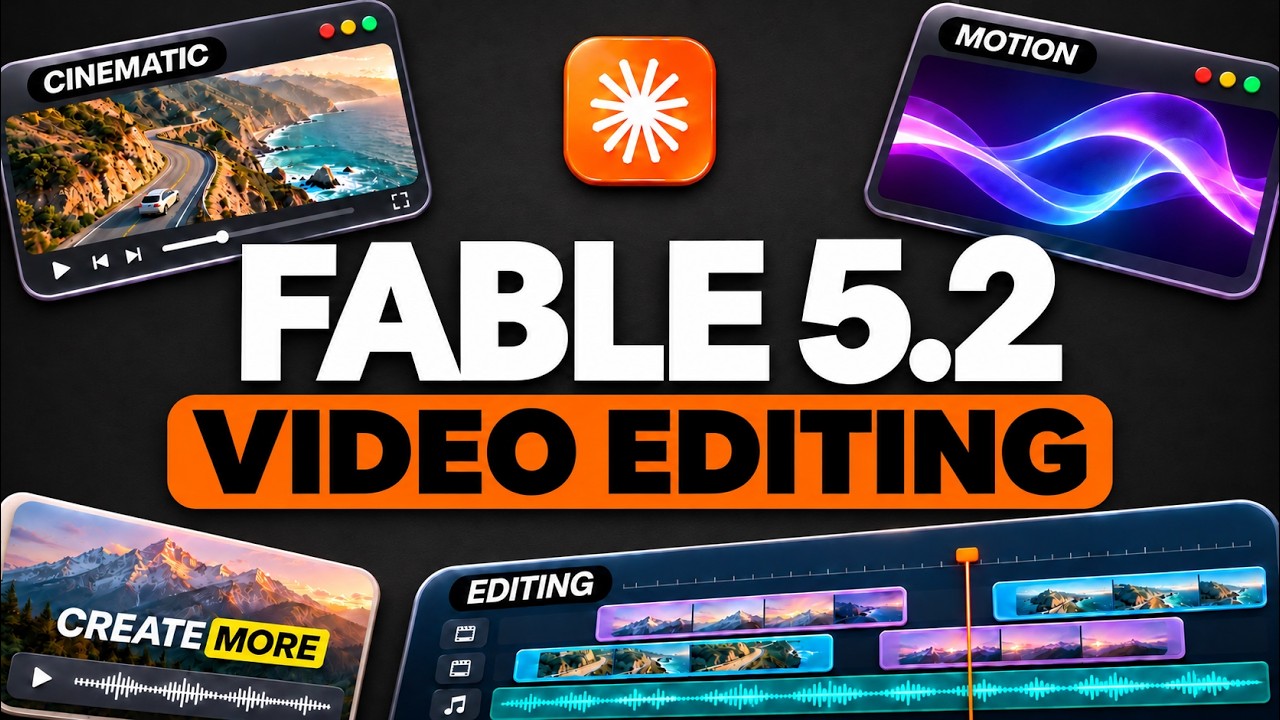
Fable 5.2 in Claude Code enables a video editing workflow where the AI writes the video as code, using a playbook of rules that grows with each edit. The system can cut, animate, add B-roll, and change backgrounds via Higsfield integration, all without a traditional editing app. The key improvement over Opus 5.5 is fewer mistakes in cuts, at roughly 14% higher cost.
Key points
Fable 5.2 is used within Claude Code to edit videos by writing them as code, using commands /short and /edit.
The system uses a playbook file that stores editing rules, added over time based on feedback, so the AI never forgets a note.
Higsfield is integrated via MCP to change video backgrounds and outfits, using credits from a Higsfield plan.
Fable 5.2 reportedly makes fewer mistakes in cutting videos compared to Opus 5.5, and costs about 14% more.
For long-form videos, the system includes a review page with timeline comments and buttons for common notes.
Techniques
- writing video as code
- playbook system
- MCP integration
- background/outfit swapping
- checkpoint system for long-form edits
- skill file with instructions
Stop scrolling. Start reading smarter.
Receive the day's most important AI & engineering updates in one concise email. No spam.
Transcript (captions)
Claude Fable 5.2 is incredible at video editing. And for the last month and a half, I've been using Claude Opus 5.5 to edit my videos, and that includes all of my short form videos as well as the
long- form videos on my YouTube channel. But with Fable 5.2, this now takes it to a completely new level. Basically, I can just film myself talking, hand over the video file, and I get back a finished
video with the cuts, the animations, the B-roll, and the audio already done. So, in this video, I'm going to show you exactly how I'm doing this for both my shorts and for my long- form videos,
step by step. I'm also going to show you how I could change the background of a video and what I'm wearing after I already filmed it, just like you're seeing right now. So, without further
ado, let's dive right in. Now, before I show you how any of this works, I want to show you what it actually makes because I think it's important that you could see the output before I show you
the process. So, this right here is the raw recording from one of my short form videos, and it's basically just me talking to the camera with all of my mistakes still inside of it. And this is
the exact same video after the Claude edit. So, Claude cut out all of the bad takes. It built those animations. It pulled the real pages and real logos, added the captions, and even cleaned up
my audio, as well as it's the exact same story for all of my long form videos. So, this is the raw file from one of my recent videos, and this is the finished one right here. So, basically, I just
filmed it, approved the cut, and gave a few notes on both of those, and I never even had to open an editing app. Now, one thing I do want to point out is this isn't oneshotted, so I did have to do a
little bit of back and forth in order to dial the system. This is a system that I've built up over the last month and a half, and I'm going to walk you through the entire thing. So, first of all,
you're probably asking, how is an AI model actually editing a video? Because I think that's the part where most people kind of get stuck in this loop, and they don't fully understand. All
this runs inside of Claude code and it works out of one project folder that lives on my computer. And basically what Claude is doing is writing the video as code and then turning that code into a
video file. And this is why there is no timeline or no editing app that I have to use at all. Now I do have two commands that do the work for me. I have one slash command called /short for my
vertical videos and I have one called /edit for my long form videos like you're seeing right now. And each one has a written set of instructions that Claude follows every single time. So
this right here is the actual file behind the short skill that I created. And you can see that it's just written in plain English like any other skill. At the very top, we have the purpose,
which is one command that takes my recordings and turns it into a finished short. Then it tells Claude how to read my playbook before anything else, and it lists out every step in order. So, this
includes the voice, the facts, the animations, the cover of the short form video, and the finish. And at the very bottom, we have a list of a few things it should never do. And every single one
of those came from a note that I gave it from an earlier video. So, the simple way to think about this is that it's like hiring an editor who never forgets a specific note that you give it. So,
every time I give Claude feedback on a video, it gets saved as a rule inside of that folder. And that way, I never have to give it the same note ever again. And this right here is that file that I just
mentioned which is called the playbook. So you can see that it has the look, the steps, and all of my rules directly inside of it. And a lot of those rules still have the exact note that I gave it
written right next to them. Now, one thing I do want to point out, and this is kind of the beauty of this entire system, is that I don't need to sit and write down this entire file myself. And
it didn't look like this when I first started. The very first version of this file was basically empty. I just gave Claude one video whose editing I really liked and I asked it to match that
specific style. And then every time I watched an edit and something was off, I would give it feedback and a note. And Claude would then add that note to the playbook as a new rule. So over time,
this file has been getting longer with every single video for the last month and a half. And that is the reason why the edits keep getting better and better. If you do want to build this out
yourself, you don't need my specific playbook. You just need to start giving notes and have Claude save them every single time. All right, so let's start with short form videos. And I'm actually
going to edit a real short right now so you could see every step. So this right here is the raw recording of one of my shorts. And it's basically just me talking to the camera. There's nothing
special about this. I'm just going to come into Claude code, type /short, and then drop in that specific file. And you can see that the very first thing that Claude does is write out its own
checklist. So Claude is now going to go read the playbook, cut the takes, check the facts, build the scenes, and then finish the entire video. Now, the first thing Claude is going to do is listen to
the entire recording, and it's going to find every spot where I messed up or had to restart a line. As you can probably imagine, as a content creator, I do have quite a few of these flaws throughout my
videos in the first take. Next up, what Claude is going to give me is the final cut video with no visuals. It's simply just going to be sliced, fixing all my mistakes throughout the video. And this
part is really important in the video editing process because otherwise it would have to go build all these different animations on top of a bad cut and then we'd have to redo everything
and this takes a lot of time if we have to iterate back and forth. So I highly suggest if you start doing this, have it clip up the video first and then build out the automations and the rest of the
edit after that. So now that I've approved the cut, Claude is going to go to the live page for whatever I'm talking about in order to check that everything I said is actually true. And
while it's there, it's going to grab the real pages, the real screens, and the logos that it needs for the video. And then from here is where it builds the visuals. So, we have the hook at the
very top with an animation that it built from scratch. We have an animation for every line where I'm explaining something. And we have the real page with the exact words highlighted as I
say them. Then, it's going to go and add the captions, the song, the cover photo, and it's going to export the finished video. And the last thing it does is schedule these posts on Instagram, Tik
Tok, and X. And this way it could just go and schedule those for me without me having to lift a finger. So I'm just going to let this edit keep running and I'm going to show you the finished short
at the end of this video. All right, so before we get into long form videos, there's one more thing that I want to show you that I use on my videos. And I think this is probably one of the most
wild parts about the entire system. So this right here is me sitting inside of a studio that I have never been in wearing something that I've never put on. So those studio shots were all one
recording of me sitting in my apartment in one sweater. and every single one of those other versions was generated. And the reason that I personally care about this is I film a lot of videos in one
sitting. So, normally they would all look like they're filmed on the same day inside the same room. And honestly, the ability to change the background in any video is a game changer for me. So, for
example, if I'm traveling and I don't have a nice background to film in front of, I could just film wherever I am and then afterwards I can change the background so that it looks better for
my videos. Now, the way that this works is with a tool called Higsfield. And if you've never used Higsfield before, it's basically one place that has all of the best AI video models inside of it. And
Higfield has something called an MCP, which is basically just a connection that lets Claude use Higsfield for me. So, this way I never even have to open up the Higsfield website because this is
fully integrated into my Claude code editing system and it does it for me. So, let me show you real quickly how to connect this because it only takes about a minute and you only have to do it
once. So, I'm going to come over to the Higsfield website and then at the very top we have this button right here that says MCP. And you can see that they have a tab for chatbt for Claude and for
Claude Code. So, I'm just going to click on Claude Code since this is where I'm doing all my editing. Now, all we have to do is click on the copy button, come back over to Claude Code, and paste it
in as a brand new message. And basically, this message just tells Claude to go and set up Higsfield for us. So Claude will then install it and open up a browser window where you just
need to sign into your Higsfield account and that's it. Now one thing I do want to point out is that the videos you make this way use the credits inside of your Higsfield plan. So you do need a
Higsfield account in order to do this. I will say this isn't completely necessary to have this editing system set up for you. But this is something that saves me a lot of time and headache. So I
personally love using this. Okay, so now that we have this connected, in order to try it out, you could just tell it to generate something with Higsfield, and it will generate that for you directly
inside of the MCP. So, let's go ahead and try it out. I'm going to give Claude a short video of me talking, just like I showed you before. And I'm going to say, change only the background to a bright,
modern studio and keep me, my face, and the movement exactly the same. So, Claude will then upload these clips. It picks the right video model for the job, and a few minutes later, I get this
back. And you can see that my face and my hands are moving the exact same way as the original video. And the only thing that changed is a room behind me. All right, so let's test this out with
an outfit next. I'm just going to say change only my sweater to a black blazer over a white t-shirt and keep everything else the same. So this right here is me in a cream sweatshirt inside of a
YouTube studio. And this is me in a suit inside of a news studio. And then this is me in a leather jacket inside of a dark studio with lights behind me. And I actually had Claude make 11 different
versions of that one clip. So, let's just walk through a few more right here. So, this right here is me in a gray hoodie inside of the same room. This is a denim jacket inside of a brick loft.
All of these different videos you see right here were made with a video model called Clling, which lives inside of Higsfield. For transparency, each one of these swaps costed 12 different credits,
and it took between 4 and 8 minutes to come back for each of these videos. Now, since we have this plugged into our system, anywhere in the video where I need a quick shot of me in a different
setting, I don't have to go and film it. And the best part about all of this is I could do it right inside of my Claude Code chat. So, when Claude is editing one of my shorts, I can just say, "Put
me in a different studio for the hook and it handles that as one of the steps." Now, I do want to be honest about some of the limitations here. This only works on short clips for a few
seconds. So, I could use it for hooks, for shorts, and for B-roll of myself, but it wouldn't be able to run a full 15minute video. I'd have to clip it up and stitch these different individual
videos together. Now, moving on to long form, and this is where it gets really impressive. This process basically works the exact same way with two extra checkpoints because a mistake inside of
a 15-minute video costs a lot more than a mistake inside of a 30- secondond one, as you could probably imagine. So, all I have to do is film the video, type /edit, and give it the specific camera
file along with my microphone audio file. Now, checkpoint number one is the cut. And what I really like here is that along with the full cut of the video, Claude sends me a one minute segment of
only the spots where two takes were joined together in order to make sure that the cuts sound good in real time. Next up, we have the look. So then Claude will go to the website of
whatever the video is about in order to build the colors and the style of the edit from that page. And this is just specific to the types of videos I make. And I think it's a nice touch. So for
example, a video that I make about Claude looks like it came from Enthropic. in a video about Grockbot looks like Grockbot. And checkpoint number two is that if it's a brand new
look, I get three or four short samples first. So that way I could confirm if I like the style before it goes and builds a 15-minute video in a style that I don't like. Then it goes off builds
everything. And you could see some of that right here. So this right here is one that I built to explain pricing and every number shows up on the screen exactly when I'm talking about it
through the timeline of the video. Then we have these benchmark tables where it actually highlights the exact cell that I'm talking about in real time. And for anything that is hard to explain, it
will just build a little diagram or explainer from scratch in order to help visualize something. Then once all of this is done, I get the final file in 4K along with a review page. And I think
this is probably one of the things that sets apart the entire editing system. So the review page has the entire video laid out on a timeline and every section of the video has its own block. So this
way I could just click on any of those and jump straight to a specific part in the video I want to double check. And if I see anything that I don't like, I just pause the video right there and I can
just simply leave a comment. Now what it's going to do is it'll take that comment and save it to the exact second that I pinned in the video. And then I even have a row of different buttons for
the notes that I give the most. So things like cut this word, wrong visual, or hold this longer. And this way I don't need to go and like waste my time typing out all these instructions. So
then Claude will read every single one of these comments. It fixes them and it'll send me back the next version. Now there is one more piece for my long form video edits. In this one, we're going to
go back to Higfield. So everything that we just saw was just made by Claude on its own. It cuts the video. It builds animations and it goes out and finds the real B-roll. But every once in a while,
I need a shot that doesn't exist. And Claude can't necessarily go and film something for me. So, for example, earlier in this video, I said that this is like hiring an editor who never
forgets a note, and I don't have any footage for a line like that. So, I'm just going to paste that sentence into Claude and say, "Make me a 5-second shot for this line." Then, Claude will write
out the full description of the shot. It sends that over to Higsfield, and a couple of minutes later, I get this back. And the best part about this entire thing is I never had to describe
any of this. I never had to instruct it to use sticky notes or any of these different concepts that I came up with. Claude was able to come up with that from one sentence that I gave it along
with all the context it has from the video that it's working on editing. Now, here are two other examples of how it made something the exact same way. So, this is one for a specific line in the
video where I say that I hand over the file. And this is for one about filming a bunch of videos in one setting. So, basically, the only thing I had to manually do here is watch them and
decide if they were good enough to use for B-roll in the video. And then all three of these videos came back in just a couple of minutes. Now, I do want to be clear and say that I do try to use
real footage whenever I can get it, but this is more so for shots that I couldn't get any other way. Obviously, every time you generate a video, you do have to pay for Higsfield credits. So,
just keep that in mind so that way you don't blow through your entire plan and waste your money. Now, one thing I want to point out is that Claude does not have just one editing style. And I think
this is a part that most people would not expect. So, whenever I make a video about Claude, it edits in the Clawude style. And you can see right here that we have the cream background, the little
pixel characters, and the same orange that Enthropic uses for their brand. Then we have the Grockbot style, which I personally think is one of the best styles that I've created for my video
editing. And if you look at my previous videos on the channel, this is what all of my Grockbot videos look like. And on top of that, when Fable 5.2 dropped, Claude actually went to the release page
and built a brand new style just for that one video. So that's why you could see right here it has the black background in the planet on the horizon because this is exactly what Enthropic
used for the launch. Now the way that this works is that every style is saved inside of this same folder we're working inside of in Claude. So Claude just picks the right one based on what the
video is about and I never even have to ask. So I've been doing all this on Opus 5.5 for the last month and a half and the edits were already very very good. So the question is why am I making this
video about Fable 5.2? And the answer is that Opus 5.5 was not perfect. It would honestly actually make quite a few mistakes when it was cutting out my videos. For example, I'd get a cut back
where a word was chopped off or a bad take was left inside of the video, and I'd have to go back and forth in order to fix this. So, that's one of the main reasons why I switched my editing over
to Fable 5.2. Now, obviously, Fable does cost more than Opus. It's about double the price for the same amount of work on paper, but from some of my testing, it looks like it's about 14% more than Opus
5.5 when I test it on similar editing skills. All right, so now it's time to circle back to that short form video that I tried to create. And this is exactly what the output looks like once
Claude finished it. We went from a raw recording to a finished short, and I never even had to open an editing app. Now, in terms of how long this takes, for example, a 15-minute video for long
form videos takes about 45 minutes to edit with Claude. And again, we don't need any editing software to do this because this is all running inside of Claude Code. Anyways, guys, this is how
I'm using Claude to edit all of my videos. It has been flawless and Fable 5.2 has really taken this to the next level. If you enjoyed this video, make sure to subscribe for more content like
this. Leave a like and let me know what you think in the comments below. That being said, thanks for staying to the end and I will see you in the next video. Cheers.