Enjoying this issue?
Get tomorrow's AI & engineering digest in your inbox — hand-picked, summarized, and always spam-free.
TLDR
A kernel panic about an unmountable root filesystem is almost always a problem in the init RAM FS layer, not the kernel itself. The most common cause on Ubuntu is a full /boot partition that prevented the new initramfs from being built after a kernel update. The fix is to boot the previous kernel from the GRUB menu, free space in /boot, and rebuild the initramfs.
Key points
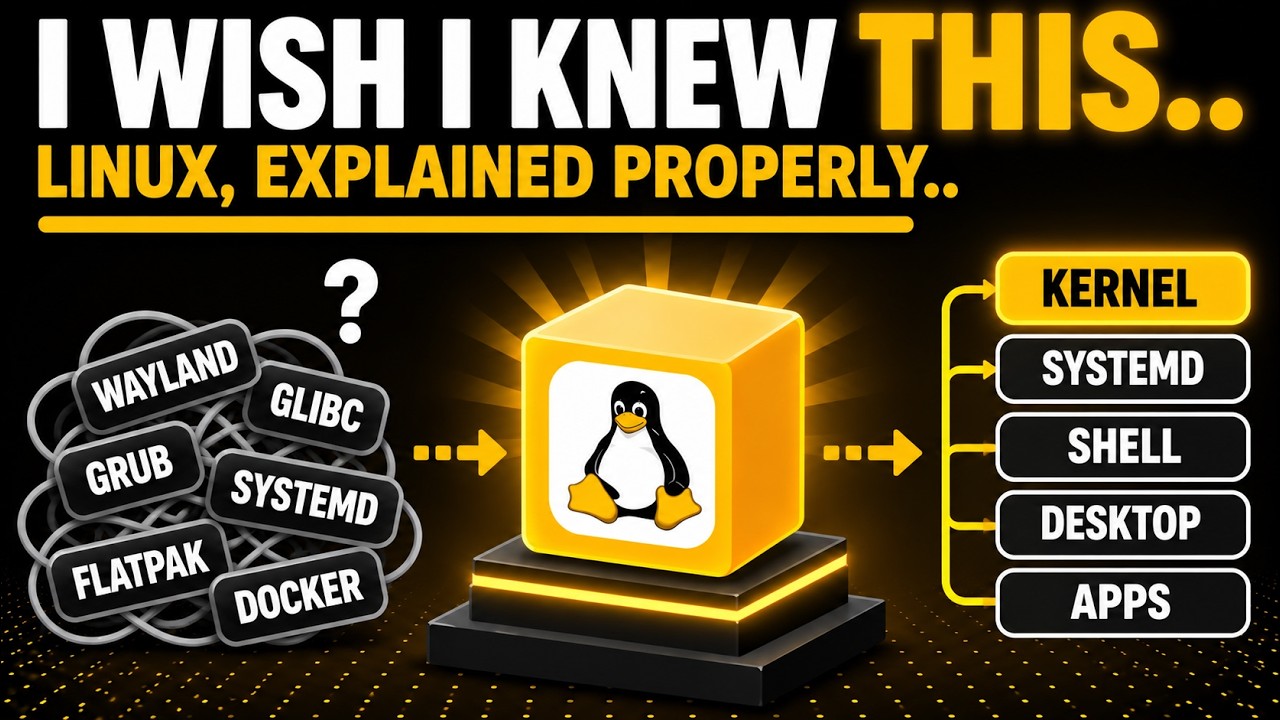
Linux is only the kernel layer; the rest of the stack includes firmware, bootloader, systemd, GNU tools, and the C library.
The kernel enforces a split between kernel mode and user mode, preventing one crashing app from taking down the whole system.
System calls are the only way user-space programs can interact with hardware, and the kernel checks permissions on each call.
Containers share the host's Linux kernel and use namespaces and cgroups for isolation and resource limits.
Android runs on the Linux kernel but replaces almost every layer above it, including the C library and init system.
Tools mentioned
Techniques
- Virtual memory with page tables
- Completely Fair Scheduler (CFS)
- EEVDF scheduler
- Namespaces and cgroups for containers
- initramfs for early userspace
Stop scrolling. Start reading smarter.
Receive the day's most important AI & engineering updates in one concise email. No spam.
Transcript (captions)
You install a normal system update. You restart your laptop and instead of your desktop, the screen fills with white text on black and the last line says this. Colonel panic, not syncing. Unable
to mount root file system. Your files are still on the disk. The hardware is fine. Yesterday, this exact laptop worked. So what just broke? Most people who use Linux every day could not answer
that. Not because they are bad at computers, but because nobody showed them the whole machine. We learn Linux in pieces. A command here, a distro there, a word like system D or Wayand or
GIB C that everyone uses and nobody explains. So in this video we are going to build the whole thing one layer at a time. We will follow one laptop from the moment you press the power button to the
moment a web page appears on the screen. Then we will take that same stack and point it at a server, a container and a phone. For every layer, you will see what problem it solves, what it hands to
the layer above, and what it looks like when it fails. And at the end, we come back to that kernel panic. By then, the error message will tell you exactly which layer broke and you will know how
to fix it. Let's press the power button. Here is our example. An ordinary laptop running Ubuntu, one of the most popular Linux systems. Nothing special about it. When you press the power button, about a
dozen separate programs take turns. Each one does one job, then hands control to the next. By the time you see a browser window, every one of them is still involved, stacked on top of each other.
We will draw that stack as we go. The hardware at the bottom, your apps at the top, and in the middle, the parts people argue about online. One thing to keep in mind from the start. Most of what you
will see is not Linux. Linux is one layer of this stack. We will get to it and you will see why the difference matters. The bottom of the stack is the physical machine, the processor that
runs instructions, the memory that holds whatever is being worked on right now, the SSD that keeps everything when the power is off, a graphics chip, a Wi-Fi chip, a keyboard, a battery. None of
that can do anything useful on its own. When power arrives, the processor starts running code from a small chip on the motherboard. That code is the firmware. On older computers, the firmware was
called BIOS. On almost every computer made in the last decade, it is UE, the unified extensible firmware interface. The firmware has three jobs. It wakes up the hardware and checks that memory and
devices respond. It decides what to start next and then it gets out of the way. To decide what to start, UE looks for a small partition on the disk called the EFI system partition. It is
formatted with FAT, an old and simple file system that every firmware can read. Inside it are small programs called bootloadaders and the firmware keeps a list of which one to run first.
Many machines also use secure boot. Here the firmware only runs a boot loader that carries a trusted signature. Most Linux systems pass that check with a tiny signed program called shim, which
then starts the real bootloadader. When this layer fails, you usually see it before Linux has done anything at all. A message from the firmware that says no bootable device. Linux never got a
chance to run. Our firmware has picked a bootloadader on Ubuntu and on most Linux systems. That is Grub, the grand unified bootloadader. If you have ever seen a menu that lets you choose between Ubuntu
and Windows at startup, that was Grub. The bootloadader has a short job and it has to get it exactly right. First, it finds the Linux kernel on disk. It is a single file usually in a folder called
/boot with a name like VM liners followed by a version number. Second, it loads a helper file called the init RAM FS. This is a tiny temporary file system packed into one archive. It holds just
enough drivers and tools to find your real disc and open it. Remember that file? It comes back at the end. Third, it passes the kernel a short line of settings called the kernel command line.
Which disc holds the system, whether to show a splash screen, sometimes a debugging option. On a running system, you can read that line in a file called /prock/comand
line. Then Grub copies the kernel into memory, jumps into it, and is never heard from again. Not every system uses Grub. Some use a simpler bootloadader called systemdoot.
But the job is the same. kernel init RAM fs command line go. When this layer fails, you get a prompt that says Grub rescue and almost nothing works. Grub could not find its own files. The kernel
was never loaded. Now we reach the layer that gives the whole system its name. The kernel. In 1991, a Finnish student called Lionus Torvalds posted a message saying he was writing a free operating
system kernel as a hobby. He expected it to stay small. Today it runs on phones, cars, televisions, routers, most of the internet and every one of the 500 fastest supercomputers in the world. And
here is the point we promised earlier. Strictly speaking, Linux is only this layer, the kernel. The bootloadader before it and everything above it come from other projects. When people say
Linux, they usually mean the whole stack. When kernel developers say Linux, they mean this one program. So what does the kernel do? One thing above all, it is the only program that is allowed to
touch the hardware. The processor enforces that. Code runs in one of two modes. The kernel runs in kernel mode where it can talk to devices and manage all of memory. Every other program runs
in user mode where it can only use the memory it was given and cannot reach any device directly. That split is why one crashing app does not take down your whole laptop. And it raises an obvious
question. If your browser cannot touch the disk or the network card, how does it load a web page? It asks the kernel. A program in user mode can make a request to the kernel called a system
call. Open this file, read these bytes, send this data over the network, start a new process, give me more memory. There are a few hundred system calls and they are the only door between your programs
and the hardware. The program stops. The processor switches to kernel mode. The kernel checks whether the request is allowed, does the work, and hands back a result. You can watch this happen. A
tool called srace prints every system call a program makes. Run srace on something as small as ls which lists a folder and you will see dozens of calls scroll past. Open the folder. Read the
entries. Write the names to the screen. Exit. This also explains a message you have certainly seen. Permission denied. That is the kernel refusing a system call. Your program asked to open a file.
The colonel checked who you are and what the file allows and the answer was no. So the colonel guards the door. Behind that door, it has to know how to talk to an enormous variety of hardware. That is
the job of drivers. A driver is the code that knows how one kind of device works. one for this Wi-Fi chip, one for that graphics card, one for the touchpad, one for USB storage. The Linux kernel
carries thousands of them, which is a big reason it runs on so much hardware. Most drivers are not built into the core of the kernel. They are modules, separate files the kernel can load while
it is running and unload when they are not needed. Plug in a USB device and a matching module is loaded within a moment. No restart. You can see the loaded modules with a command called
lsmod and load one by hand with mod probe. And when something goes wrong with hardware, the kernel writes about it in its own log, which you can read with a command
called dssage. When this layer fails, the symptoms are oddly specific. Wi-Fi does not show up. The screen stays at a low resolution. Sound is silent. Usually, the hardware
is fine, and the right driver simply is not loaded. Now, our kernel can talk to the hardware. Next, it has to share that hardware between hundreds of programs at once. Open the system monitor on our
laptop and you will find a few hundred processes. The browser, the desktop, the network manager, the sound server, background updates. The processor has a handful of cores, maybe eight. So most
of those processes cannot be running at any given moment. The kernel decides which process runs on which core and for how long. It switches between them thousands of times a second so quickly
that everything appears to run at the same time. A good scheduleuler has to balance two goals that pull against each other. Fairness so that a busy background task cannot starve the rest.
And responsiveness so that the moment you move the mouse the code that draws the cursor runs right away. For years, Linux used a design called the completely fair scheduleuler. Since
kernel version 6.6 released in 2023, it uses a newer design called EEVDF, which is better at giving quick turns to tasks that need low delay. You can nudge the scheduleuler yourself. Every process
has a nice value. A higher nice value means the process is being polite and takes fewer turns. That is literally the name of the command. Nice. Processor time is one thing everyone shares.
Memory is the other. Every process on our laptop believes it has a large block of memory all to itself starting at the same addresses as every other process. That is not true and it is one of the
best tricks in computing. It is called virtual memory. The kernel gives each process its own map of addresses and quietly connects those addresses to real memory in small pieces called pages,
usually 4 kilobytes each. Two processes can use the same address and reach completely different places in real memory. That gives us two big benefits. One process cannot read or damage
another one's memory, and the kernel can move pages around without the program noticing. For example, when real memory runs low, the kernel can write pages that have not been used for a while to
the disk into an area called swap and bring them back when they are needed. It is slow, but it keeps things running. And when memory truly runs out, the kernel has a last resort.
The outofmemory killer. It picks one process, usually the one using the most memory, and ends it so that the rest of the system survives. If a program on your machine ever just vanished with no
error, check the kernel log. A line that says out of memory killed process is the kernel telling you exactly what happened. Hold on to that idea. It shows up again inside containers. The last
part of the kernel we need is how it handles files. Your files might live on an internal SSD formatted with ext4, on a USB stick formatted with FAT, or on a network share. Each of those file
systems stores data in a completely different way. The kernel hides all of that behind one layer called the virtual file system. Programs open, read, and write files the same way, no matter
where they live. The virtual file system passes each request to the right file system driver. You will meet a few file system names. Extanding default on Ubuntu and Debian. Butter FS
is the default on Fedora's desktop edition and it can take snapshots of the system so a bad update can be rolled back. XFS is the default on Red Hat Enterprise Linux. The virtual file
system is also behind a famous Unix idea. Everything is a file. Disks, terminals, even information about running processes all show up as files that programs can open and read. We will
see that for ourselves in a few minutes. That is the kernel. It owns the hardware, guards the door with system calls, loads drivers, shares the processor and memory, and gives every
program one way to reach files. But a kernel alone does nothing you can see. So what does it start? The kernel uses the init RAM FS to find and open the real disc. Then it starts exactly one
program from it. And that program gets process number one, PID one. Every other process on the machine descends from it. If PID one dies, the kernel panics because without it, the system has no
way to keep running. On Ubuntu, Fedora, Debian, Arch, and most other systems, PID 1 is systemd. Its job is to bring the whole system up and then keep it up. System D thinks in
units. A service unit describes a program that should run in the background like the network manager or an SSH server. A mount unit describes a disk to attach. A timer unit describes a
job that runs on a schedule. Units say what they depend on. So systemd can start independent things in parallel, which is one reason modern Linux boots quickly. Groups of units make up targets
which are milestones. Multiuser target means the system is ready for login and network services. Graphical target means a login screen should appear. Two commands cover most
of what you need. Systemct ctl status with a service name tells you whether it is running and shows its last few log lines. Journal control reads the full logs that systemd collects from every
service. Not every system uses systemd. Alpine Linux uses a smaller in it called open RC and void Linux uses one called run it. The layer is the same one first process that starts everything else.
When this layer fails, the kernel is fine but a service is not. The boot stops in emergency mode or the login screen never appears. Systemct cl will list the failed units and the journal
will say why. Our system is now running services but we still have not met the programs you actually type. commands like ls to list files, cp to copy, grep to search text, tar to pack archives.
[sighs] Most of those come from the goo new project which Richard Stallman announced in 1983 with the goal of a completely free Unix like operating system. By the early 90s,
Goo had a compiler, a shell, and hundreds of tools. What it did not have was a finished kernel. Then Linux arrived and the two fit together. That is why some people call the whole system
g/ Linux. The basic commands live in a package called gue new core utils while grep tar and many others are separate goo new packages.
There is one more piece in this layer and almost nobody sees it. The C library. Remember system calls? Programs rarely make them by hand. Instead, they call friendly functions from the C
library, like open a file or print this text, and the library turns those into system calls. Nearly every program on the machine depends on it. On most Linux systems, that library is gibb C, the gue
new C library. Smaller systems like Alpine use one called muscle which is much lighter. And if you ever see an error saying a program needs a newer version of glib C, now you know which
layer it means. The program was built against a newer C library than the one your system has. To use those commands, you need a place to type them. That place is really two programs and people
mix them up. The terminal is the window. It draws characters, handles colors and fonts and passes your keystrokes on. The shell is the program running inside that window. It reads what you type, works
out what you mean, and starts the right programs. The most common shell is bash. Many people prefer Zshell, which has been the default on Mac OS since 2019, or fish, which is known for being
friendly from the first minute. The shell's best trick is the pipe. Write cat app.log, then a vertical bar, then grep error, and the shell connects the two programs.
Everything the first one prints goes straight into the second. Small tools each doing one job joined together. That is the whole Unix way of working in one line. When this layer fails, the classic
message is command not found. The shell searched every folder listed in a variable called path and found no program with that name. Either it is not installed or it lives in a folder the
shell does not search. Type ls followed by a single slash and you see the top of the whole system. There are no drive letters here. Everything every disk and every device hangs from one route
written as a forward slash. The layout follows a standard called the file system hierarchy standard. /home holds each user's own files. /C holds system settings mostly as plain
text files you can read. /ash user holds installed programs. /var holds things that change like logs. /temp is scratch space and slashoot holds the kernel and the init ram fs we met at the start.
Then there are three folders that are not really folders on a disk at all. /dev holds device files. Your SSD shows up there as a file. /prock and slis are windows into the running kernel. Nothing
in them is stored anywhere. When you read a file there, the kernel writes the answer at that moment. Read /prock/me info and you get the current memory use. On most laptops, a file under / cis
gives you the battery level as a plain number. That is the virtual file system and everything is a file working together. Look at how much we have stacked up. firmware, a bootloadader, a
kernel with thousands of drivers, systemd goo, new tools, a C library, a shell, plus the thousands of apps on top, each with its own versions and dependencies. Nobody wants to assemble
that by hand and keep it updated. That is what a distribution does. A distribution is a project that chooses the pieces, builds them to work together, tests them, and ships the
result as one system you can install. The part of a distribution you use most is its package manager. It installs software from the distribution's own repositories, works out what else each
program needs, installs that too, and updates everything at once. Distributions come in families and the family decides most of what you will notice daytoday. The Debian family uses
packages ending indeb installed with apartment. Debian itself is known for being stable and conservative. Ubuntu is built on Debian made Linux approachable for millions of
desktop users and is very common on servers. Linux Mint and Pop OS are in turn built on Ubuntu. The Red Hat family uses RPM packages installed with DNF. Fedora is the fastm moving community
edition, often first to ship new technology. Red Hat Enterprise Linux is the commercial version with long support that large companies run. Rocky Linux and Alma Linux are free rebuilds of it.
Arch Linux uses a package manager called Pac-Man. It is a rolling release which means there are no big version upgrades. You keep updating and you always have the newest software. You build it up
yourself from a minimal base and its community wiki is one of the best references for any Linux system arch or not. And Alpine Linux uses APK. It is tiny built on muscle and a single
program called bus by box that provides most basic commands. Its base container image is only a few megabytes which is why it is so common inside containers. So the question which Linux should I use
is really three questions. Which family? Which package manager? And do you want fixed releases or a rolling one underneath? Every one of them runs the same kernel. Everything so far works
without drawing a single pixel. Most servers run exactly like that. But our laptop needs windows, a cursor, and a way to put a web page on the screen. That is the job of the display server.
It takes what each app wants to draw, combines it into one picture, and sends input from the keyboard and mouse to the right window. For decades, the answer was the X window system, version 11,
usually just called X11 from 1987. It is flexible and it lasted a remarkably long time, but it was designed for a very different world. One example under X11 any app can read the
keystrokes you type into a different app. Its replacement is Wayand a project started in 2008. In Wayland one program called the compositor draws the screen and handles
input and each app can only see its own window. It is simpler, smoother and safer by design. Fedora and Abuntu now use Wayland by default. For older apps that only speak X11, a compatibility
layer called XWHLand runs them inside the Whand session. When this layer fails, you often get a black screen right after logging in while the rest of the system is fine. A common quick test
is to choose the other session type at the login screen. The display server can show Windows but it gives you no taskbar, no app menu, no settings, no file manager. That is the desktop
environment. And this is where Linux stops looking like other systems because you choose it. Gnome is clean and focused and it is the default on Ubuntu and Fedora. KDE Plasma lets you change
almost everything. XFCE is light and works well on older machines. Cinnamon, the default on Linux Mint, feels familiar to people coming from Windows. Some people skip a full desktop and use
a tiling window manager like I sway or hyperland which arrange windows automatically and are driven mostly by the keyboard. On Windows and Mac OS, the desktop is part of the operating system.
On Linux, it is just another layer and you can swap it in an afternoon. At the top of the stack, finally, are the apps, the browser that will show our web page, an editor, a music player, games. There
is a catch. Every distribution packages software its own way. So an app developer would have to build and test the same app many times. Universal package formats fix that. Flatpack
bundles an app with what it needs and runs it in a sandbox. And FlatHub has become the main store for desktop apps. Snap made by Canonicle the company behind Ubuntu does a similar job and is
built into Auntu. and app image is a single file you download, mark as runnable and start. The sandbox is also the most common way this layer fails. A flatp pack app that cannot see a folder
or a device usually has not been given permission to. So our laptop is up firmware grub the kernel systemd the goo new tools a shell a distribution wayand goonome and a browser showing a web page
every layer is still there doing its job. Now for the bigger story our laptop is the smallest part of the Linux world. Take away the display server, the desktop and the apps and what is left is
a server. Same kernel, same systemd, same tools, same package manager. That stripped down stack runs most of the web and most of the public cloud. And since November 2017,
every single system on the list of the 500 fastest supercomputers has run Linux. Why did it win there? A few plain reasons. It costs nothing to run on the 10,000th machine. Its source is open, so
a company can read it, fix it, and tune it for its own hardware. You can strip it down to only the layers a server needs, which leaves less to update and less to attack. And almost everything is
configured with text files and commands. So a script can set up a thousand machines the same way a person sets up one. The same reasons put it in places you might never think of. the router in
your home, most smart televisions, the screen in many cars, a small board, a trimmed kernel, a few programs, and no desktop at all. Servers are where containers come from. Remember the
kernel's job of sharing hardware between processes? Two kernel features take that further. Namespaces give a group of processes their own view of the system. Their own
file system, their own network, their own list of processes, their own host name. From inside it looks like a separate machine. Control groups called Croups put limits on that group. This
much processor time, this much memory, and no more. Put the two together and you have a container. Docker made them easy to build and share in 2013 and Kubernetes now runs and schedules huge
numbers of them across many machines. Here is the part that matters most. A container does not have its own kernel. Every container on a machine shares the host's one Linux kernel. That is why
containers start in a fraction of a second and why a small image like Alpine is enough. And remember the out ofmemory killer inside a container it applies the croup limit. When a container goes over
its memory limit the kernel ends it and Kubernetes reports it as OOM killed. Same mechanism smaller box. And the largest Linux deployment of all is probably in your pocket. Android runs on
the Linux kernel on billions of devices. But look at what sits above that kernel. Instead of glib C, Android has its own C library called Bionic. Instead of systemd, its own in it. Instead of G new
tools, a desktop and apt, it has its own runtime for apps and a store. Same kernel, almost nothing else in common. That is what this layered design makes possible. Each layer only depends on the
one below it. So you can replace everything above the kernel and still call it Linux. Now our laptop at the start. Kernel panic unable to mount root file system. Read it the way we read the
stack from the bottom up. The firmware worked because the bootloadader ran. Grub worked because the kernel ran and printed that message. So the problem is between the kernel starting and PID one.
That is exactly where the kernel needs the init RAM FS to find and open the real disc. And there is a very common cause. The update installed a new kernel. While doing that, it had to
build a new init RAM FS for it in /boot. But /boot was full of older kernels and there was no room. So the new kernel was installed without its init RAM FS. Grub started it and it could not find your
disc. The fix follows the layers too. In the grub menu, open the advanced options and start the previous kernel which still has its init RAM FS. Once you are in, remove old kernels to free space in
/oot. Rebuild the init RAM FS on Ubuntu. That is update init RAM FS on Fedora. It is a tool called Draut. Then restart. That is the real value of the stack. An error message is a clue about which
layer stopped. No bootable device, the firmware. A grub rescue prompt, the bootloadader. A kernel panic about the root file system. The init RAM FS. Emergency mode or a failed unit. System
D. Command not found. The shell and your path. Permission denied. The kernel saying no. A black screen after login. The display server. A container that keeps restarting with OOM killed. It's
Croup memory limit. Let's walk the stack once more bottom to top. Hardware woken by UE firmware which runs a boot loader from the EFI system partition. Grub which loads the Linux kernel and the
init RAM FS with a short command line. The kernel which is Linux itself. It owns the hardware, answers system calls, loads drivers, schedules processes, manages virtual memory, and gives every
program one way to reach files. PID1, usually systemd, which starts every service, the G new tools, and the C library, a shell inside a terminal, all of it in one tree that starts at slash.
a distribution that bundles it with a package manager, apt, DNF, Pac-Man, or APK for a desktop, a display server, a desktop environment, and your apps. And from the same kernel, servers, the
cloud, containers, and billions of phones. The next time someone says Wayland or GIB C or systemd, you will know which floor of the stack they mean and what sits above and below it. And
the next time a Linux machine shows you a wall of text instead of a desktop, read the last line, find the layer, and start there. One question for the comments. Which layer of this stack has
given you the most trouble? And what was the error message?