Enjoying this issue?
Get tomorrow's AI & engineering digest in your inbox — hand-picked, summarized, and always spam-free.
TLDR
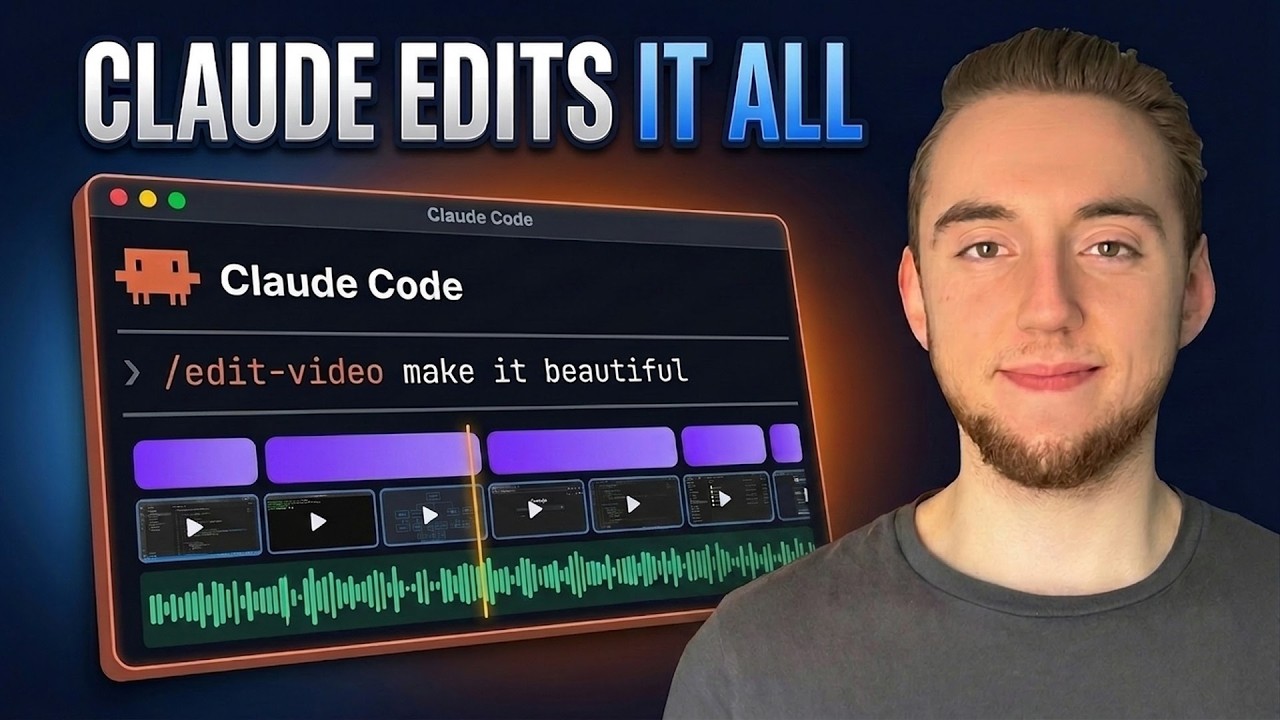
Cole Medin is releasing an open-source skill that turns Claude Code into a reliable video editor by codifying a deterministic pipeline of helper scripts, which solves the last 10% of annoying iteration that makes raw AI editing slower than doing it yourself. The skill handles transcription, retake removal, dead air cutting, assembly, transitions, and validation, and can optionally use Open Router for multimodal models to fix subtle audio issues, clone voice, and generate thumbnails. It's designed for educational and presentation-style content, not flashy productions, and cost $2.71 to edit an entire recent video using the full pipeline.
Key points
The skill guides a coding agent through five core steps: transcription, retake removal, cutting, assembly, and polishing.
Helper scripts handle tasks LLMs cannot do natively, like extracting timestamps and detecting dead air.
The full pipeline uses Open Router for multimodal models to review video, clone voice, and generate thumbnails.
A lessons.mmd file lets users document recurring issues to improve reliability over time.
The skill costs $2.71 to edit a full YouTube video using the more elaborate Open Router pipeline.
tools
techniques
tags
confidence
importance_score
Tools mentioned
Techniques
- speech-to-text transcription
- timestamp-based cutting
- retake detection and removal
- dead air and breath removal
- self-iteration with validation scripts
- multimodal video review
- voice cloning
- thumbnail generation via image generation models
Stop scrolling. Start reading smarter.
Receive the day's most important AI & engineering updates in one concise email. No spam.
Transcript (captions)
My AI second brain which runs a claude code edited this entire video that you're watching right now. In fact, for a while it's been editing all of my videos and doing a fantastic job because
of a single skill that I've been working on the past few months. And now I am giving this skill to you. Totally free and open source. It's one of the skills within my main GitHub repository that
houses all the skills I share on my channel. So this is the edit video skill. Now, over the past few months, as I've been building and refining this skill, I have put an insane amount of
time into tweaking things and making it so that this skill guides your coding agent through handling the smaller details that a coding agent by itself normally wouldn't do. And that's
important because yes, without having a skill, you could have a coding agent edit a video if you just give it all the raw files and tell it to figure it out. And it works okay. It'll get you 90% of
the way there. But like a lot of things with AI, that last 10% becomes so annoying to iterate through. all those subtle issues, it ends up taking you more time to work with the agent to edit
the video than just doing it yourself. And that is what this skill helps you avoid. And I know the pain because that's exactly how I started. I just dumped the raw files into my second
brain and told it to edit the video. And then I iterated constantly and codified things as the skill to make it a very reliable process. And it's gotten to the point now where I'm confident I will
never need to hire an editor again. Not that you're going to be able to use this skill to edit any kind of content, but more for, you know, presentations and educational style content where it
doesn't have to be super flashy. This more than suffices. It's incredible how good of a job it does. And to use this skill, you don't have to pay for anything. Obviously, besides your coding
agent subscription. So, it teaches your coding agent how to do transcription locally, things like that. There also is a bit more of an elaborate version of the pipeline using open router for
multimodal models to do more elaborate reviewing and fixing of things like your voice within the video, but even that is super affordable. I'll showcase this towards the end of the video, but with
my recent Fable 5.2 content, I edited the entire thing with the more elaborate pipeline for only $2.71. That is very cheap for an entire YouTube video. And so in this video, the main
thing that I want to help you understand is how the skill works. Exactly what goes on behind the scenes to bridge the gap from the raw content all the way to the polished piece of content. What does
the edit video skill guide your coding agent through? And even more importantly, I want to show you how you can customize this process. So, we'll get to the point where you understand
everything that's going on here. I'm going to explain this nice and concisely, but I also want to show you as we go through the different parts of the process here, what are the things
that you're going to want to tweak yourself depending on the kind of content you're creating, the styles of the animations, your brand colors, that sort of thing. And then I want to end by
showing you some real examples of how your coding agent with this skill can handle even the smallest details and problems within the video as it's iterating. I mean, it's super impressive
the things that it can catch and fix both within its own work and then also in the raw footage that you give it. It also helps me with thumbnails and creating shorts for my long form content
as well. I'll show all this off briefly at the end. And of course, this edit video skill I'll link to in the description. It's made to pretty much work out of the box, but also it'll be
helpful to hear me out on how you customize things as I go through the process. And so, the core pipeline that this skill walks your coding agent through is very scriptd driven. And so
the way that you begin is incredibly simple. If you have the skill available to your coding agent, you simply say, "Eedit this video." And you give it the full path to wherever you have all of
the raw footage. And like I've said, I've worked hard to make this really reliable and adaptable. And so the folder you give it, it doesn't even have to have just the clean takes. It can be
a total mess of raw footage in here. And it's going to be able to sift through everything to figure out the clips that need to be stitched together and then do that. And then it's going to help you
build any sorts of animations or B-roll that you want. It's all based on what you describe upfront. So, generally when I tell it to edit a video, I'm going to give it guidelines around how I wanted
to edit things, right? Like, do I want to create shorts from this long form video? Do I want to build a lot of animations in or just do more of a clean edit? You just describe what you want
and then the skill adapts. And so, the first thing it's going to do is it's going to get a transcript, every word timestamp, which also helps it find the retakes to edit things out. and then
just figuring out what sorts of stumbles and mistakes it has to work with when it builds. And in order to do this, it has a script that helps with the transcription. You'll see this as a
theme for a lot of the steps here. We have scripts that the skill teaches the coding agent to use because there are different things the coding agent by itself can't understand in video
content, like getting the words from it or understanding dead space that needs to be cut, for example. And so your coding agent, your second brain, your Hermes, openclaw, rockbot, whatever, is
the main orchestrator. It makes the core decisions based on the input you give and it's calling each one of these steps which each return feedback to your main coding agent to continue to drive the
process. Right? So you can consider each one of the scripts here to be sort of helpers for your second brain. So we do the transcription, we take out the retakes and then out of all the clips
that are left, we do the cutting like any dead air or breaths or repeated words, things like that. And so again, there is a script here that gives those timestamps back to your main coding
agent to make those decisions about like yes, this needs to be cut, yes, this needs to be kept, whatever it is. And then the third step is to assemble, bringing all the clips together once
we've done the cutting. And then we do the polishing where we add in transitions, any sorts of animations that you call for. And then finally, the exporting where we do our last checking
to then potentially iterate on any of these steps that we've already done. And then finally, we get the polish video out. This isn't necessarily going to be perfect. So, I'm not telling you you can
take this and upload it straight to YouTube or whatever without checking it. There might be a couple of things you have to tweak or provide direction on. But, like I said, I have gotten this
skill to be extremely reliable even with the smaller details around your cuts that need to happen and transitions and things like that. So, this right here is the core pipeline that happens no matter
the type of video that you are editing. But also, there's a lot of different content that I create myself. And I know that not everyone is building content in the same way. So, this skill also helps
with a lot of different types of content, like just the talking head where it's really you filling the entire screen. A screen plus face panel like this video here where it's mostly me on
the right with my screen on the left. Animated inserts when we want to add more B-roll, things like that. Editing shorts, of course, I want to have the support for that. And then any sorts of
like courses and longer talks where it's just more simple stitching things together. These are the types of content that I find myself making. So, this is what I have built into the skill by
default. So, actually going to the skill here at the very top, I have a table that tells your coding agent the steps that need to be performed based on the kind of content that you describe. And
so, like I said earlier, when you invoke this skill with your coding agent to edit a video, it's your responsibility to describe the deliverable that you're looking for, the kind of output that you
want. Like, is it a really simple edit that doesn't need as many steps? Or maybe it's a long form video with motion graphics and B-roll, so we need more. Or it's a screen recording with a face
bubble like my content has traditionally been. This table helps the coding agent decide based on what you describe, here are the steps that we need to go through. You'll notice one through five
is here, no matter what, because that is the core five steps that I just finished going over. But for other things that are maybe a bit more, you know, fancy like your motion graphics and B-roll,
that's when we have to add in more steps. And so really each kind of content is just a composition of the other steps that are described in the skill here with the first step, step
number zero, asking you to describe the content if you aren't specific enough. And so like I said, I constantly work to make the skill very flexible. If you don't give it enough information up
front, it'll make sure that it asks you so it has that. Now this table and all the steps that I have in the skill, it's up to you to customize if needed. And so I have incorporated all the kinds of
content that I create myself and I've tried to really generalize this as much as I can. But you might find when you use this skill that there isn't a row that quite matches with what you need or
there's some steps that need to be added. And so I would encourage you if that's the case for you just use this skill as a starting point and work with your coding agent to adjust this to add
new types of content and new steps if you need to change the final output. I mean, that's why I worked really hard to design the skill in a way where every single kind of content is just a
composition of steps. There's a lot of reusability here, so I don't have to document for each kind of content every single step individually. That would be a lot of redundant context within the
skill itself. So, because there are so many different kinds of content, there's a lot of different scripts and references and examples. It's a pretty big skill overall, but I've still worked
hard to make it as concise as I possibly can. So now going past the table to the individual steps, they are all incredibly simple because they're just leaning on the helper scripts that I
mentioned earlier. So doing the transcription, doing the cutting, determining the pauses, these are all deterministic steps that hand data back to our main agent that's orchestrating
the entire process. So it gives it the intelligence to understand the video because an LLM by itself isn't able to. And so for example, after all the assembling and cutting is done, we have
a validation step. So I'll show you this Python script really quickly. It just takes a couple of arguments and basically what it does is it retranscribes the output and diffs it
word by word against the source transcripts just to make sure that we actually perform the cuts at the right timestamps. Now none of these scripts are super human readable. They're all
just designed by my second brain as internal tools it built for itself and then built into the skill as it was iterating on it. And so that's the main guidance. These scripts are what really
give the capabilities to your agent as it's going through this process. And so it just from the table up here selects the steps that it needs and then it just goes through them. That's really what
takes up most of the skill.md. And then I also have some hard rules, the really important things for it to follow as it's going through everything. And then something that you'll probably want to
customize is the lessons.mmd. So for anything that isn't big enough to have its own script if it's more just rules that need to follow as it's tripping up on things when I'm
iterating, I document all this here so it's less likely to make those mistakes again. And so this is kind of like the catchall where I put all of the little things that have nipped me in the butt
as I've edited different videos. And this lessons.mmd which is in the references folder is definitely one of those things that you can customize yourself. So as you encounter any sorts
of little issues that don't necessarily need to have an entire extra script for validation, you just add that as natural language here. So you build up this list of lessons over time to make it more and
more reliable for you. And I have a good starting point right here. So this along with the brand.json JSON with your colors for the animations are definitely the two biggest things for you to
customize. And I would recommend when you first use this skill to just ask your agent to help pick out the things in the skill to customize and walk you through that process. All right, last
but not least, the thing that we haven't covered yet is the full pipeline with multimodal models. And for that, I use Open Router, which I've covered Open Router a ton on my channel. I use it all
of the time because what I've showed you so far, the core pipeline, it can run entirely locally and the skill tells your coding agent the things it needs to set up like the local transcription
model. But if you want things to truly be reliable, we need more powerful multimodal models. Because your core LLM that runs your second brain, there are four things that it can't do by itself.
It's not able to hear the words in your video, which is why you need speech to text for transcription. It's not able to watch the video. You need a model that can actually understand video as a
format. It's not able to generate images. And so if you want thumbnails as a part of your pipeline like I do, that's important. And it's also not able to clone your voice if you need to make
changes or fixes to your voice in the video itself. And I find myself needing these for all of the time. And luckily, I can use Open Router as the platform to access all these multimodal
capabilities, which is great because I use Open Router all the time. and it would be a mess to incorporate all these if I didn't have it through a single API key. And so the skill will even help you
get things set up. So you have your environment variable created with the open router key if you want to use the full pipeline like me. Again, you don't have to, but even for things like
running transcription, I can do locally with whisper. I still find like 11 Labscribe B2 open router to be more reliable. And so when I want the best output and I don't want to iterate quite
as much and my you know time is valuable to me I would rather use this full pipeline and just let the agent go for even longer doing better iteration and better fixing and transcription. And so
if you want this full pipeline all you have to do when you invoke the skill is just to tell it to use the full pipeline. So it keys off of that. The skill knows that means that you want to
use open router for these models. And so with that, let me give you some real examples of how this skill will help your coding agent handle even the smallest details, the little little
mistakes that still would probably bug you. They definitely bug me. Now, I don't need to show you here an example of a fully edited video because that's literally what you're watching here.
That's why I'm focusing on the smaller things. And so, if you use this simple pipeline, it will help you with all of this. But Open Router is going to make this even more reliable, which is why
I'm calling out the specific models that I'm using through Open Router to help with these different things like the voice cloning, the video reviewing, things like that. The transcription here
was even good enough to detect a tiny little stumble that I had. Definitely something that I'd want to polish up when I edit, but it's also something that I'm impressed that the skill and
the transcription, everything was able to detect this. So, here's the before. Like, even faster than you would expect. It's like pretty small. You probably noticed it though. And then here is the
after. like even faster than you would expect. It's probably so it's like slightly slightly choppy, but that is like as perfect of a fix as we could get. So, it detected exact timestamps.
It found the problem and it fixed it as best as it could. That's pretty good. And then also something that I have the editing help me with is transitions. This is a pretty universal need and it's
actually quite difficult to get this right. And so before I really refined this in the skill, the transitions were always really choppy between scenes. And so usually it would just be kind of like
a heart to a stupid machine. And going to the benchmarks here, right? So you can see that it was just kind of like a cut and then all of a sudden we were on the next scene. But now this is what
I've iterated to with the work over to a stupid machine. And going to the bench. Look at that. Super smooth. Love the sound effects. This is exactly how I edited my own content before I had a
skill in my coding agent do it. Another thing that happens because LLMs don't understand the timestamps perfectly all the time is in its first round of editing, it'll cut things off either at
the start or end of clips. And so I have this one muted here, but you'll see that I'm talking I'm in the middle of a sentence at the start of the clip. And so it broke something. But luckily, most
of the issues that come up with its first round of editing, it fixes by itself because of the selfiteration that I have built into the skill. And so it detected it and then it fixed the clip.
And so now I'm not in the middle of a sentence at the start here. Now, something that I was very impressed with was when I sent the video through Gemini 4 Argon and Open Router to actually
watch the video, it was able to find these really subtle issues in my audio. Presumably because my CPU was a little bit overloaded when I was recording this segment. I'm not sure if you're going to
be able to hear it because you're watching a recording, playing a recording. But listen to this quickly cuz this is again for more complex tasks. We want to make things well
defined using Fable for the planning. So I care more about how opus 5.5 I don't know if you heard that but there's just like a little bit of choppiness there and so it found it and then the skill
iterating on the video fixed it entirely. So watch this. I know it's subtle but try to try to see like this is like perfect now cuz this is again for more complex tasks. We want to make
things well defined using Fable for the planning. So I care more about how Opus 5.5 performs like yeah that's so smooth now. Like there is definitely some clear choppiness at least for me. And then the
last example for the video editing itself I want to show off is the voice cloning because a lot of times I have to correct something that I say in the video, but I don't want to have to just
re-record the entire segment just because I messed up on a couple of words. Like here I said 70% instead of 75%. Like this tiny little mistake, but like if I can polish it for just a
couple of cents, like literally it just took me a couple of cents to use Fish Audio 2.1 Pro here with my voice clone. It fixed it entirely. So watch this. I say 70% to start kind of prompt. And so
it cleans up duplicate code 70% of the time with so it said 70% when the screen says 75 and then with voice cloning it corrected it and it still sounds exactly like me. Check this out kind of prompt
and so it cleans up duplicate code 75% of the time with this prompt under you couldn't even tell that it was changed. Now there's a little bit of desync with my lips now. So, this is especially
useful if it's a faceless piece of content, but also no one's really going to notice if it's just like a single word that you're correcting, at least that lip-s sync, but they will notice if
you just say something blatantly wrong, like I did here. And then for all of my YouTube videos, I always need thumbnails. And so, I'll use an LLM to generate the starting point. Now, it
won't get everything perfect, like this isn't actually the Claude logo. Looks like Flux did a pretty good job here. But I use this as a prototype, and it'll take some elements from what it
generates. And so through open router, there are a ton of image genen models like Gemini 3 Pro, GPT image 2, Cream, Flux. And so iterating a lot of different versions for very very cheap
is something I'd highly recommend as a part of your pipeline when you're editing any content that you have to upload somewhere. You basically always need a thumbnail. And then finally, a
really common thing to do is to create short form content from your long- form video. So you can really extend the usefulness of a single piece of content that you create. And so that's another
thing that this skill helps with. You can give it a full video and it'll cut things out and add animations, get it in the right format and everything. And so from my Fable 5.2 video, I haven't
posted any of these yet, but I created three different shorts that I definitely would share to my channel right away. Take a look at this first one here. I'll just play it cuz it's only 35 seconds.
The best way I can put it is Fable 5.2 just seems a lot more self-aware. As LLMs get better and better, it seems less and less like we're just talking to a machine that has those obvious and
frustrating shortcomings. And Fable 5.2 too is just a really big step up in those regards. I have a really silly example just to show you that quickly. And so if you ask any previous LLM to
not reply to a message, it's going to do so anyway because LLMs are built to give you tokens no matter what your prompt is. But somehow Fable 5.2 actually passes this test. We have some thinking
tokens, but the actual response is empty. I mean, take a look at that. That's so good. the best way I can the transitions and the animations incorporating things I was showing on my
screen in a long form video just fantastic. So I know some of these things were just kind of random examples for you but I just wanted to show the level of detail that the coding agent is
able to go through when it's editing your content turning it into different formats even creating thumbnails for you. I mean this skill is just the general starting point to help you edit
literally anything. And of course as I'm building this skill for myself there might be things that aren't perfect with it yet or it doesn't quite generalize to you. So, if you have any feedback at all
as you use this skill, please let me know in the comments because I want to make this as a core resource that I have for you within my skills repository. So, again, I will link to this repo and the
specific skill in the description. But yeah, I hope that you found this useful and you can go and just use this skill right now. I mean, definitely tweak it as you go, but it works out of the box.
Doesn't matter the kind of content that you're creating, YouTube videos, internal presentations, also doesn't matter the format that you're looking for. It can handle it all. And so, grab
it from the description. Let me know if you have any feedback. And so, if you appreciated this, you're looking forward to updates on this skills and just guides to using skills for your agents
in general, I would appreciate a like and a subscribe. And with that, I will see you in the next